Movers (Moving Geometry)
A mover entity is a solid piece of geometry (a brush or a model) that can be moved or rotated in space. These objects are often used to create platforming mechanics within a game, enabling players to leap from one mover to another, or traverse a level by manipulating and rotating movers to establish fresh pathways.
Movers can be created in several ways, but they are generally characterized as objects within the game engine, possessing specific attributes that govern how they can be moved and interacted with by players and other game entities. For instance, a mover could be scripted to follow a particular path or spin around a set point when activated by player actions or other game-related events.
You should have practice creating and placing brushes. To learn about brush creation and map building, follow the tutorial here: Build a Simple Box Map
Add a Mover to a Map
-
In your map, in World editor, right-click to open the Context menu.
-
Select New entity → func → mover.
-
Resize the mover brush to create your desired platform.
tipBe sure to check all views (x, y, z) when resizing the mover brush.
-
Place the brush at the edge of the gap you want it to move across.
-
Select the mover entity and open Entity Inspector.
-
Set the parameters for the mover:
- No push: Enable or disable collision on the mover. (Uncheck to allow player to interact with the mover.)
- Mover scripter → Move Commands:
- Num: Add entries for the number of movements. (e.g. A mover that goes back and forth across a gap will have two translations.)
- Offset Distance: Set the appropriate distance to cover the gap your mover will cross. (This value will be negative if setting movement back across a distance. The movement will be displayed as a yellow arrow in the map.)
- Time Sec: Set the amount of time (in seconds) for the mover to cross from origin to destination.
- Speed Sec: Set the speed of the mover (in units per second).
- Num Repeat: Set number of repeats. (To loop infinitely, set to
-1.) - Offset Orientation: Set mover rotation (if wanted) around the mover’s axes.
- Acceleration Time Sec: Set the number of seconds it takes to go from 0 to full speed.
- Deceleration Time Sec: Set the number of seconds it takes to go from full speed to 0.
- Delay Sec: Add a delay (in seconds) after the mover completes a motion.
- Start on Spawn: Starts the mover when the level loads.
- Activate on Arrival: Use the mover to trigger another entity (when movement finishes).
- Activate on Move: Use the mover to trigger another entity (when movement begins).
-
Save the map.
Add a Trigger to a Mover
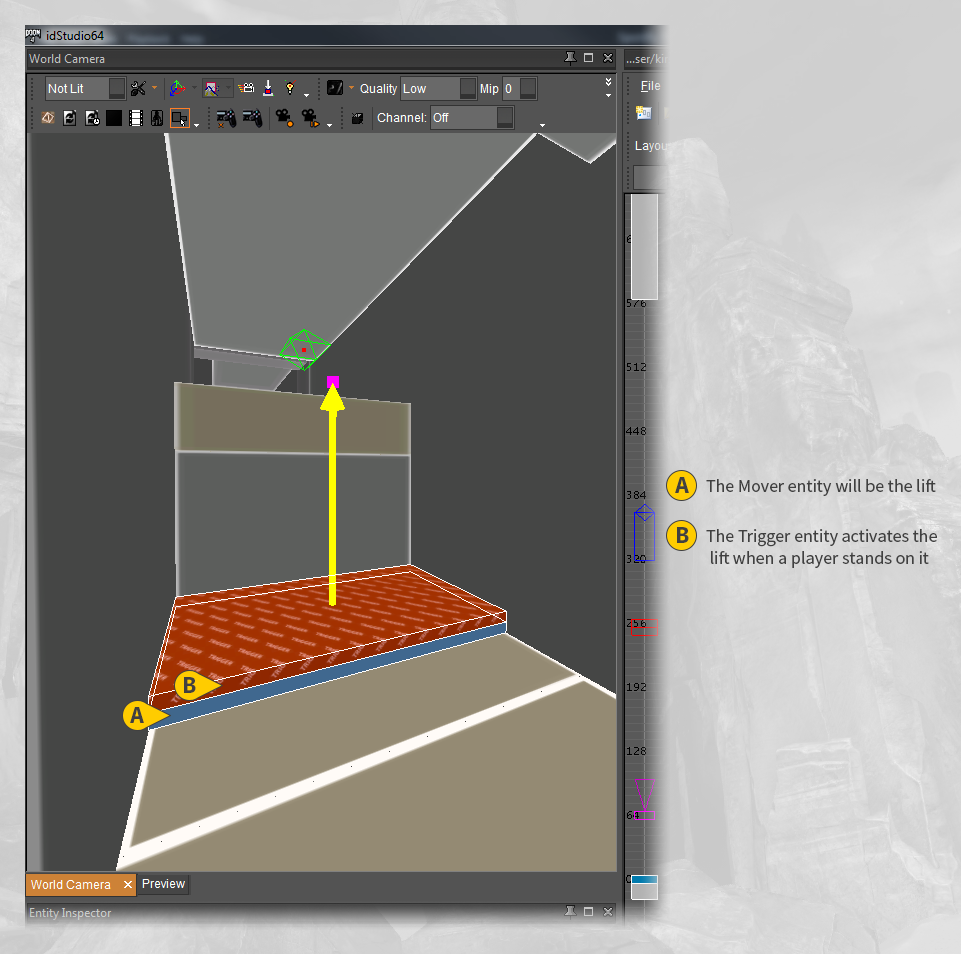
Sometimes you want a mover to move only when activated by a player action. For example, a lift is a triggered mover that goes up and then down again.
To add a trigger to a mover:
- Add a mover to your map using the directions above.
- Check the Wait for next activate property on the mover in Entity Inspector.
- Add a trigger to your map by going to: Right-click (to open context menu) → New Entity → Trigger → Trigger.
- Resize and place the trigger on top of the mover so that the player's feet will intersect with the trigger when standing on the mover.
- Select the trigger and open Entity Inspector.
- Set the properties for the trigger:
- Num: Set the number of targets.
- Item: Set the name of the target. (Add the name of the mover you created.)
- Save the map.
The trigger will now activate the lift when you build the map. The Wait for next activate property on the mover will ensure that the lift only moves when triggered. The Num Repeat property on the mover will enable the mover to be activated as many times as needed.
Additional Methods Using a Mover
- To increase movement complexity, add a spline and use it as a path for your mover.
- To learn how to do this, go to: Add a spline
- To create a moving light, bind a light to a mover.
- To learn how to do this, go to: Create a Moving Light