Layers Tool Reference
The Layers tool will help you set up layers and hierarchies for your game entities. At the top of the hierarchy is the world layer. This layer cannot be removed and serves as the foundation for all other layers.
You can place entities in different layers to control their state during design, testing, and gameplay.
Layers interface
The layer hierarchy is displayed on the left side of the view. Here, you can create new layers and organize them into hierarchies.
- Each layer displayed in the tree view represents are layer decl with the same name.
- The layer decl can easily be edited by right-clicking on the layer and choosing Edit.
- To the left of each layer name are two buttons and a checkbox.
- The left-most button with the icon of a ghost will toggle that layer hierarchy's ghosted state in the editor.
- Likewise, the adjacent button with the eye icon will toggle the layer hierarchy's visible state in the editor.
- The checkbox allows selecting all nested entities, and will display the selection state of the hierarchy under that layer.
- Some layers that have been assigned a type might also display an icon to the left of the name to visually indicate the layer type.
Editing layers
The Layers tool includes a toolbar with a few buttons for creating, opening, or deleting layers. Layers can by copied to the clipboard and pasted into property grids that accept layer decls. Layers can also be re-arranged in the tree view by dragging and dropping layers onto other layers.
Sidebar
On the right of the view is a sidebar with a couple panels. The Layers panel contains property that allows for specifying a default layer. If a default layer is chosen, any new entity created in the editor will automatically be added to the layer. Be careful to avoid forgetting this is set if you assign a default layer.
The Filters panel provides the ability to add special filters that are applied to the tree view to help remove clutter while working. Click on the Add Filter button and choose the type of filter you want to add. Add as many filters as you find useful. Note that the filters are applied in the priority order that they were added.
There are four filter types:
Name

This filters the tree view based on matching layer and/or entity names.
- Case Sensitive - The casing of letters must match exactly.
- Entities - Apply the filter to entity names.
- Layers - Apply the filter to layers.
Entity Type

This filters the view based on a specify entity type.
- Type - The entity type to filter. The type name of an entity can be found by selecting an entity and looking at the Inherit field near the top of the Entity Inspector. The property will list suggestions as you type.
- Exclusive - If enabled, the filter will exclude all entities of the specified type. The default behavior is to only include entities of the specified type.
Entity Property

This filters the view based on the value of a specified type info variable, such as the render model name of an entity.
- Type - The data type of the property.
- Path - The full path to the property on the entities.
- Value - The value you want to compare to the property's value.
- Hide Empty Layers - Removes clutter by hiding layers that have had all of their contained entities filtered out.
Layer Type

This filters the view based on layer types.
- Type - The layer type that should be included in the view.
Context Menu
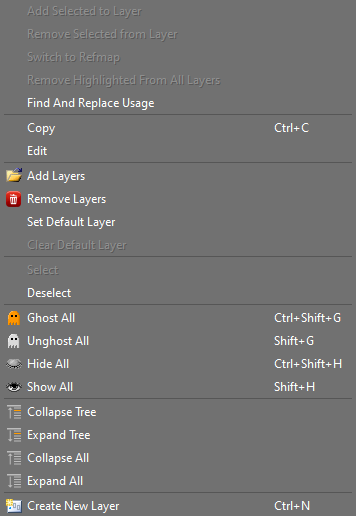
| Add Selected to Layer | Adds all selected entities to the highlighted layer. |
| Remove Selected from Layer | Removes all selected entities from the highlighted layer(s). |
| Switch to Refmap | This option is enabled if an entity is highlighted in the tree view. This will switch to the refmap that contains the highlighted entity. |
| Remove Highlighted From All Layers | Removes the highlighted entities from all layers they may be in. |
| Find And Replace Usage | Pops up a small find-and-replace dialog that can be used to search through all entities in the map (all refmaps) for references to the specified layer. This dialog can also then be used to replace all use of that layer with another layer. |
| Copy | Copies the selected layers to the clipboard to allow pasting them into property grid fields that accept layer decls. |
| Edit | Opens the corresponding layer decl in the decl editor. |
| Add Layers | Add existing layer decls to the hierarchy. |
| Remove Layers | Removes the highlighted layers from the hierarchy. Does NOT mark the decls for delete. The removed layers can be added back. Note that layers nested below a removed layer are unaffected, meaning they are still parented to the removed layer. Adding the removed layer back will restore the previous hierarchy. To remove the layers and collapse the hierarchy of the nested layers, use the Remove Layer Hierarchy option. |
| Remove Layer Hierarchy | Removes the highlighted layers from the hierarchy, and also un-parents layers nested under the layers being removed. |
| Set Default Layer | Sets the highlighted layer as the default layer. The default layer can be viewed in the sidebar Layers panel. |
| Clear Default Layer | Removes any default layer that was set. |
| Select | Selects all entities in the highlighted layers' hierarchies. |
| Deselect | Deselects all entities in the highlighted layers' hierarchies. |
| Ghost All | Sets all layers as ghosted. |
| Unghost All | Sets all layers as unghosted. |
| Hide All | Sets all layers to hidden. |
| Show All | Sets all layers to visible. |
| Collapse Tree | Collapses the hierarchy under the highlighted layers. |
| Expand Tree | Expands the hierarchy under the highlighted layers. |
| Collapse All | Collapses everything in the layer browser tree view. |
| Expand All | Expands every item in the layer browser tree view. |
| Create New Layer | Pops up a small dialog for the creation of a new layer. Unlike opening a layer, this will create a new layer decl |