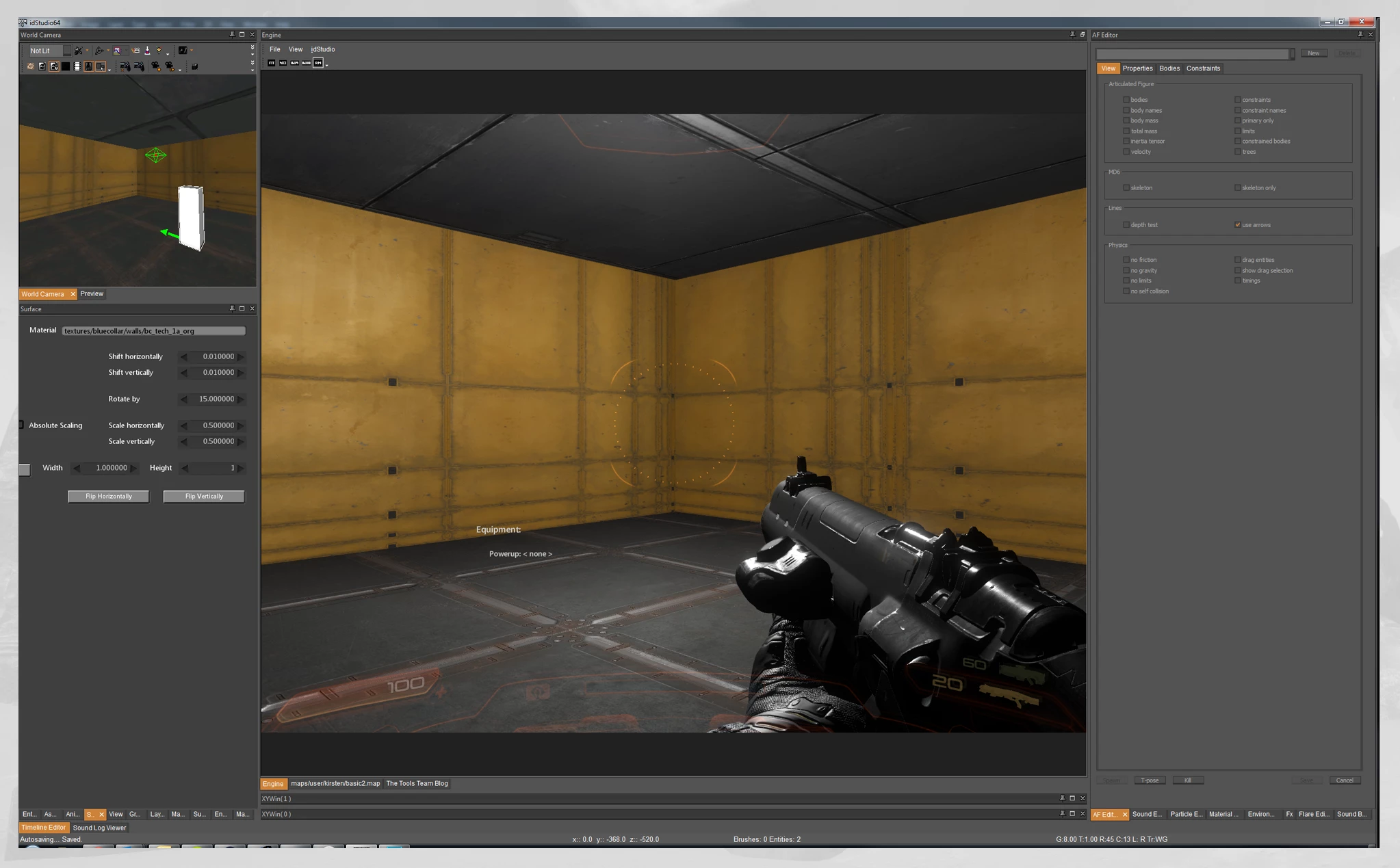
Build a Simple Box Map
This is a Quick Start Tutorial. For more information about Level Design or working with World Editor, check out: Worldbuilding in id Tech
In this tutorial, we'll guide you through the steps to create a simple box map that will serve as the foundation for your level design. Keep in mind that every environment constructed in idStudio requires brush geometry that surrounds all entities, a player start, and a light. By following these steps, you'll be able to create a functional map that can be used as a starting point for your own map in the game.
Open World Editor and Set Grid Size
- In idStudio, open World Editor.
World Editor should open by default in the center of your screen.
If it’s been closed, or your customized idStudio layout does not include World Editor, you can open it by clicking in the main menu bar: Windows → Editors → World Editor
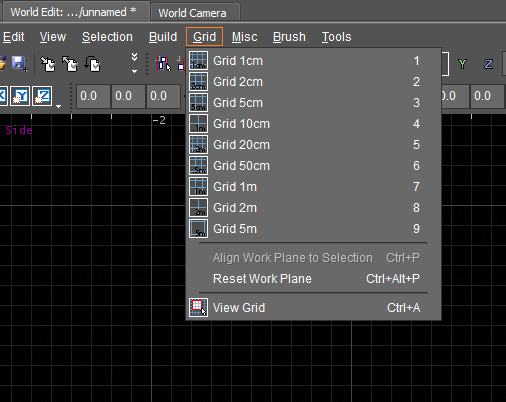
- Set the grid increments, by clicking Grid in the World Editor menu bar, and select Grid 1m from the list. (You can also use 1-9 keys to set an increment (1cm - 5M). 0 key disables the grid.)
Create the Floor
This procedure refers to the term brush. A brush is a building primitive that describes a 3D shape (a convex solid), and is primarily used for level blockout.
- Left-click + Drag anywhere in the 2D grid. This initial rectangular brush will be the floor of your map.
- Resize your floor by moving your mouse outside an edge of the brush and Left-click + Drag. For this tutorial, make your floor 10m (10 grid units) x 10m x 1m.
Build the Walls
This procedure refers to the term brush. A brush is a building primitive that describes a 3D shape (a convex solid), and is primarily used for level blockout.
- Begin with creating the floor.
- Use the Change views button to cycle through the the 2D camera views and find the side (XZ) view. (You can also use View → Next (XY, YX, XY) or Ctrl + Tab to cycle through the views. Perspective is noted in the lower left corner of the World Editor pane.)
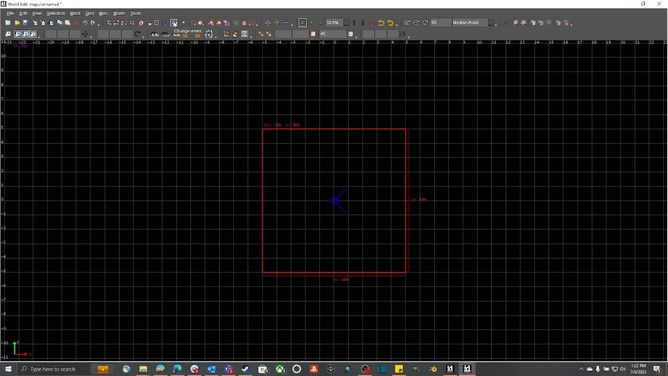
- Deselect the floor by pressing Esc. (Selected brushes are outlined in red. Deselected brushes are outlined in grey.)
- Left-click + Drag upward to create a new brush for a wall.
- With the wall selected, press Space to duplicate the wall.
- The new wall will be automatically selected. Press the W key to enable/disable the translation widget. Grab the arrow (in 2D or 3D) to move the new wall into place at the opposite side end of the floor.
- Rotate your view again (using the Change views button or Ctrl + Tab) to one of the open sides. (Perspective is noted in the lower left corner of the World Editor pane.)
- Deselect the previous wall by pressing Esc.
- Left-click + Drag upward in the open space to create a new brush for a third wall.
- With the third wall selected, press Space to duplicate the wall.
- Shift + Left-click to select the newly created brush.
- Press the W key to enable/disable the translation widget. Grab the arrow (in 2D or 3D) to move the new wall into place at the opposite side end of the floor.
You should now have a basic room with a floor and four walls.
Alternate Walls: Use Constructive Solid Geometry Tools
- Begin with creating the floor.
- Use the Change views button to cycle through the the 2D camera views and find the side (XZ) view. (You can also use View → Next (XY, YX, XY) or Ctrl + Tab to cycle through the views. Perspective is noted in the lower left corner of the World Editor pane.)
- With the brush selected (outlined in red), click outside an edge of the brush and Left-click + Drag upward to raise the height of the brush to 10m (10 grid units). You will now have a 10m x 10m x 10m cube.
- Click the CSG Hollow button to split this brush into six brushes (floor, four walls, and a ceiling).
You should now have a basic room with a floor, four walls, and a ceiling.
Apply materials to the surfaces
Materials add 2D visual texture to a brush and inform how it reacts to light (e.g. shiny or dull).
For more information about materials and Asset Browser, check out: Asset Browser Reference
This procedure refers to the term brush. A brush is a building primitive that describes a 3D shape (a convex solid), and is primarily used for level blockout.
- Open the 3D World Camera.
World Camera should open by default upon opening idStudio.
If you do not see it, check your tabs in the various panes to ensure it’s not hidden behind another editor.
World Editor → View → World Camera
It’s often helpful to have both 2D World Editor and 3D World Camera open and visible at the same time. To do this, simply dock the World Camera in a separate pane from World Editor.
For more information about docking editors, see: Layout Customization
If World Camera been closed, or your customized idStudio layout does not include World Camera, you can open it by clicking in the main menu bar: Windows → Editors → World Editor
- In the World Camera, Ctrl + Right-click + drag to rotate the view. Then press Ctrl + Shift + Left-click to select the floor surface.
- Navigate to the Asset Browser.
Asset Browser should open by default in the lower left side of your screen.
If it’s been closed, or your customized idStudio layout does not include Asset Browser, you can open it by clicking in the main menu bar: Windows → Asset Browser
- Now, click on a material in the Asset Browser to apply the material to your selected surface (the floor). For this tutorial, use:
material2/art/tile/uac/floor/diamondplate_a - Deselect the floor by pressing Esc.
- Now press Ctrl + Shift + Left-click to select all four walls.
- Navigate back to the Asset Browser, select a material, and click the material to apply it to the walls. For this tutorial, use:
material2/art/tile/uac/walls/indpanel_a_painted_yellow_recth - Deselect the walls by pressing Esc.
- Now press Ctrl + Shift + Left-click to select the ceiling
- Navigate back to the Asset Browser, select a material, and click the material to apply it to the ceiling. For this tutorial, use:
material2/art/tile/hell_earth/ceiling_mall - Your room should now look something like this:
Add a Light
- Ensure all brushes and entities are deselected by pressing ESC.
- Right-click in the 2D World Editor and select New Point Light.
You can also go to New Entity → Light → Point in the World Editor.
- Left-click + Drag to position the new Light entity in the center of the room.
- Press the W key to enable/disable the translation widget. Grab the arrow (in 2D or 3D) to move the light about 8m from the floor.
- With the light entity still selected, open Entity Inspector. (Go to Tools → Entity Inspector in the World Editor.)
- Expand area of the light by changing the Light Intensity to 20, and the Light Falloff to 100.
- Now, in the3D World Camera view, press F3 to render real time.
- You should now have a light over your room that lights the space.
Add a Player Start Point
To be able to use a map, the game needs to know where to spawn the player. Add a player start point to specify where the player begins when the map loads.
- Ensure all brushes and entities are deselected by pressing ESC.
- Right-click in the 2D World Editor and go to New Entity → player → start.
- Position the Player Start anywhere in the map.
- With the Player Start entity selected, press the E key to enable/disable the rotation widget.
- Grab one of the rings to rotate the view angle for the player start.
- With the Player Start entity selected, Press the W key to enable/disable the move widget.
- Use the blue arrow to lower the Player Start until it’s touching the ground.
You can also press Ctrl + Shift + D to instantly drop the entity to the ground.
Save and build the map
Building compiles specific elements of map (e.g. lighting, collision) to enable it to be playable. This tutorial builds a Slow Map version of the environment, which is the basic build of the map (raw assets and geometry only). Slow Map is often used for test maps.
- Click the Save icon in the World Editor toolbar. (Alternatively, select File → Save As in the World Editor menu bar.)
- Save your new box map as
.../maps/testmap.map - Now, click Build → Slow Map Build Only in the World Editor menu bar.
- When it’s done building, click Close.
- Click the Engine tab to open the game.
The Engine should be open by default as an additional tab in the center of your screen with the World Editor.
- In the Engine tab, press the tilde (~) key to bring down the console.
- In the console, type the console command:
slowmap maps/testmap.map. Then click Enter. - Your new map should load in-game, and should look something like this: