Map Manager
In the game, a map represents a portion of the virtual "world" where the game takes place. It encompasses all the elements that a player can observe and interact with, such as the environment, usable objects, other characters, and more.
The Map Manager is an indispensable tool that empowers you to efficiently organize and manage vast quantities of information in your map by creating sub-reference maps, known as refmaps in idStudio. With the Map Manager, you can effortlessly toggle refmaps on or off, enabling you to work on specific areas of the map without distractions from other entities.
Refmaps
Reference maps (refmaps) are a feature in the id Tech Engine that allow for the organization of groups of entities into submaps. These submaps can be used to create complex levels with multiple areas, each with their own unique set of entities. Refmaps make it easy to manage and edit large levels by providing a way to work on specific submaps without affecting the rest of the level. This can save time and help improve the overall workflow of level design in the id Tech Engine.
Access the Map Manager
The Map Manager can be viewed in a few ways:
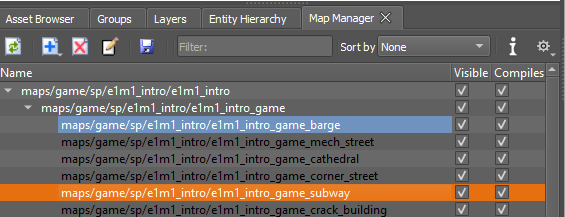
(Stand-alone) From the World Editor, go to Tools → Map Manager
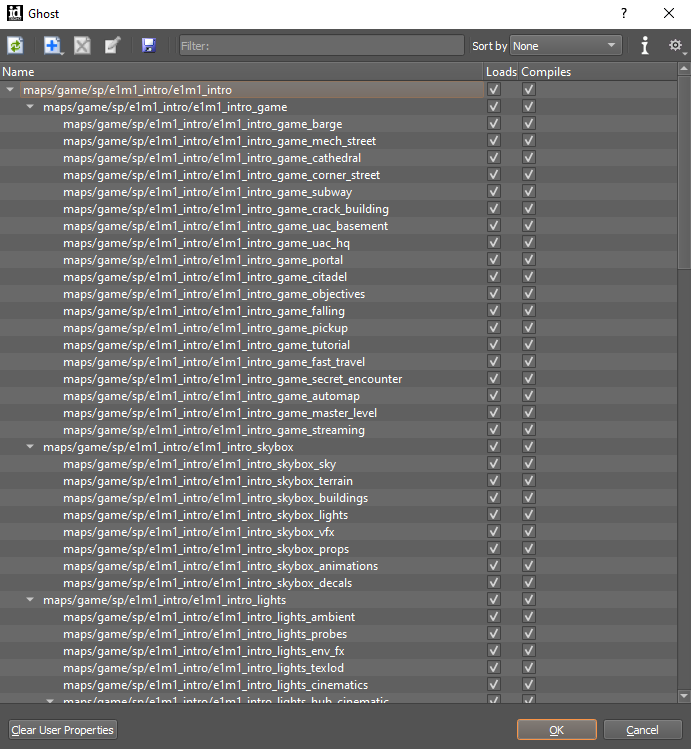
(Dialog) From the World Editor, World Editor → Map Manager (Shown before map load)
The Map Manager's available features are slightly different in the pre-map load dialog, as noted in the features listed below.
Map Manager view
The Map Manager displays the primary map that is currently open along with a clear hierarchy of all loaded reference maps. In addition, it may also display any available prefab maps that are available for editing. These will appear at the same level as the primary map.
Reference maps may not load due to the your specifications in the pre-map load dialog version. Regardless, these will still be shown in the Map Manager, but the text will appear in grey to indicate that it's not currently loaded.
Each row of the map hierarchy contains the following information:
- The map name
- The visible/hidden state of the map (NOT available in the pre map load dialog version)
- The load enabled/disabled state of the map (ONLY available in the pre map load dialog version)
- The compile enabled/disabled state of the map
- The current reference map that is opened for editing is displayed with a blue background.
- Selected reference maps have an orange background.
Toolbar
The Map Manager toolbar offers a convenient means of accessing commonly used actions and a variety of other features.
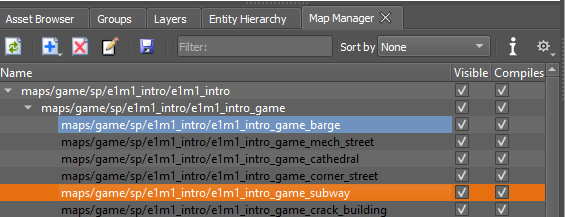
- Save
- Sort options
- Filter by sub-string
- Display only maps that contain the sub-string specified in the filter text box
- Map names that don't contain the filter sub-string and don't have any nested maps that contain the sub-string are hidden from the view.
Context Menu
To access the context menu in the map manager window, you can simply right-click on a map name or in the empty space of the window. The options that appear in the context menu will vary depending on a few factors, such as what was clicked, the current selection, and the state of the selection. Additionally, the options available may differ based on whether the stand-alone version or pre-map load dialog is being used.
| Refresh | Refreshes the map manager, checking file info, and ensuring up-to-date information is being displayed. |
| Add Reference Map | Brings up a dialog to create a new reference map. The reference map will be created under the currently selected map. |
| Add Sound Reference Map | |
| Add Stamp Reference Map | |
| Delete Reference Map | Removes the reference map from local storage. |
| Edit | Open and edit selected map. |
| Show in Explorer | |
| Save Selected | Save the selected map. |
| Load | Only available if the selected map(s) are not currently loaded (text is black). Loads the map(s), which then become available for editing. |
| Close | Close the selected map. |
| Select Map Entity | |
| Move Selected to Map | |
| Info | Opens a dialog displaying information about the selected map. |
| View Dependencies | |
| Save Map Properties | Saves the current map properties (see the map properties section below) to the primary map. This is the only way to modify the shared properties. |
| Hide | Hides the selected map(s). |
| Show | Un-hides the selected maps(s). |
***info The primary map will be saved when Map Properties are saved.