Decal Editor
A decal is a texture with an albedo, smoothness, specular, normal, and emissive channel. The Decal Editor provides fine control over these channels as well as scale, rotation, aspect ratio, position, and blending of each decal. If you are familiar with previous versions of id Tech, you may remember how maps were heavily stamped with small, layered textures in order to create unique textures.
In id Tech, this technique has been replaced with decals. While the technology may be different, the purpose remains the same - to add depth and detail to your map. Whether you want to add blood, grime, paint, puddles, scratches, small lights, or other details, decals allow you to create a more immersive and believable environment that feels lived-in and authentic. By incorporating these details, you can enhance the overall experience and make your map stand out.
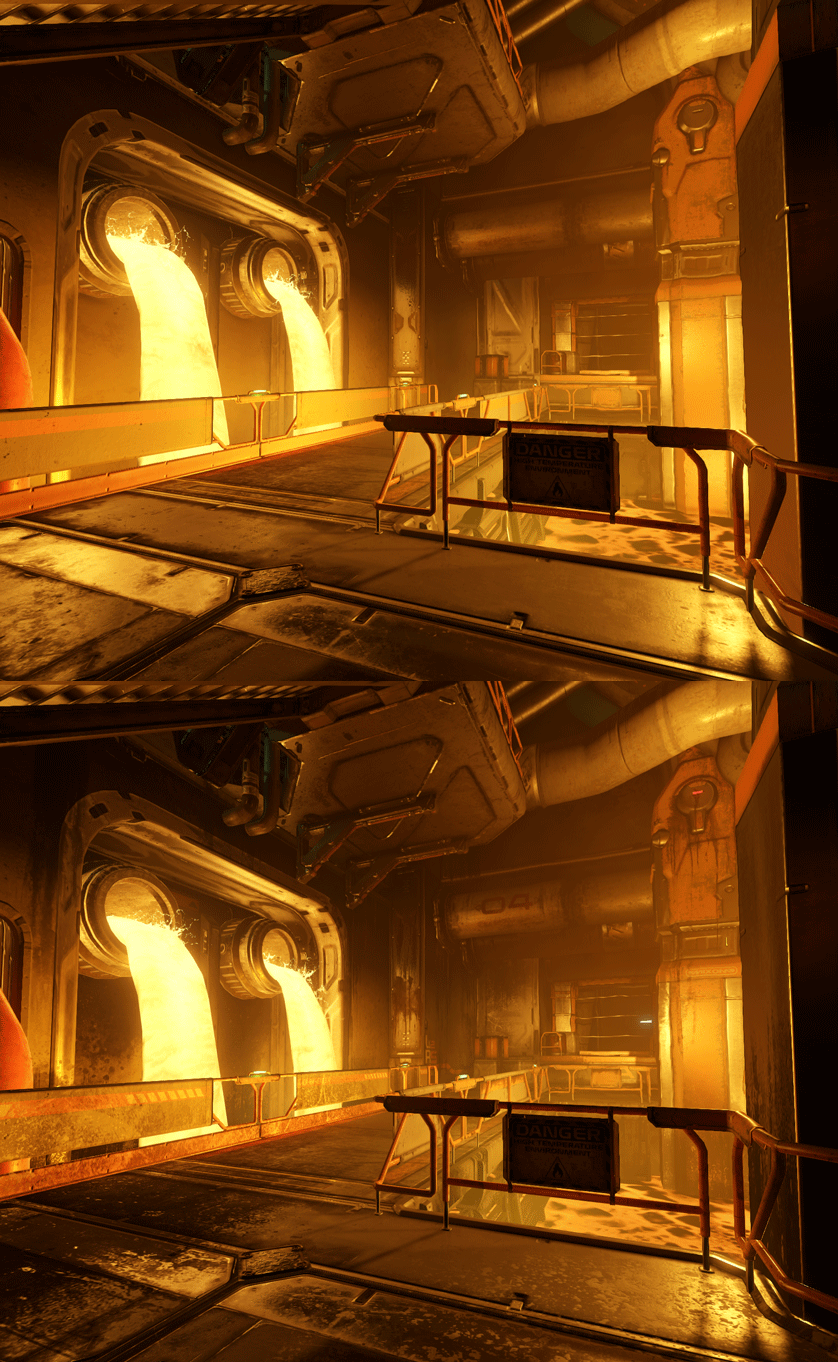
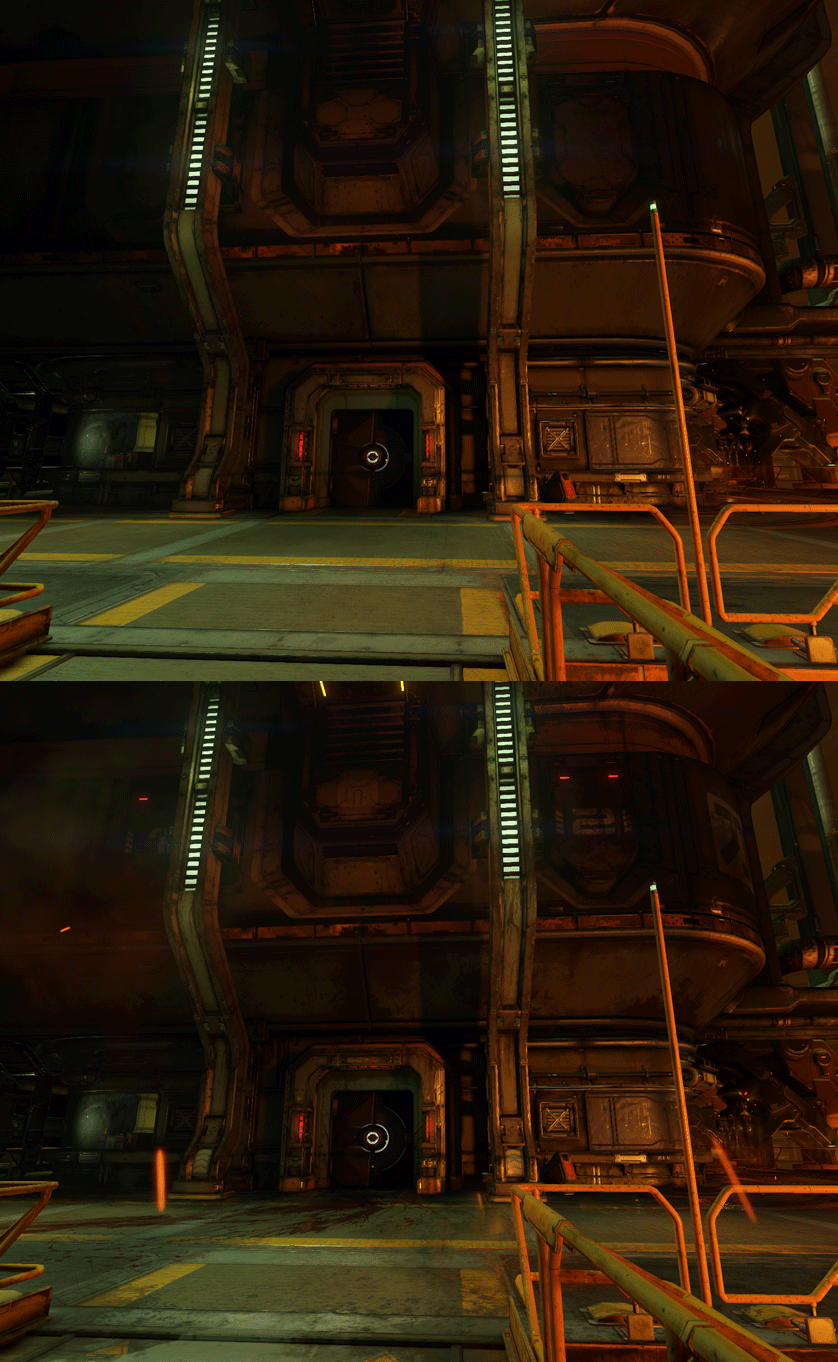
Scenes from Foundry before and after decals were added
Opening the Decal Editor
- Within the World Editor locate the Tools menu.
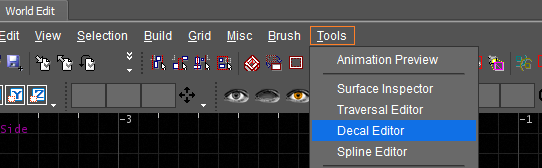
- Select Decal Editor.
- If the Decal Editor was not already open, it will open as an undocked window. It can then be docked to the idStudio workspace.
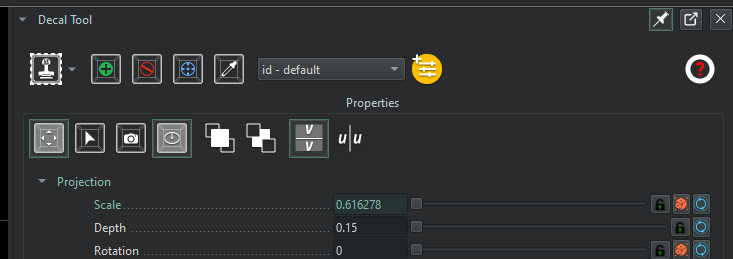
User Interface
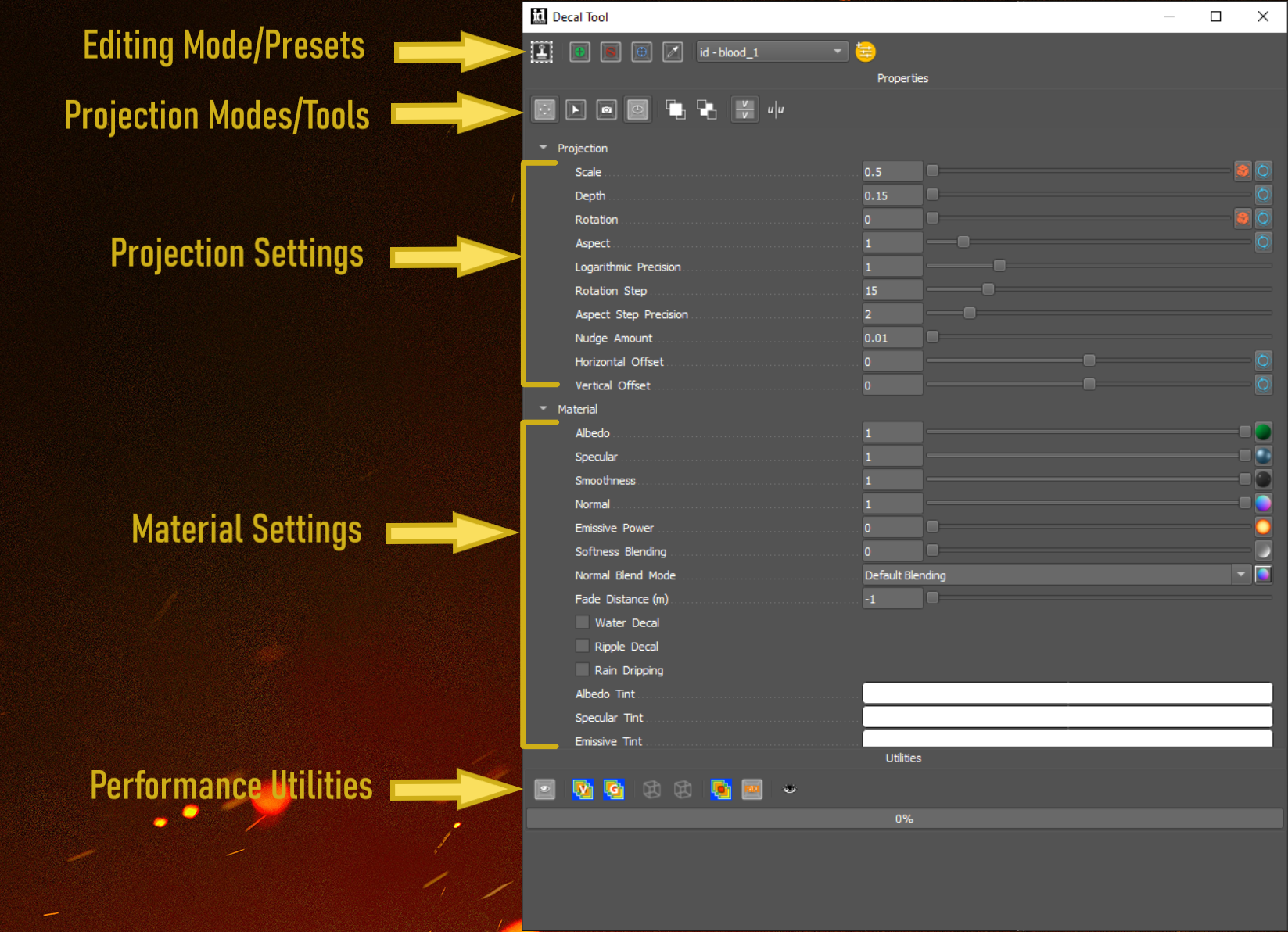
Sections
Editing Mode / Preset
Toggling modes can also be done in the World Editor viewport using the hotkeys - check the button tool tips.
Connect to a World Editor And Enable / Disable the Tool
- Add Mode
- Delete Mode
- Selection Mode
- Sample Mode
- Preset
- Add Preset
- Help
Projection Modes / Tools
Manipulation of the projection settings can also be done in the World Editor viewport using the hotkeys - check the hotkeys table below.
- Planar Projection
- Cursor Projection
- Camera Projection
- Clamp to World Space Normal
- Bring To Front
- Send To Back
- Flip Vertically
- Flip Horizontally
Projection Settings
Hot keys for modifying the projection settings are listed in the hotkey section.
These properties effect the decals projection bounds, the bounds determine which surfaces the decal will be projected onto.
e.g. To make a decal appear bigger the user would use the scale.
e.g. To have the decal be able to be projected further into the scene the depth would be adjusted.
Material Settings
These properties effect what the decal looks like when its projection is rendered on to a surface.
e.g. Modifying the Albedo tint will change the color of the decal.
e.g. Changing the normal amount will change how much the decal’s normal are applied to the surfaces being projected onto.
Performance Utilities
- Toggle decal rendering
- Toggle vertex paint rendering
- Toggle geo decal rendering
- Toggle rendering all decal entity bounds
- Toggle rendering of the selected decal entity bounds
- Toggles decal overdraw debug rendering
- Disable decal fade rendering
- Drops camera to approximate player height
Painting Decals in a Map
Select a Decal Material to Paint With
- Open or Locate the Asset Browser.
- In the Asset folders list locate the Decals Material folder.

- Select a sub-category.
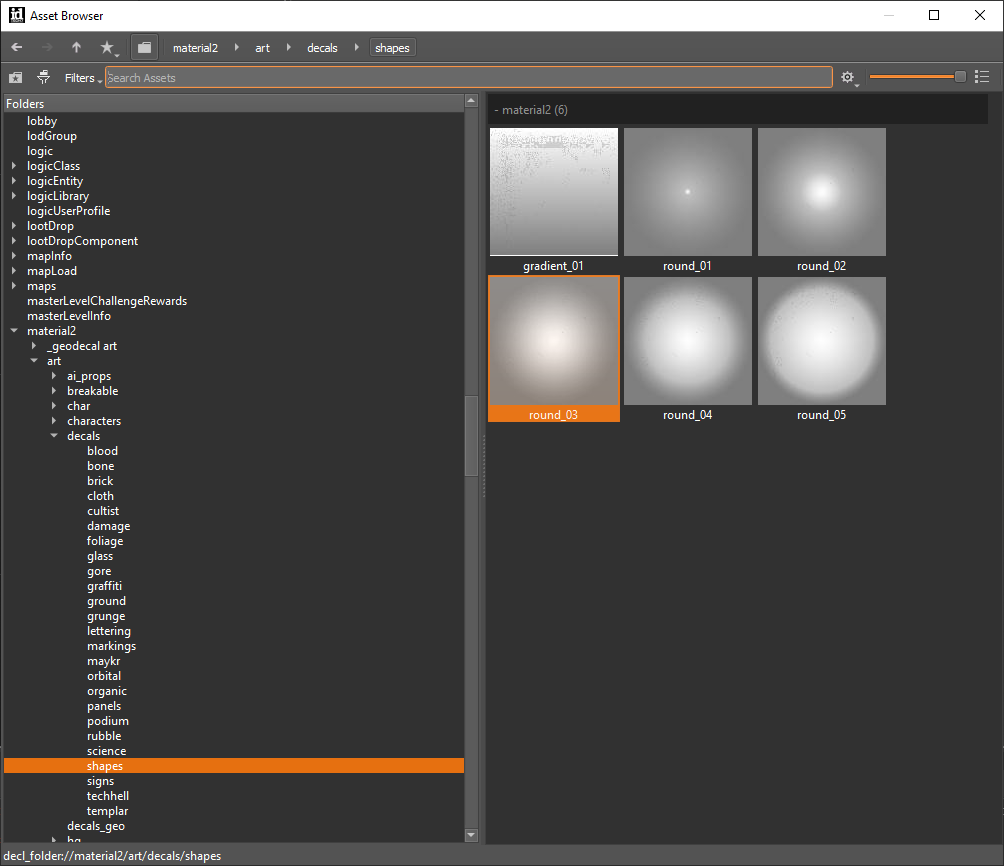
- In the thumbnail view, select a decal.
Place a New Decal in the Map
World Editor tools can connect to different world editor viewports. The enable button has a list of available World Editor panes to connect to. Mouse over the World Editor in the list to see which pane the tool will connect to. Click a World Editor pane in the list to select it for connection.
- In the Decal Editor, click the Enable button to turn the tool on.

- Select the Add mode. (Alternatively, press the 1 key to switch to Add mode.)

- In the World Editor viewport, move the cursor to preview the Decal.
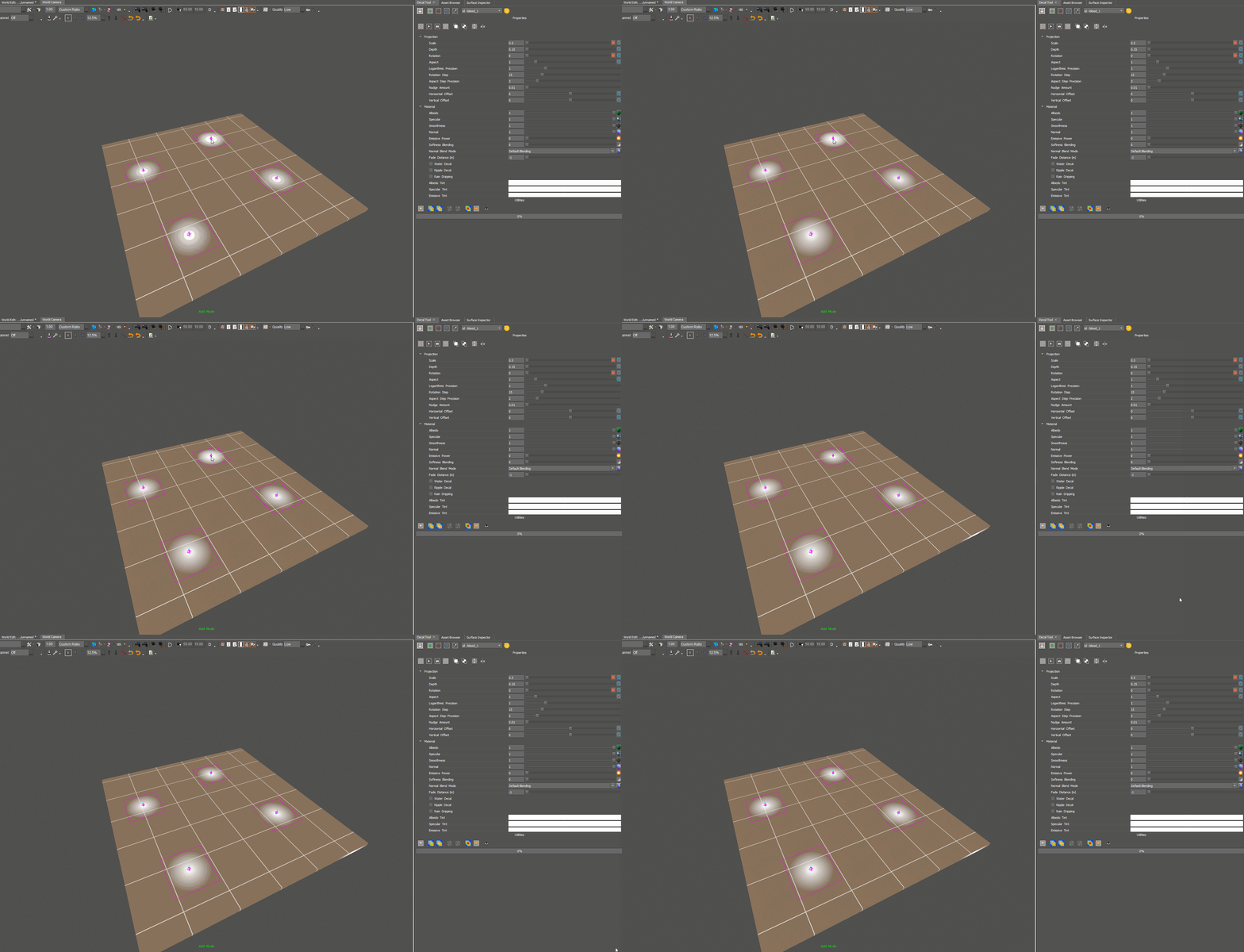
- In the World Editor viewport, Left-click to place an instance of the Decal.
Selecting a Decal Already in the Map
- In the Decal Editor click the Select button.

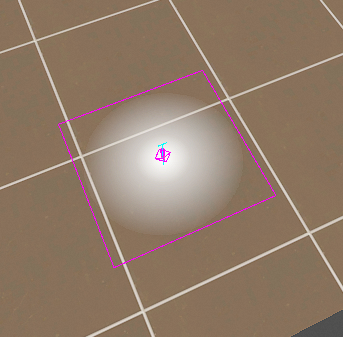
- In the World Editor, move the cursor over the top of a Decal you want to select. (To see the bounding box highlights, go to Decal Editor utilities → Decal bounds and switch the bounds ON)
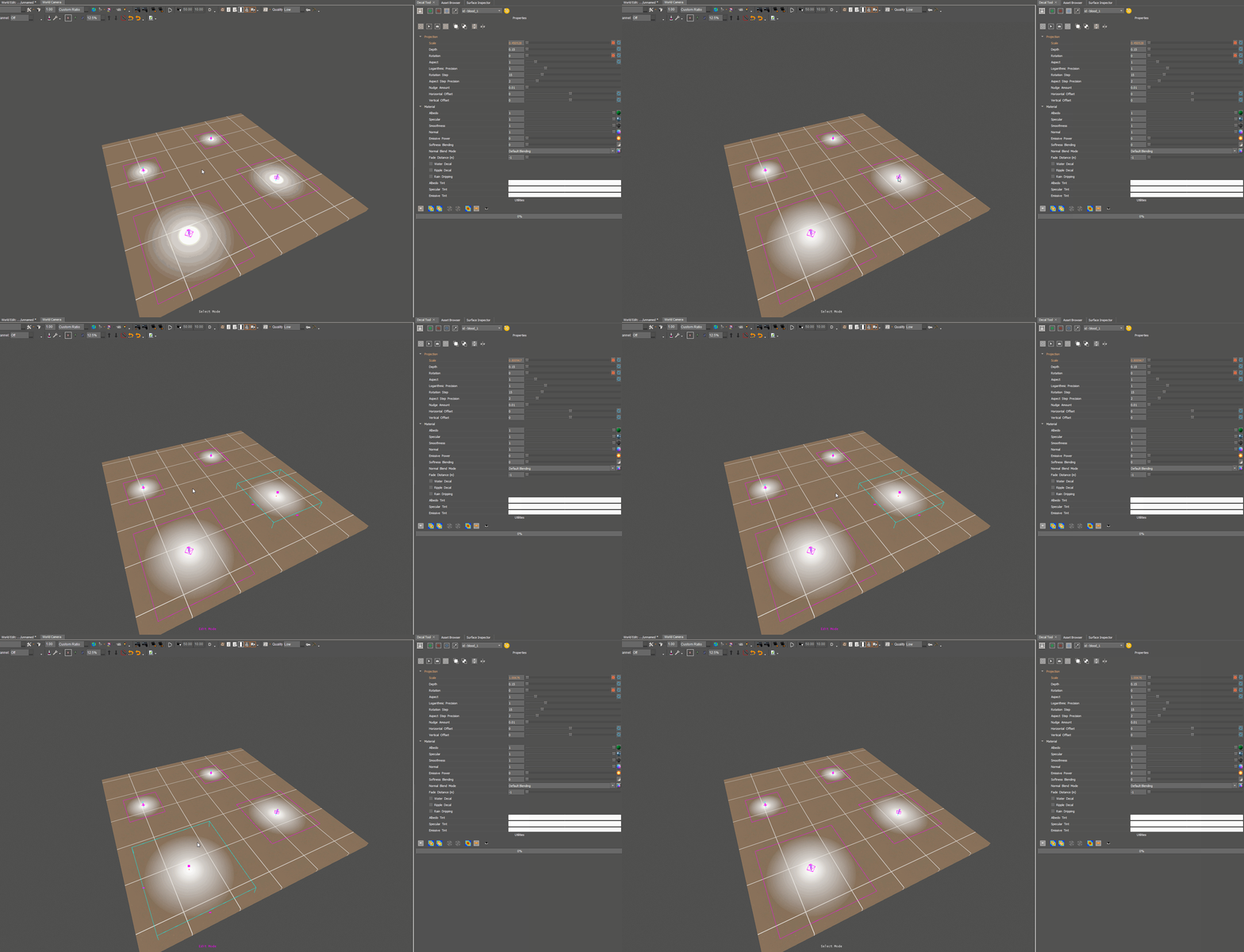
- Left-click to select it. (The selected decal’s properties can now be modified in the Decal Editor.)
Modify the Decal Projection Bounds
- In the Decal Editor, switch to Add mode.
- In the World Editor viewport preview your decal.
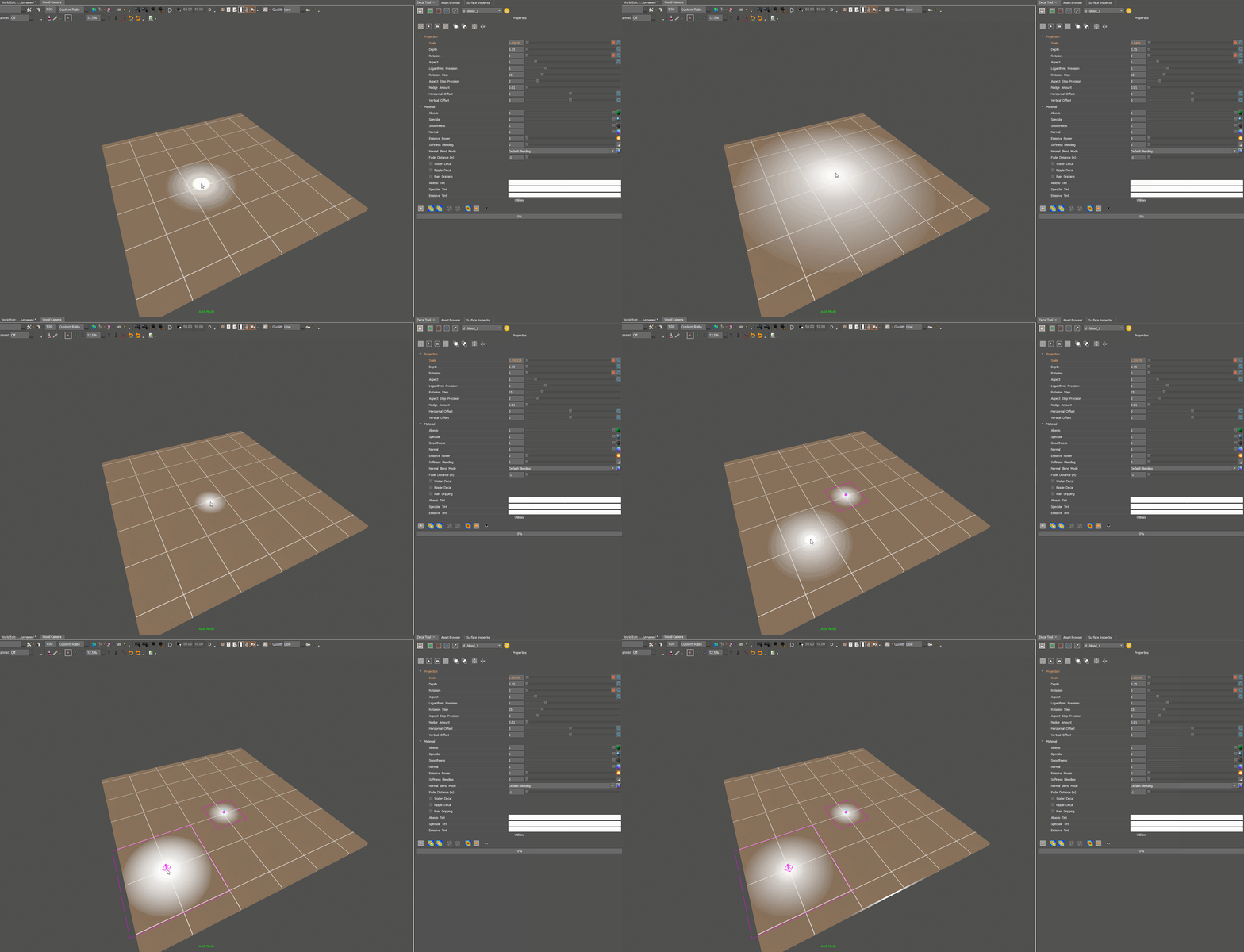
Scale
Modify the Scale using the Mouse Wheel.
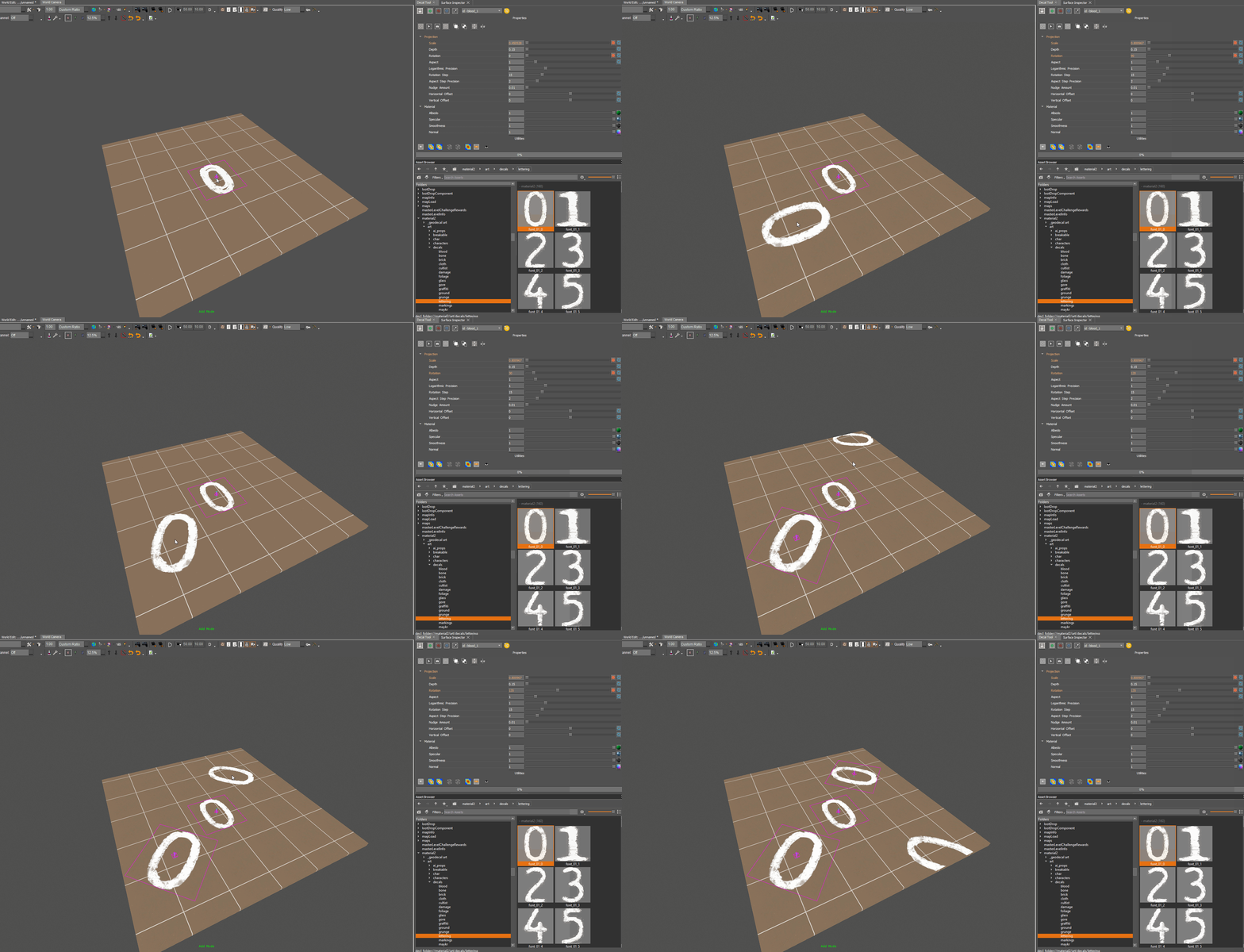
Rotation
Modify the Rotation using Mouse Wheel + Ctrl.
Aspect
Modify the Aspect using the Mouse Wheel + Ctrl + Shift.
Depth
Modify the Depth using the Mouse Wheel + Shift.
Modify an Existing Decal Location
- In the Decal Editor switch to Select Mode.

- In World Editor select the Decal you want to modify.
- In the World Editor viewport Middle-click + Drag to move the Decal.
Modify the Decal Color Contributions
- In the Decal Editor switch to Select Mode.
- In World Editor select the Decal you want to modify.
- In the Decal Editor edit the Albedo Color property by Left-clicking in the colored box. (Ctrl + J hot key will bring up the Albedo Color Picker.)
- In the Color Picker within the Color Wheel pick the color you want by Left-clicking + Dragging within the wheel.
- In the Color Picker click the Ok Button to apply the color to the selected decal.
Modify the Decal Material Channel Contributions
- In the Decal Editor switch to Select Mode.
- In World Editor select the Decal you want to modify.
- In the Decal Editor modify the Albedo Slider. (Ctrl + (1|2|3|4) toggles which material sliders are affected by Ctrl + Shift + Alt + Mouse Wheel.)