Create a Moving Light in a Map
Moving lights can enhance the visual appeal of the game's environment, improve gameplay mechanics, create a specific mood or atmosphere, and add realism to the overall experience. By highlighting important areas or objects, a moving light can direct the player's attention and create a dynamic sense of movement. It can also create shadows and add depth to the game's environment, making it more engaging and immersive for the player.
Binding a Light to a Mover
-
In your map, in World Editor: Right-click (to open the context menu) and add a New Entity → light → [YOUR SELECTED LIGHT] entity.
-
Click+drag to move the light to the desired location in your map.
-
Right-click (to open the context menu) and add a New Entity → func → mover entity.
-
With the mover command entity selected, open Entity Inspector and copy the name of the entity.
-
Select the light you placed in Step 1 and open Entity Inspector for the light entity.
-
Insert the name of the mover command entity in the Bind info → Bind parent property.
-
The light is now bound to the mover. When the mover moves, the light will move along the same path.
tipIf you plan to add rotation to your mover, be sure to check the Bind oriented box. This will keep the bound light aligned with the mover.
Setting Up the Movement
-
Select the mover entity in the map and open Entity Inspector.
-
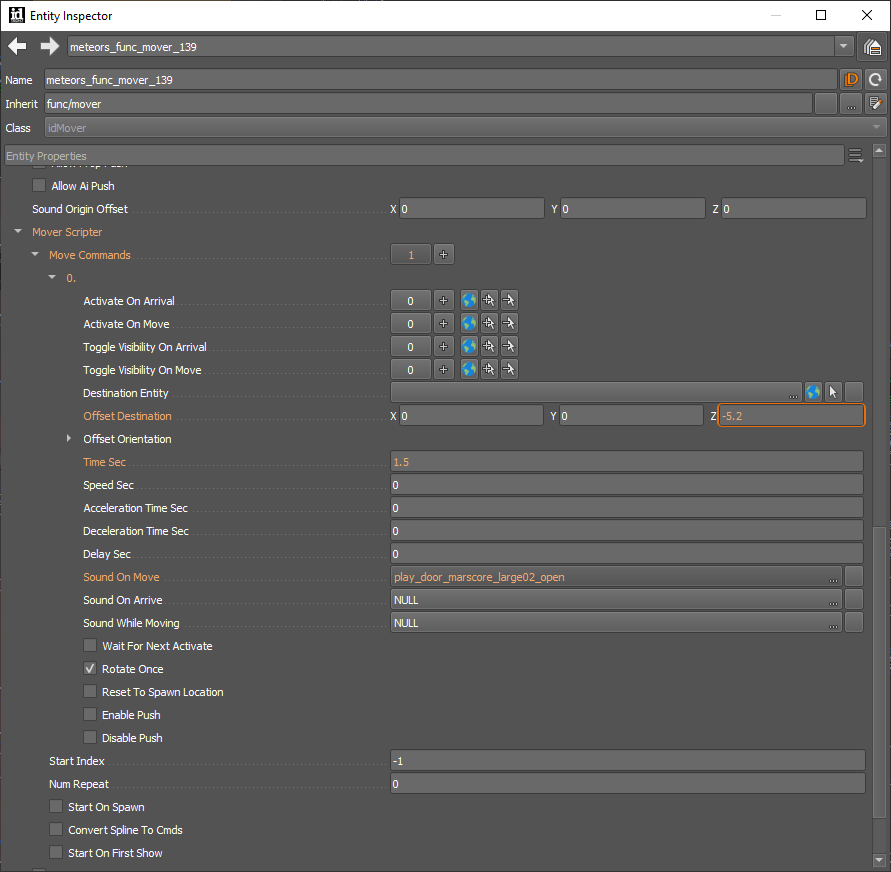
Set the movement parameters (Found under Mover Scripter):
- Num: Set the number of move commands applied to the mover (e.g. for a simple back and forth movement, you will need two move commands).
- Num repeat: Set the number of movement repeats.
- Set to
-1to repeat infinitely.
- Set to
- Start on spawn: Check this box to begin movement on player spawn.
-
Set the move commands.
- Offset Destination: Set the movement direction (x, y, z directions).
- Offset Orientation: Set the movement rotation, if desired (yaw, roll, pitch).
- Set other parameters like speed, triggers, etc. as desired.
infoThe move commands property will contain items equal to the number you set in Step 2. These items hold the information for each movement.