Grouping Entities
Grouping entities is a convenient way to manipulate several entities in the same way at once. It also provides a way to logically find and interact with entities. For example, you may wish to make a group of all entities in a specific encounter. Or, you might want to group all light entities so you can manipulate them in the same way.
Grouped entities can be transformed as a single unit through rotation, translation, and scaling. You can also add entities to, or remove them from, a group and entities can exist in multiple groups at the same time, making it easy to access them when you need them.
Create a Group
- Hold Shift and left-click to select all of the entities you’d like to group.
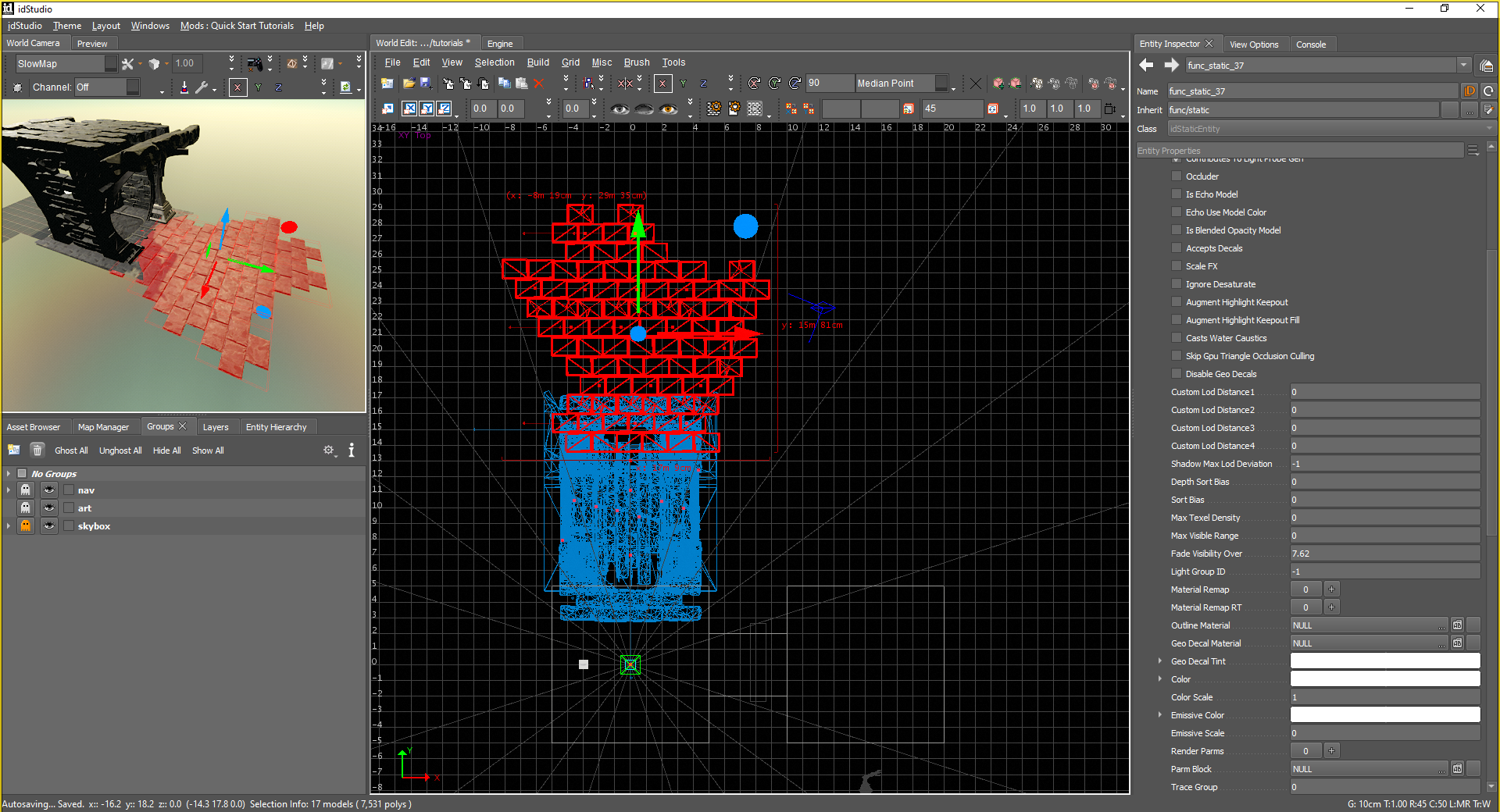
- Right-click to open the Context menu.
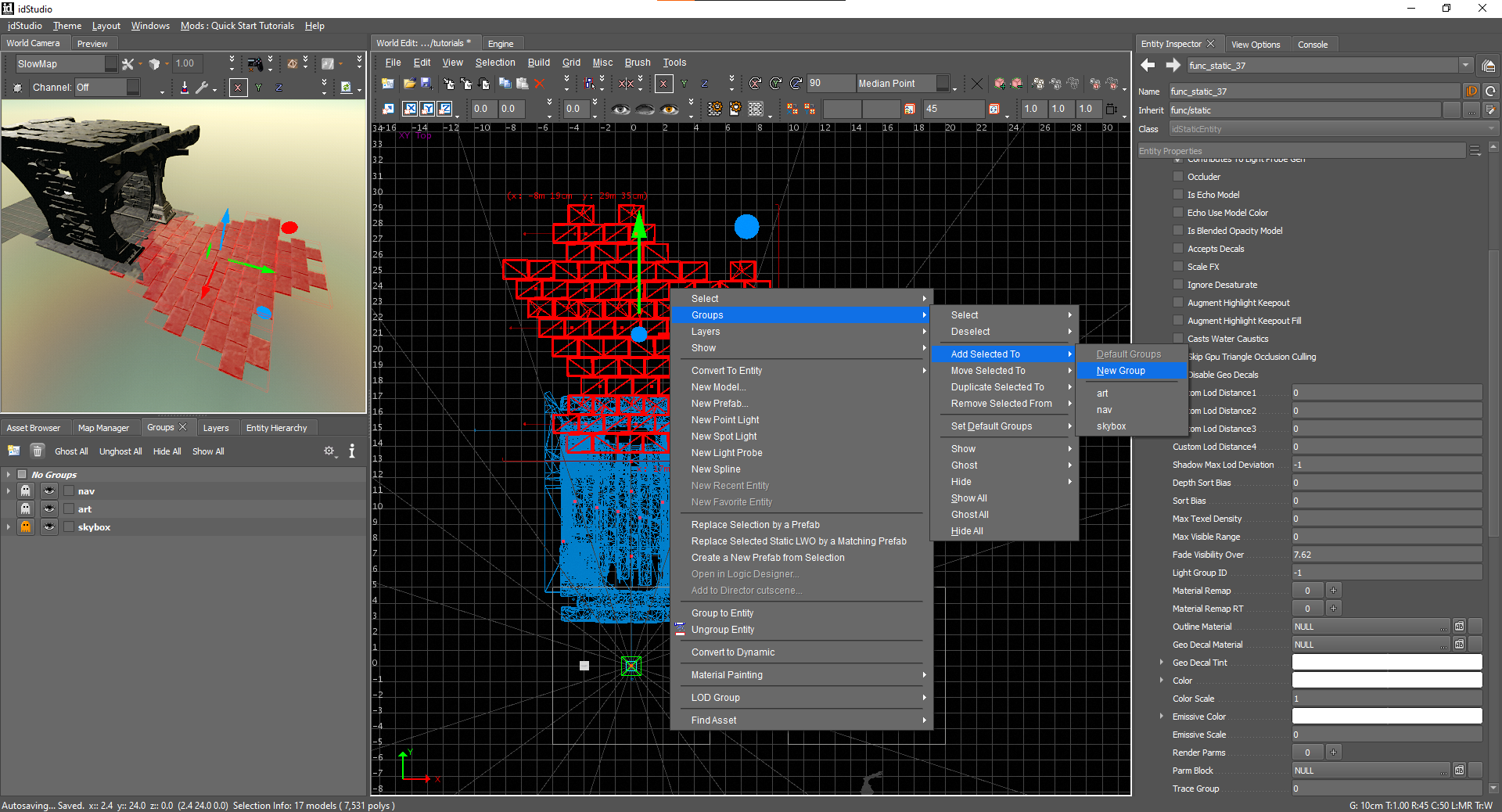
- Go to Group → Add Selected to → New Group.
- Go to Group → Add Selected to → New Group.
- The Groups tool will open. Give the group a name and hit Enter.
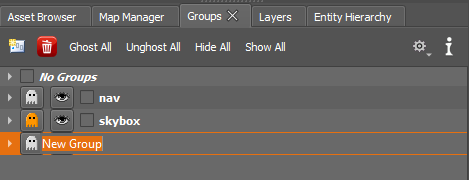
New groups can be created in several ways:
- Right-click in any blank space of the Groups window and select New Group to create a new root-level group.
- Click the New Group button in the toolbar without any entities highlighted to create a new root-level group.
- Right-click on a selected group of entities and choose Group → Add Selected to → New Group to create a new root-level group.
- Click the New Group button in the toolbar with a group highlighted to create a new sub-group.
- Via the Groups options in the World Edit window's Context menu.
Select a group in the Groups tool and then hit Ctrl+Home in the 3D viewport (or Ctrl+Tab in the 2D view) to be taken directly to that group.
Ungroup
Remove entities from a group by doing the following:
| Action | Reference Image |
|---|---|
| Delete the entire group. (The group folder will be removed, but the entities will not.) | 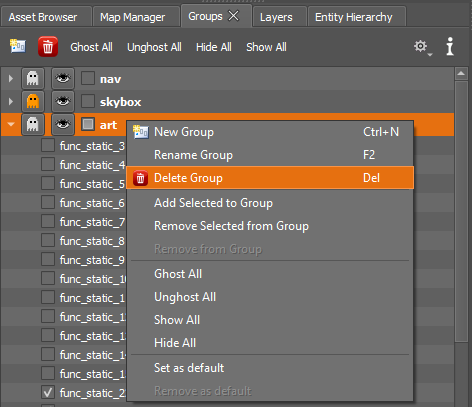 |
| Select an individual entity or multiple entities, then right-click, and remove from the group. | 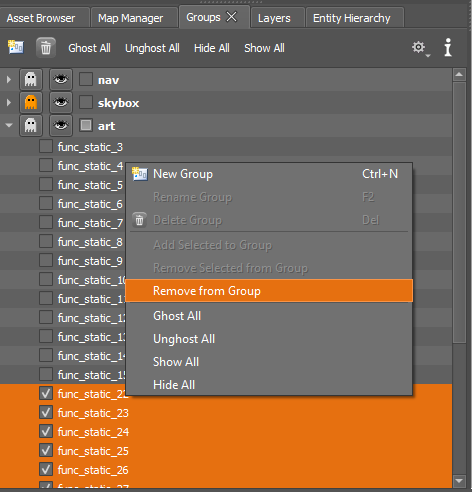 |
Remove an Entity from a Group
- Open the Groups tool.
- Go to World Editor → Tools menu → Groups.
- Expand the group with the entity you’d like to remove.
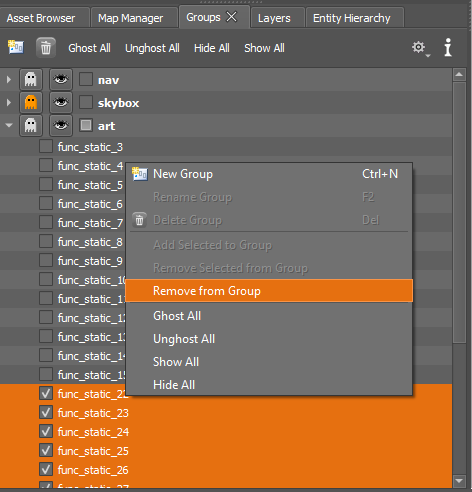
- Select the entity (or entities) you’d like to remove from the list.
- Right-click to pull up the context menu and select Remove from Group.
Add a New Entity to an Existing Group
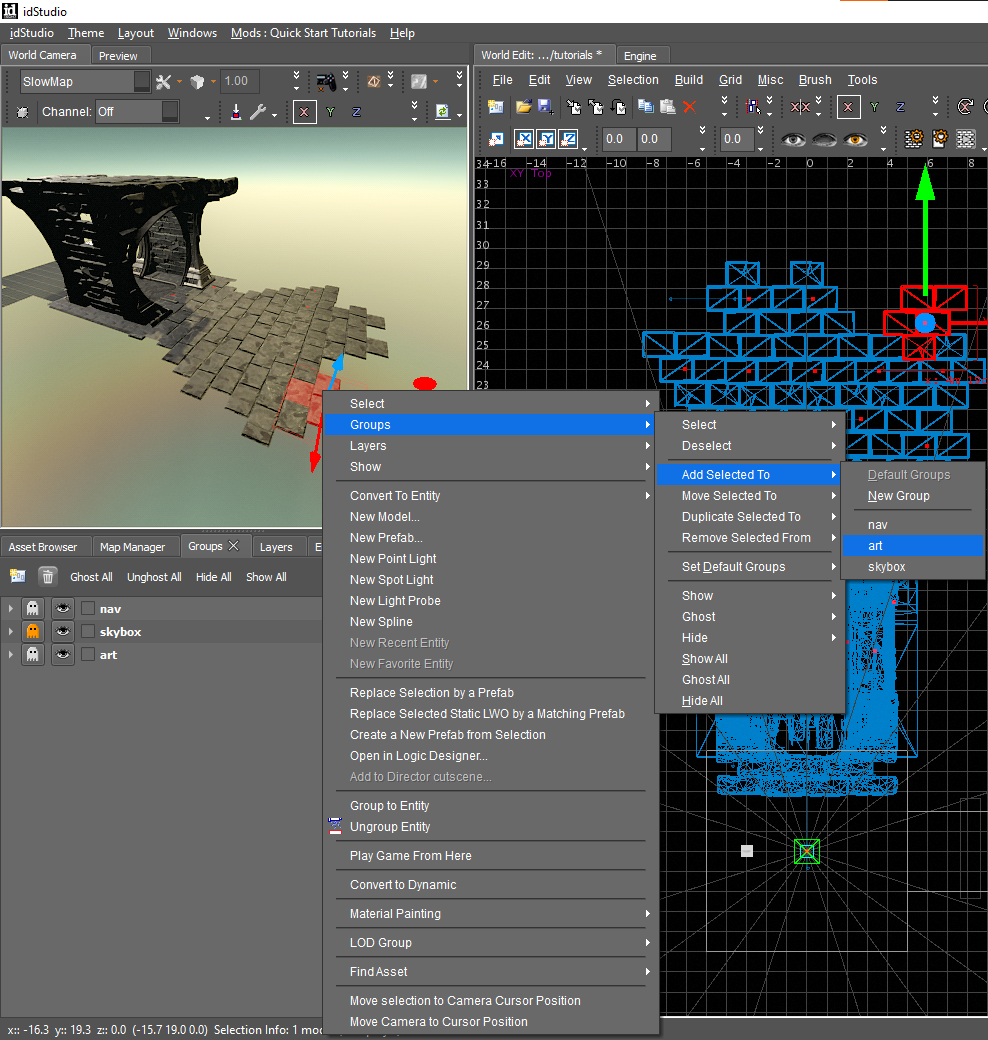
- Press Shift+Left-click to select the entity you’d like add to an existing group.
- Right-click to open the context menu. Then go to Group → Add Selected to → ((
your group)).
Ghost a Group
Ghosting a group renders the group unselectable while still being visible in the World Editor (in gray) and World Camera.
- Open the Groups tool.
- Go to World Editor → Tools menu → Groups.
- Click the Ghost Selected button next to the group you’d like to make unselectable. The outline of these entities will turn gray in the 2D camera.
- Click the group again to unghost the group.
- Click the group again to unghost the group.
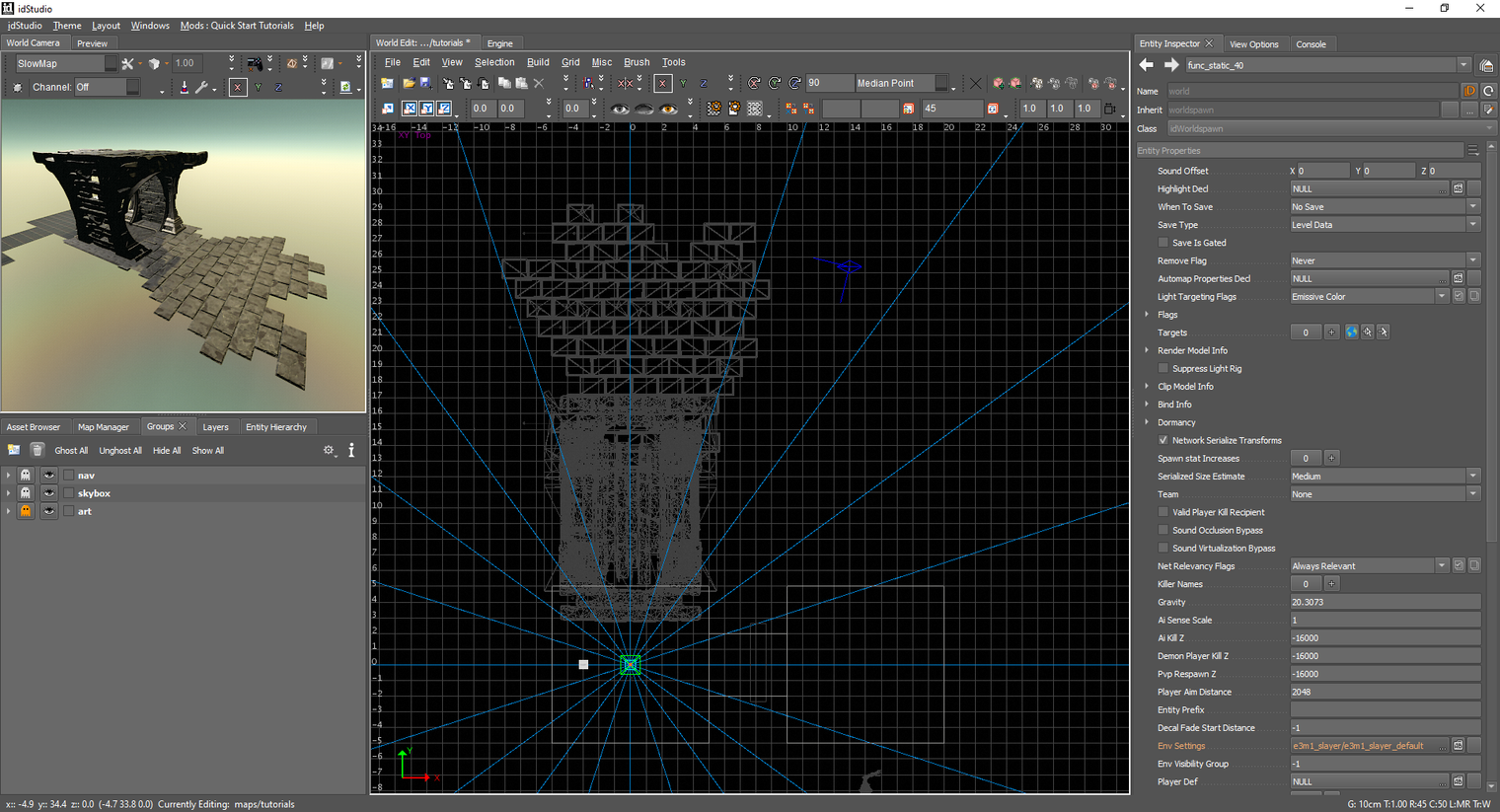
- Use the Ghost All and Unghost All buttons to toggle all groups.
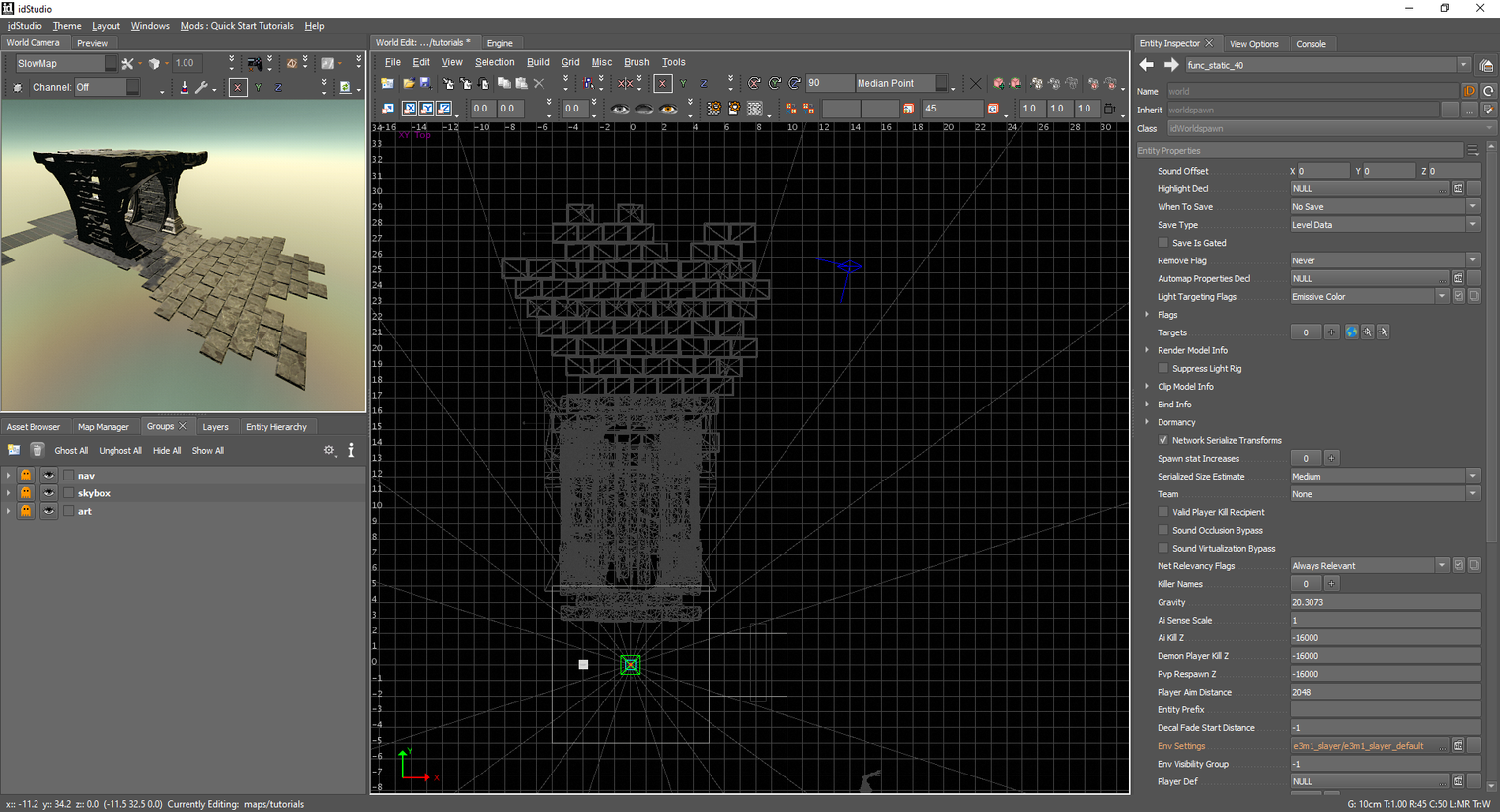
Above: Ghost all selected/on.
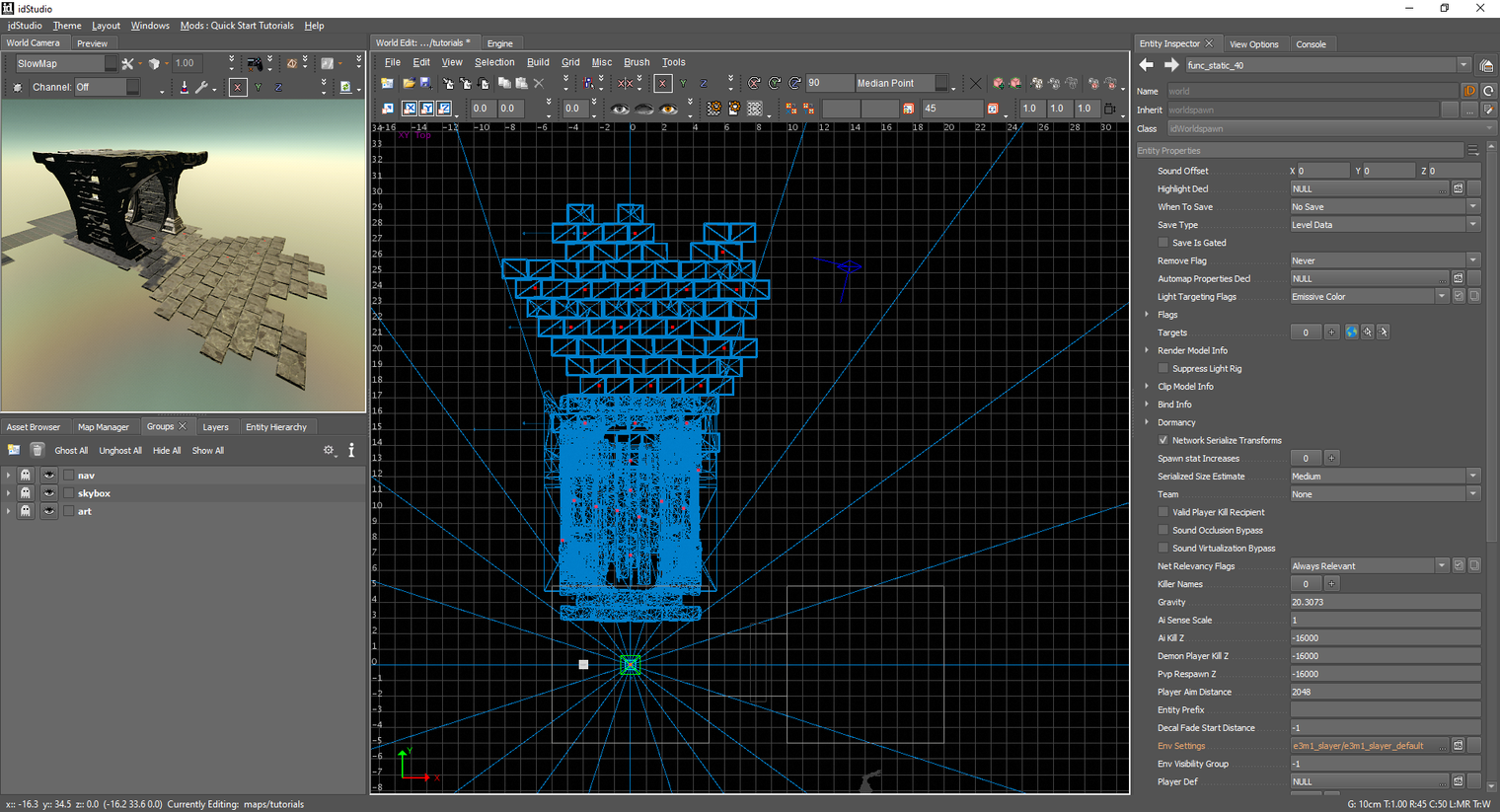
Above: Unghost all selected/on.
Toggle Visibility of a Group
You may eventually have so many entities that they start to get in the way. Hiding an entity group will make it invisible and unselectable. This can help you remove some of the visual noise while working on a map.
To toggle the visibility of an entity group:
- Open the Groups tool.
- Go to World Editor → Tools menu → Groups.
- Click the eye (:eye:) button next to the group to toggle its visibility in the map.
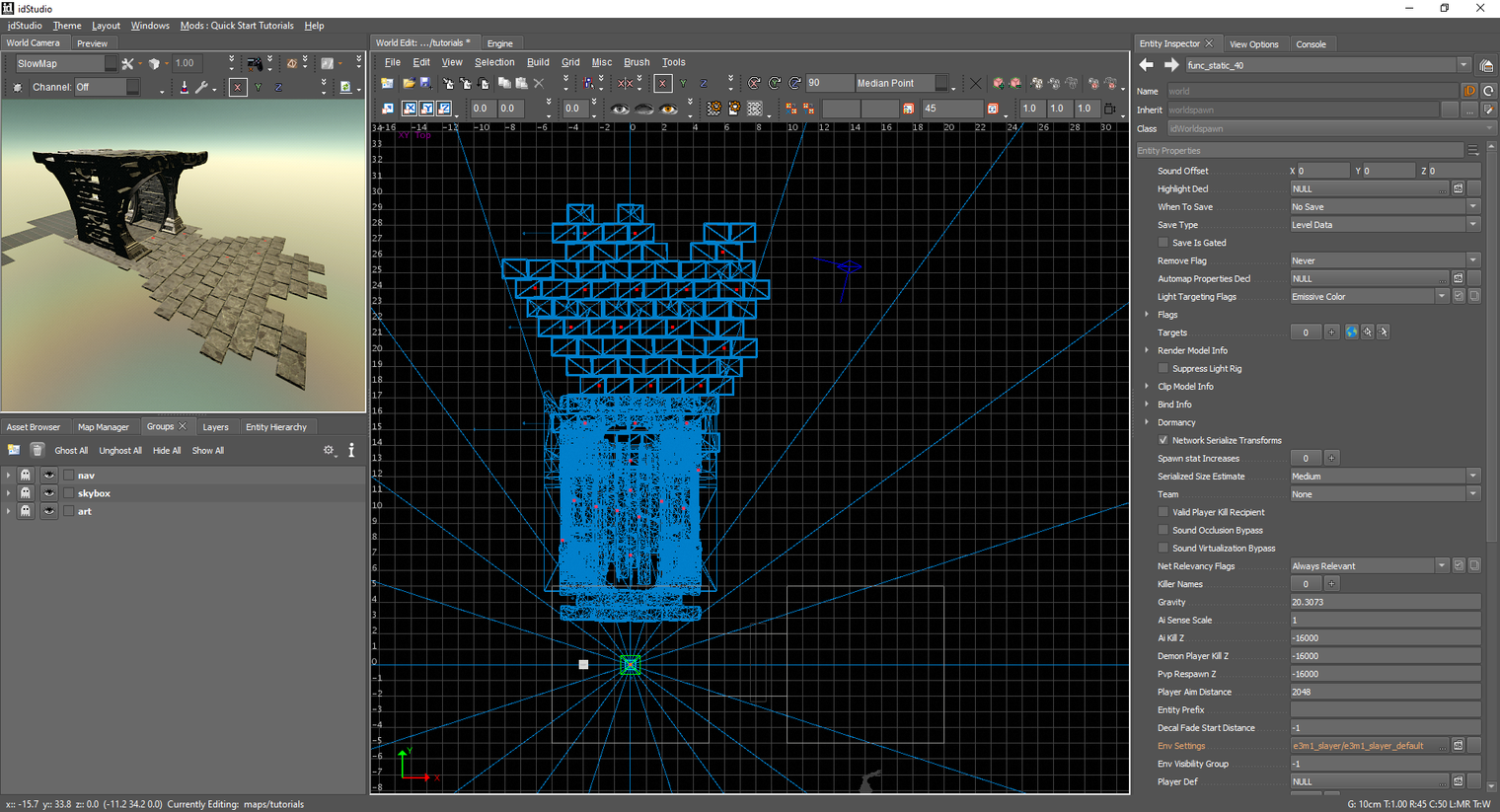
Above: Visibility toggled on.
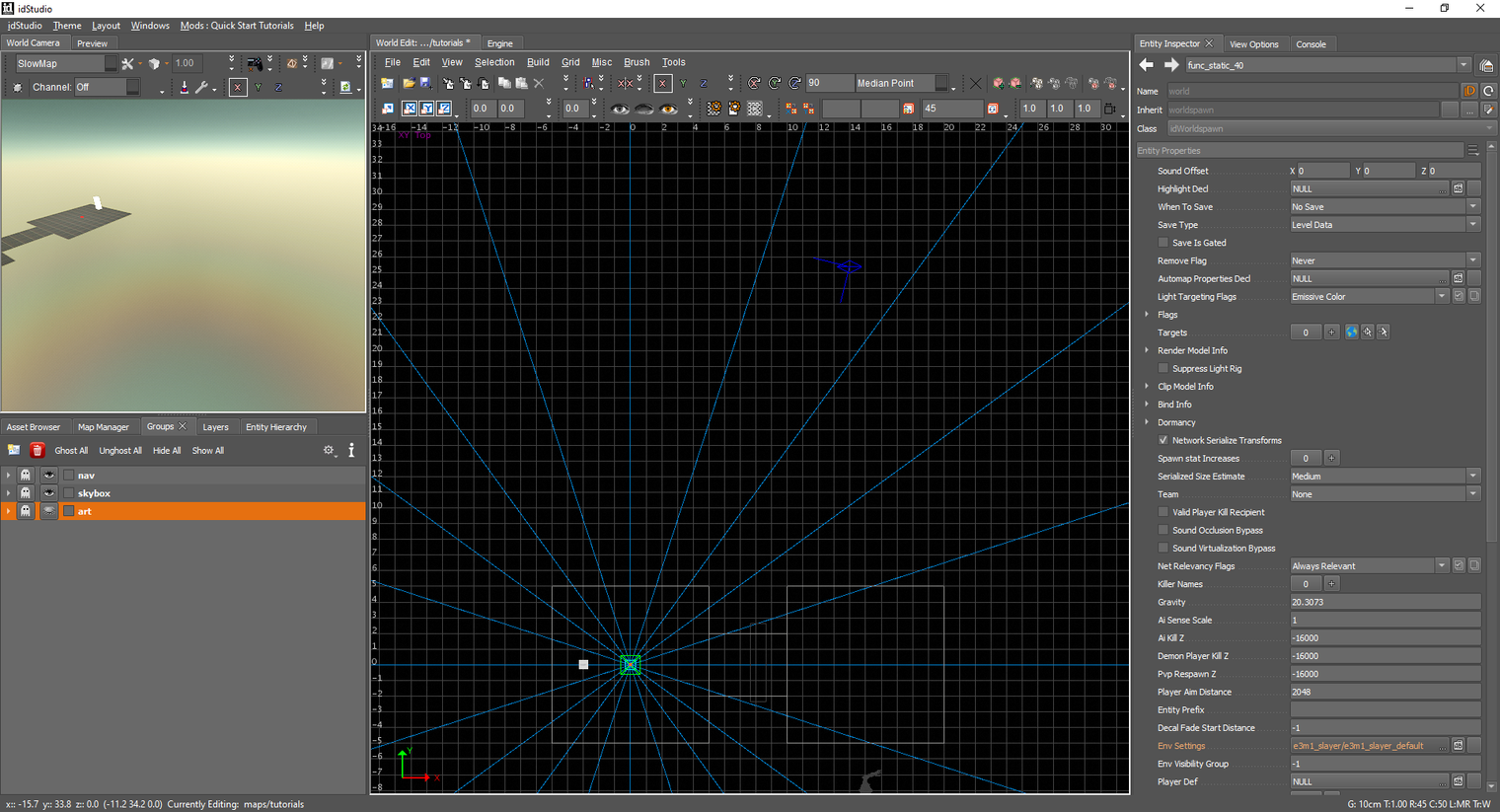
Above: Visibility toggled off.
You can also use the World Editor Context menu by right-clicking and selecting Groups:
- Hide Group will let you select a group to hide.
- Show Group will let you select a hidden group to show.
Delete a Group
Groups can be deleted by highlighting them and pressing the Delete key, or by clicking the trashcan icon (:wastebasket:) on the toolbar.
Deleting a group will NOT delete the entities it contains.
Deleting a ghosted group leaves the entities in that group ghosted/invisible.
These entities can be found in the No Groups group to unghost/show the entities.