Mod Packer
The Mod Packer is a tool used by Modders to package all resources necessary for playing their mod. The package produced by the Mod Packer can then be tested locally before it is handed off to the DOOM Eternal Launcher for publishing.
Interface
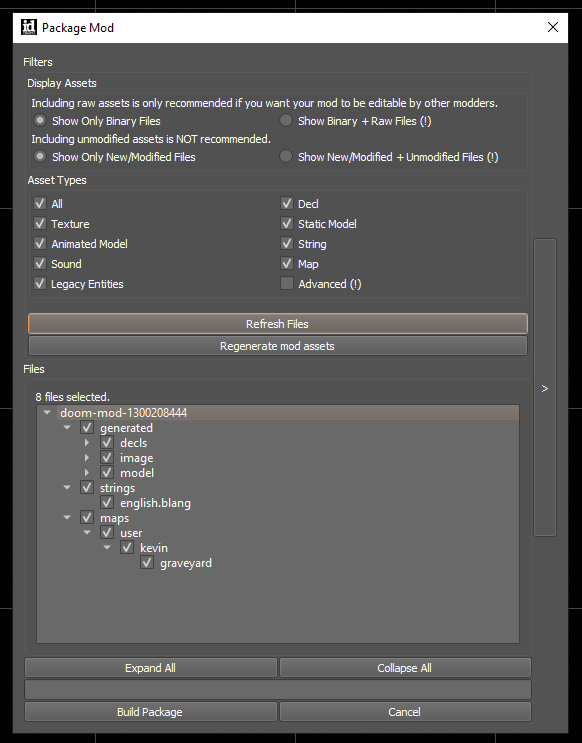
Within the Mod Packer, there are two main sections: Filters and Files (also known as the File Tree, or simply Tree).
You can find more info on those specific parts here:
But before getting started, it's important to understand more about the file types and file structures for mods.
Mod File Structure & Types
A mod's file structure has two different states: packaged mods and unpackaged mods.
Packaged vs. Unpackaged Mods
Unpackaged mods consist of loose files that can be edited and quickly reloaded by idStudio and tools.
Packaged mods consist of a filtered subset of these files that have gone through various conditioning passes to reduce load times and to improve file size and runtime performance. These files are produced by the Map Build Wizard and the Mod Packer and are then published using the DOOM Eternal Launcher.
For more info about specific folders and files, see: Mod Structure
Binary vs. Raw Files
Raw files are files you edit or create using Digital Content Creation (DCC) tools such as Photoshop, Maya, Blender, etc.
The binary format is the only format that the engine's runtime can understand. It eliminates the parts of the file format that are unnecessary and modifies the layout for optimal performance and/or consumption by APIs such as DirectX and Vulkan.
When idTech loads a raw file, it immediately converts it to our own binary formats.
- For example, all
tgafiles becomebimage.
COMING SOON: An in-depth look on idTech resources and file formats.
Filters
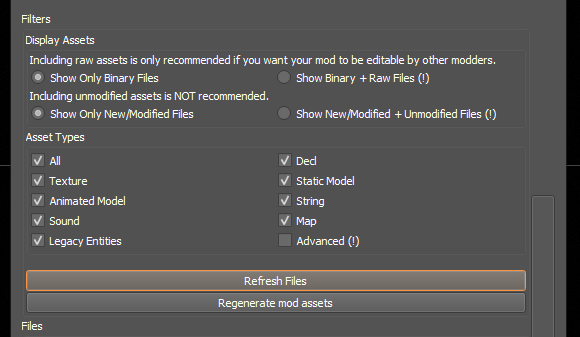
idStudio is liberal with exporting files that are touched in the editing process. You will likely not want to include everything in your mod's base directory.
The Mod Packer tries to balance giving full control with helping Modders narrow down which files they absolutely must include to play their mod.
To repopulate the Tree display, use the RefreshFiles or Regenerate mod assets buttons.
Display Assets
Here you can choose which files are displayed in the File Tree section below. There are two sets of options to choose from.
The first asks you to choose between showing:
- Only Binary Files
- Both Binary and Raw Files
We only recommend including raw assets if you want your mod to be editable by other Modders. This is because raw files are not needed to play the game and greatly bloat the size of the mod at publishing time. Additionally, idStudio and BuildGame will export certain files with the expectation that you might edit them, but that is not always the case. This means you will end up with files in your base directory which are unmodified.
This applies to the second set of options, which ask you to choose between showing:
- Only New/Modified Files
- Both New/Modified Files and Unmodified Files
You do not need to include these unmodified files for people to play your mod, so we do not recommend including unmodified assets.
In the future, we intend to allow users to unpackage published mods if the mod creator allows it. At this point, including raw assets would be desirable.
Asset Types
idStudio supports a variety of resource types, but in general there are certain categories that Modders commonly want to work with. The Mod Packer provides the option to filter by Asset Types to help Modders easily sort through their directories.
If the asset you are working with does not fall under one of the common categories in Asset Types, select the Advanced (!) checkbox.
Tree
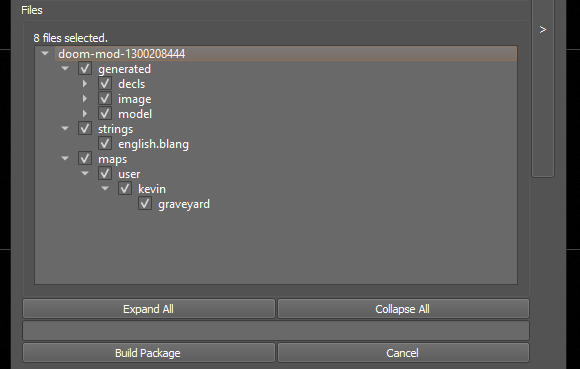
The Files Tree contains the list of files adhering to your filters. Every file that you select from this list will be included in your packaged mod.
Once you have confirmed which files you would like to include in your mod, select Build Package.
Package Your Mod
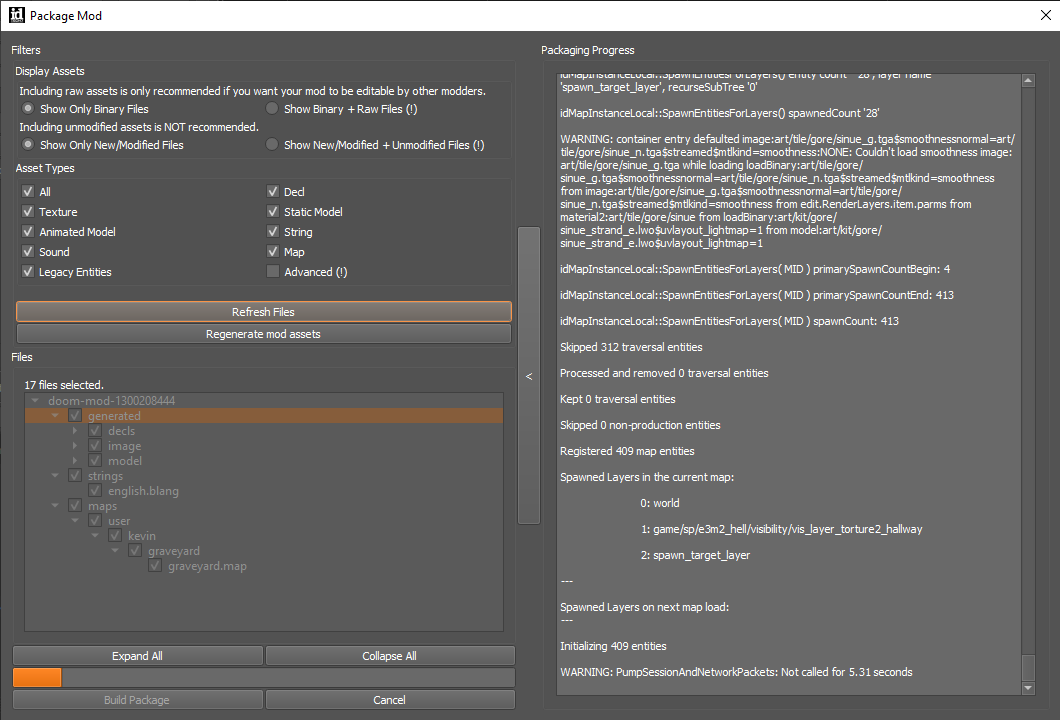
After selecting Build Package, the Mod Packer will begin the process of packaging your mod. Depending on the size of your mod, this process can take a few seconds to several minutes.
- For example, if your mod contains map(s), the minimum packaging time is often fifteen minutes.
If a map is present in your mod, the Mod Packer will silently launch an external tool called BuildGame to handle them. The logs from this process will still be piped into the Mod Packer for you to monitor the progress of BuildGame.
Successful Build
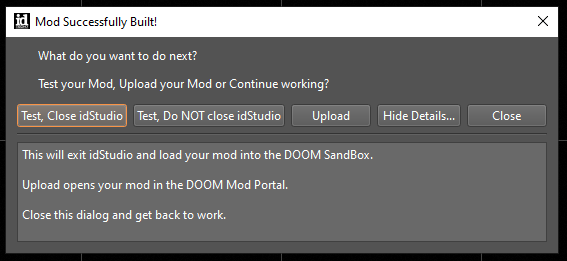
If your mod packages successfully, you will receive a number of options for next steps:
- Test Your Mod (and do/do not close idStudio)
- Upload Your Mod
- Continue Working
Testing your mod will launch the Sandbox binary. For lower spec machines, this can be quite constrictive so we have given you the option to close idStudio.
- If you choose to close idStudio while running Sandbox, idStudio will relaunch after you are done.
- Alternatively, you can choose to leave idStudio running to save on iteration time.
The Upload option hands your mod off to the DOOM Eternal Launcher for publishing.
Select Close if you would like to continue working on your mod.