Asset Browser
The Asset Browser displays the file system containing all assets created for the game. The Asset Browser is the primary tool for organizing, viewing, importing, and modifying content assets within idStudio. You can use the Asset Browser to search for and interact with all assets in the game.
With thousands of individual assets (defined by decls) sorted into hundreds of different root folders (representing different asset types) housed in the Asset Browser, finding a specific asset can quickly become difficult. Fortunately, idStudio’s Asset Browser has several built-in tools to help you quickly find the specific asset you’re looking for, or trim the content you’re browsing to a manageable list.
Accessing the Asset Browser
The Asset Browser should default-open in the lower left pane of your screen when you load idStudio.
If you have closed the Asset Browser, you can always open it again by going to Windows → Asset Browser in the Main Menu Bar.
Interface
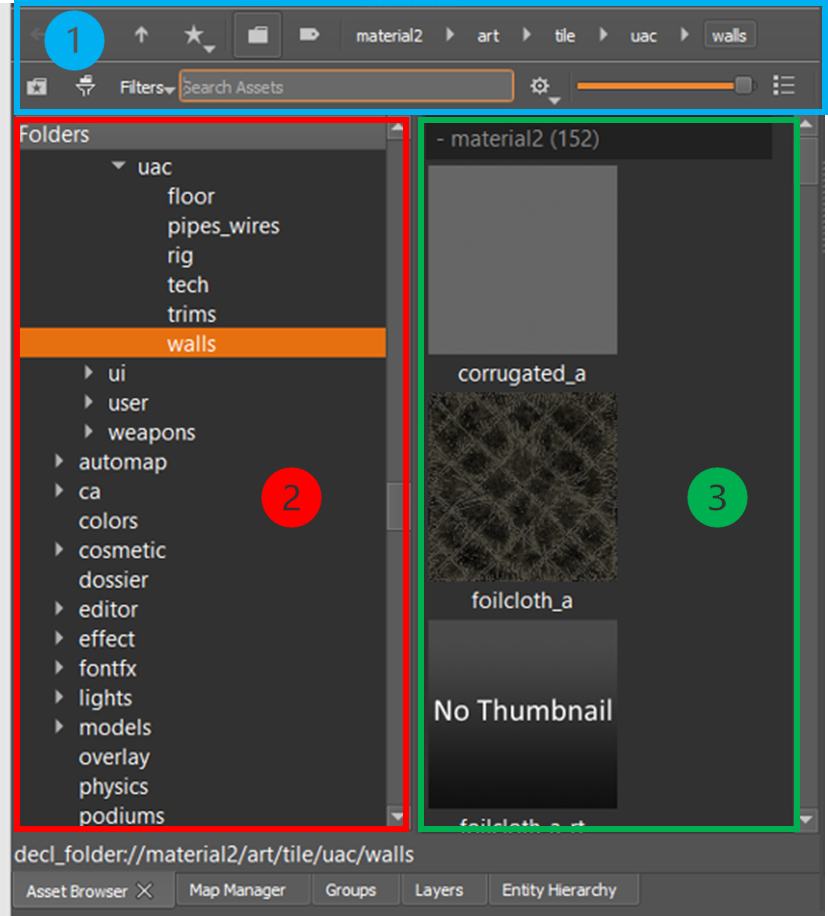
Asset Browser interface
| Section | Description | |
|---|---|---|
| 1. | Asset Browser toolbar | Search, Filter, Bookmark, List/Thumbnail view |
| 2. | Asset folder tree | Folder tree of all decl types and models (can be filtered) |
| 3. | Asset display (thumbnail view) | Displays either the contents of the currently selected folder or the results of a search query |
Asset Browsing
The left panel of the Asset Browser is a folder tree containing all the decl types in the game plus the models folder. Models are the only asset in the engine that is not described with a decl. The Asset Browser provides an efficient way of finding decls to edit.
| Action | Result |
|---|---|
| Left-click a folder in the folder tree (left panel) | Populate the right panel with all the assets in that folder and any sub-folders |
| Double-click an asset thumbnail | Preview the asset and open the associated editor for that asset type |
| Right-click a folder in the folder tree (left panel), or a thumbnail (right panel) | Open a context menu with a list of available operations |
Preview does not appear for all assets.
Folder Filtering
The Folder Filtering button helps limit the content displayed in the Asset Browser to only the asset types you’re interested in.
Follow the steps below to filter your Asset Browser folders
- Click the Folder Filter button (:Filter:) at the top of the folder tree in Asset Browser.
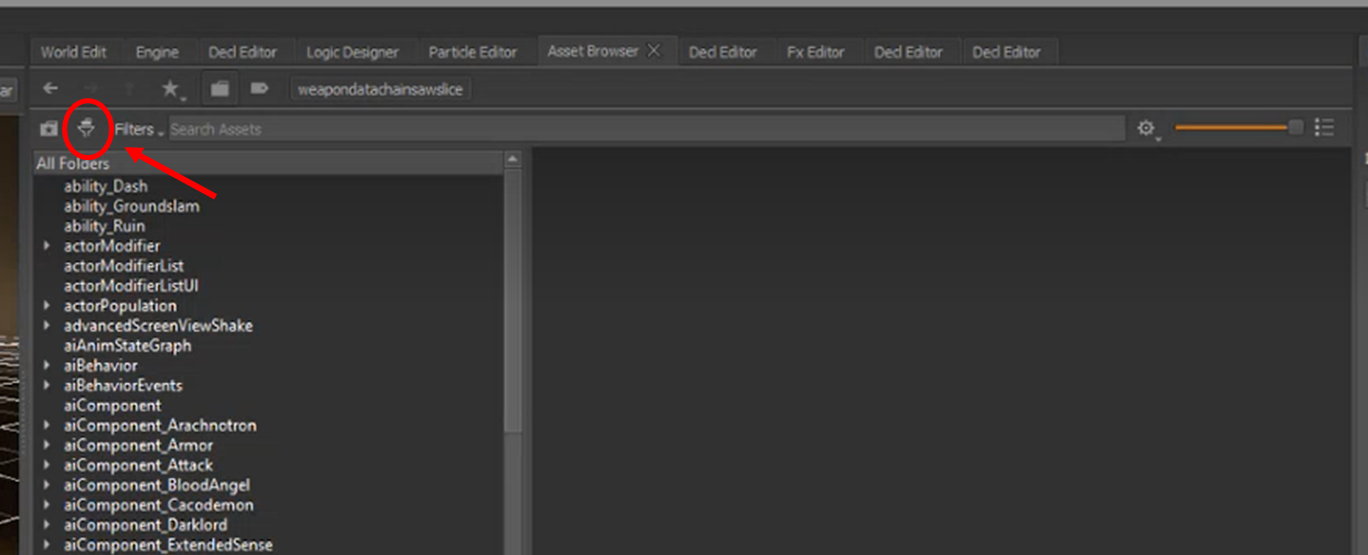
- Click the boxes next to the folders (asset types) you’d like to include in your filtered list.
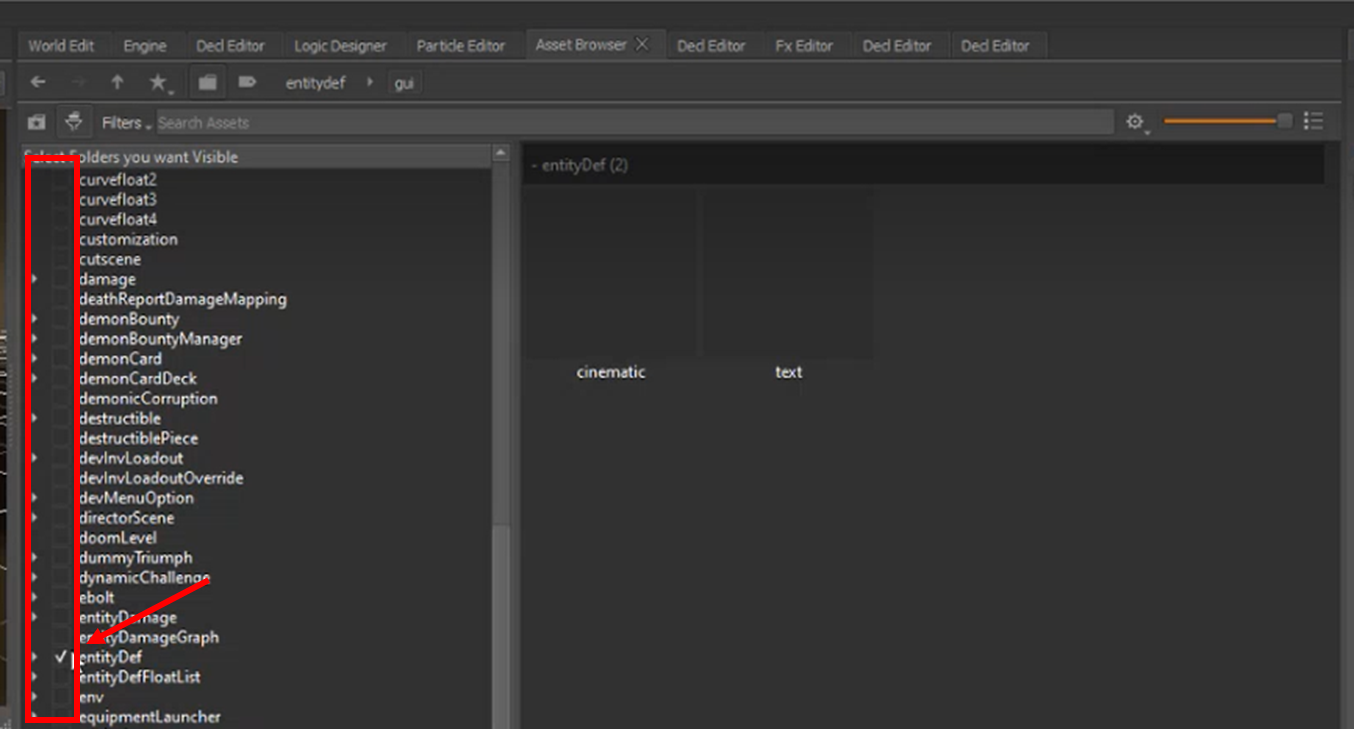
- Click the Folder Filter button again, to populate your filtered asset folder list. All unchecked folders will be hidden
- At any point, you can click the Folder Filter button again to adjust your filtered list by adding or removing folders.
Search Bar
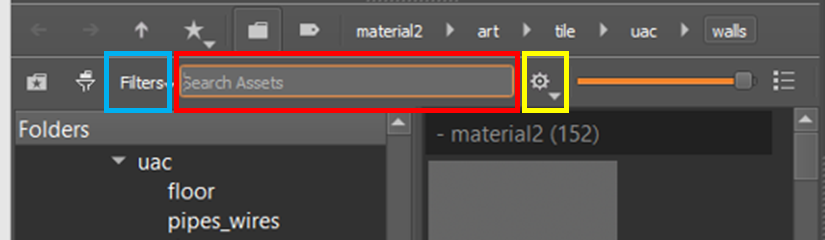
Asset Browser search bar
Use the search bar (red box in image above) to search for content in the Asset Browser. Searching using a keyword can make it easier to find the entity you’re looking for.
To perform searches, type a keyword into the search field.
The Filters drop down (blue box in image above) contains a list of all of the root level folders (which are all of the decl types) in Asset Browser. Use this drop down to narrow the scope of your search to specific decl types by selecting or deselecting specific root folders.
Asset Browser also provides a couple of additional search settings tools to guide your query and trim your search results to help you find what you’re looking for.
You can access these tools by clicking the :gear: button next to the search bar (yellow box in image above).
| Option | Result |
|---|---|
| Match against full asset path | Return results with file names that include search query (even if no asset names match the query) |
| Restrict search to browsing path | Only search within selected file |
Navigation bar
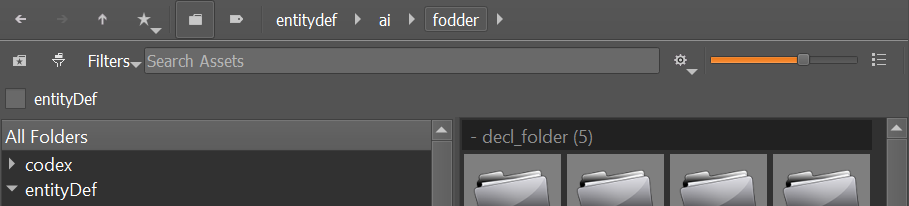
The Asset Browser navigation bar provides you with tools to quickly navigate to folders in your navigation history or folders related to your search. Use the buttons in the navigation bar to perform the following actions:
| Button | Action |
|---|---|
| :arrow_left: | Go to the previous folder |
| :arrow_right: | Jump forward (only available after moving backward) |
| :arrow_up: | Go to the parent folder |
| :star: | Access a list of your bookmarked folders |
| :file_folder: | Toggles the asset folder tree visibility |
| :label: | Toggles the asset tag tree visibility |
file > path | Each folder name in the file path is interactive (click to jump to folder) and arrows to the right of folder names display a list of additional files contained in the folder |
Bookmarks
- Navigate to the folder you’d like to bookmark in Asset Browser.
- Right click the folder name → Select Bookmark
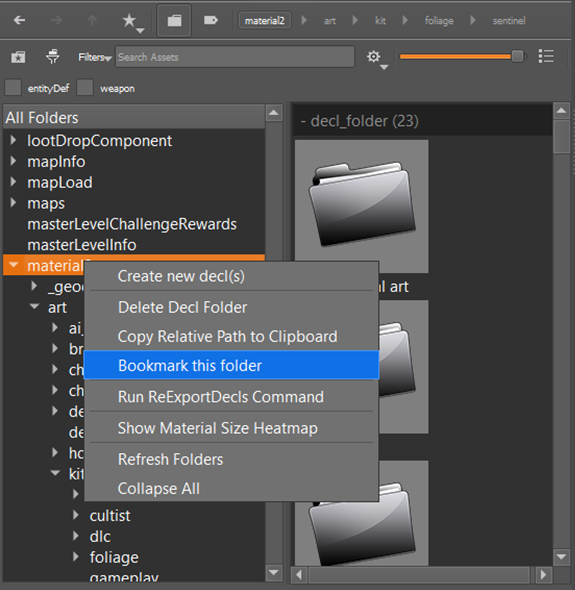
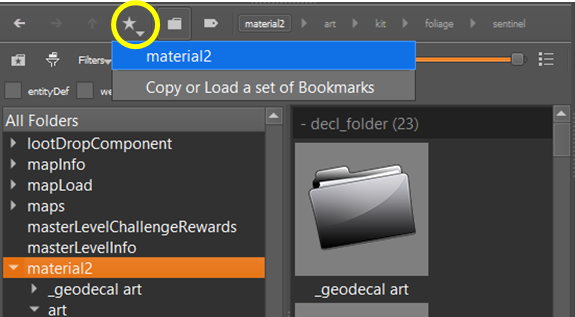
- Use the Bookmarks button ( :star: ) in the Asset Browser toolbar to access your bookmarked folders.
- Use the Bookmark filter button ( :bookmark: ) in the Asset Browser toolbar to toggle between displaying only your bookmarked folders and the full folder view.
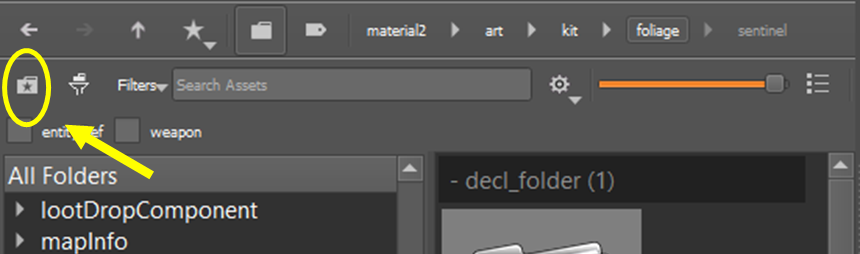
Asset View Type
The right panel of the Asset Browser displays the individual assets in a folder. This panel defaults to thumbnail view.
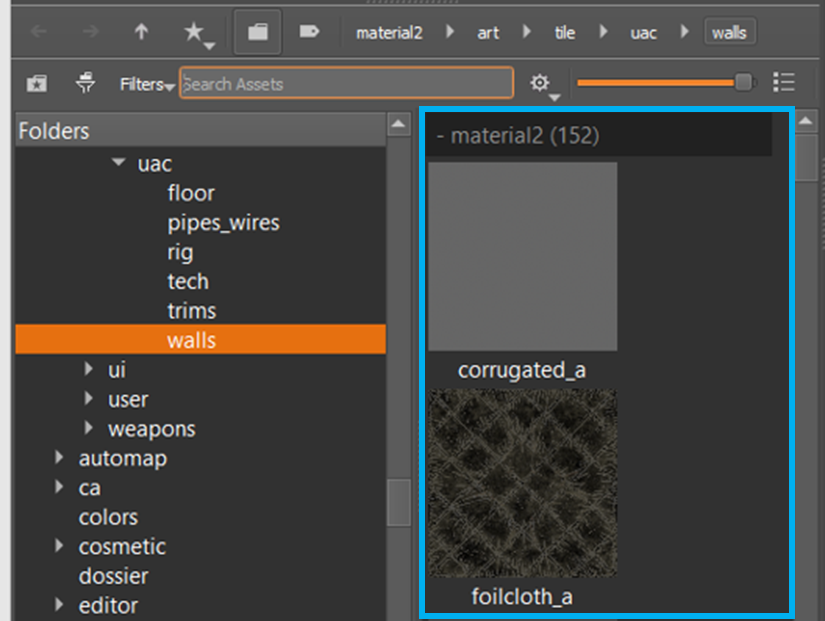
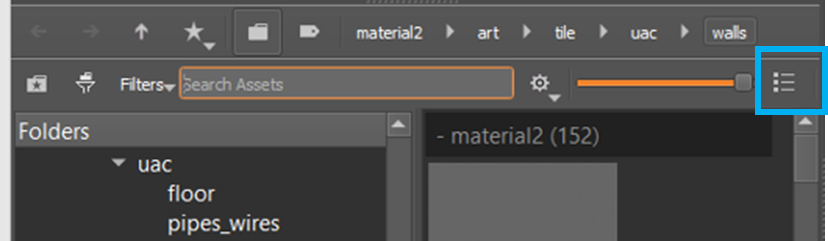
Use the slider to control the size of the thumbnails in the panel.
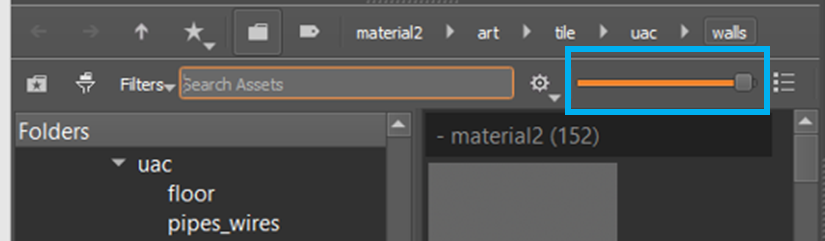
Use the list button to switch to a list view of assets in the right panel.