Console
The console in idStudio works much like the in-game console, with a few more advanced features.

Basic Controls
| Button | Desired Action | Description | Reference Image |
|---|---|---|---|
 | Clear contents | Clear the contents of all console tabs. This has the same effect as typing clear into the console. | |
 | Settings | Open the Settings menu. From the settings menu you can disable line wrapping and auto scroll (helpful when you're trying to copy log text), and configure tabs and filters. Changes to console settings will be saved to idStudio/layout.panes in your save game folder. | 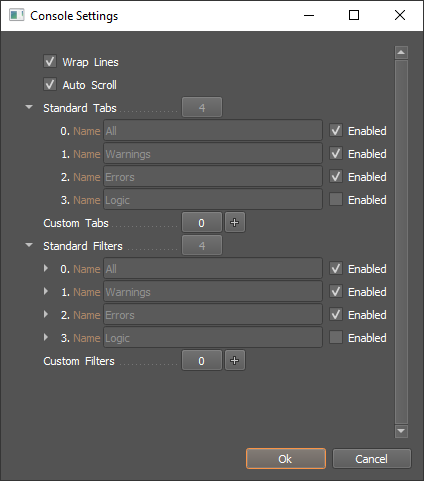 |
 | Search | Browse/search all available console commands and variables. | 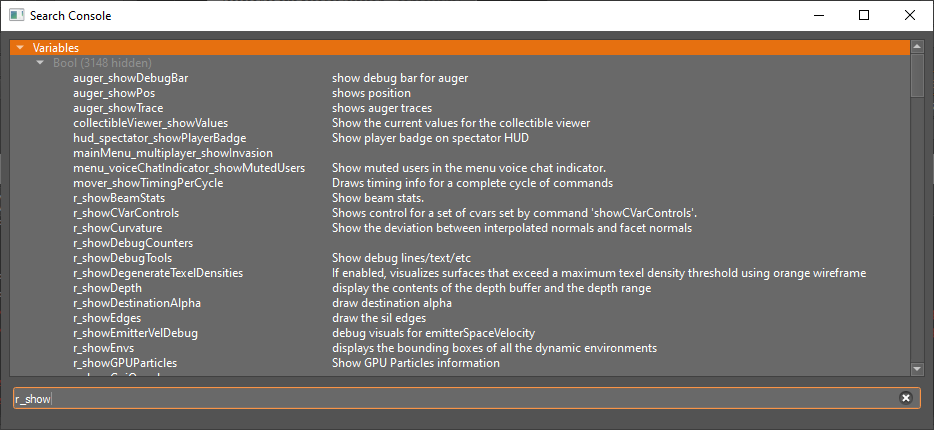 |
| Enter console commands | Console commands can be entered via the text field at the bottom of the console window. Start typing and the auto complete menu will appear. Use the up and down keys to browse this menu. When the auto complete window is not visible you can use the up and down keys to browse the recent command history. Pressing Enter executes the current command. |
Links
Some log messages have links embedded in them. These are highlighted in blue. Clicking on them will open up the relevant editor and asset.

Macro Buttons
Macro buttons are user defined buttons that appear at the bottom of the console window and execute a specified command line when clicked. You can create your own macro buttons from the settings menu.
Macro Button Properties
| Property | Description |
|---|---|
| Name | Name that appears on the button |
| Command Line | Command line to be executed when button is clicked. |
Example
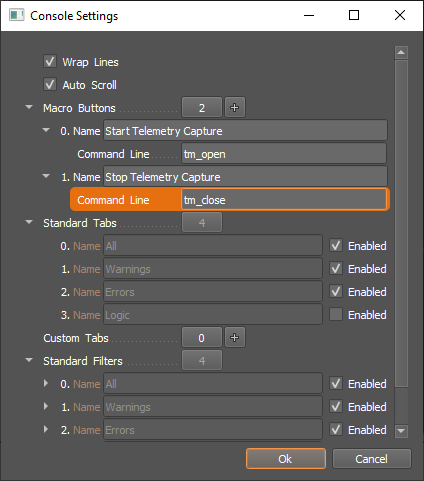
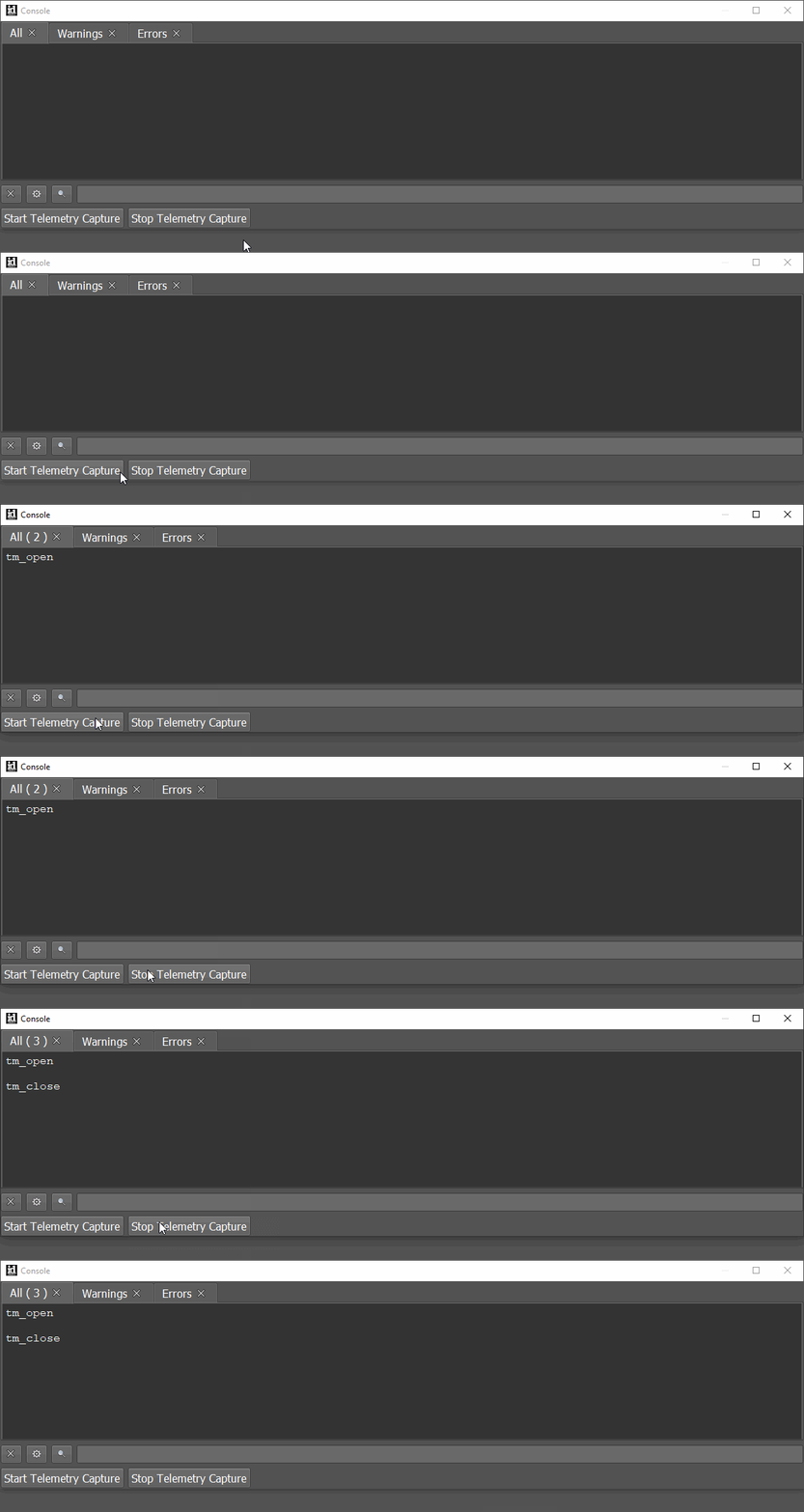
Custom Tabs and Filters
You can create your own custom tabs and filters from the Console Settings menu . These are structured in the same way as folders and rules in email. Tabs contain log messages, filters determine what happens to log messages when they are received.
Create a custom tab
Creating a custom tab is very simple:
- Add a new tab to the list.
- Name the new tab.
- Click OK. (The new tab will now appear in the console window.)
Create a custom filter
Creating a custom filter requires you to specify some basic rules to determine how it will be matched against incoming messages (category, severity and expression) and the action to be performed when a match is found.
All custom tabs and filters can be disabled independently, so you can keep as many as you like in your profile and only enable the ones you need at any given time. Standard tabs and filters cannot be modified, but they can also be disabled.
Filter properties
| Property | Description |
|---|---|
| Name | Optional name, useful for identification |
| Category (Flags) | Origin of message e.g. game, renderer or sound system |
| Severity (Flags) | Severity of message e.g. debug, warning or error |
| Expression | Optional regular expression. |
| Action | Action performed when matching message is received |
| Tab | Specifies destination tab when the 'Send To Tab' action is selected |
Heavy use of regular expressions may result in poor performance.
Filter Actions
| Action | Description |
|---|---|
| Reject | Message will be rejected. This action overrides all others. |
| Send To Tab | Send message to tab specified by 'Tab' property. |
| Show Popup | Show popup dialog containing message. |