Build Options & Build Wizard
Build Options in idStudio
Many changes you make to your map, such as those affecting static geometry, collision, lighting, etc., require compiling to be able to view and test. However, you do not need to build the entire map every time you make a change. For faster iteration during development, the Build menu in idStudio offers a variety of preset options for building maps, baking maps, and building some of the individual components of a map.
Your map must be saved for build options to be available in the Build menu.
When making gameplay changes (e.g. traversals, encounters, etc.) you need only Save your map, and then can test in the Engine tab. You do not need to rebuild the map.
If you’re making changes to baked lights, you’ll need to bake them again to get them to show up. The duration of this process is largely dependent on your hardware's capabilities and may take up to several days. Therefore, it's recommended to reserve lighting adjustments until the final stages of your project.
Maps contain the following required files:
| File | Description |
|---|---|
| .buildcvars | The buildcvars file contains the cvars that were set before building the map |
| .map | The root map file can contain refmaps. |
| textlod.lwo | The texlod is a player path model which is created early and used to calculate things like ambient probe placement and required texture densities. |
Build Wizard
You can fully customize the settings that you need for your build. The most common use cases have been set as defaults in the Build menu, but you can tweak the settings through the build wizard if you need to.
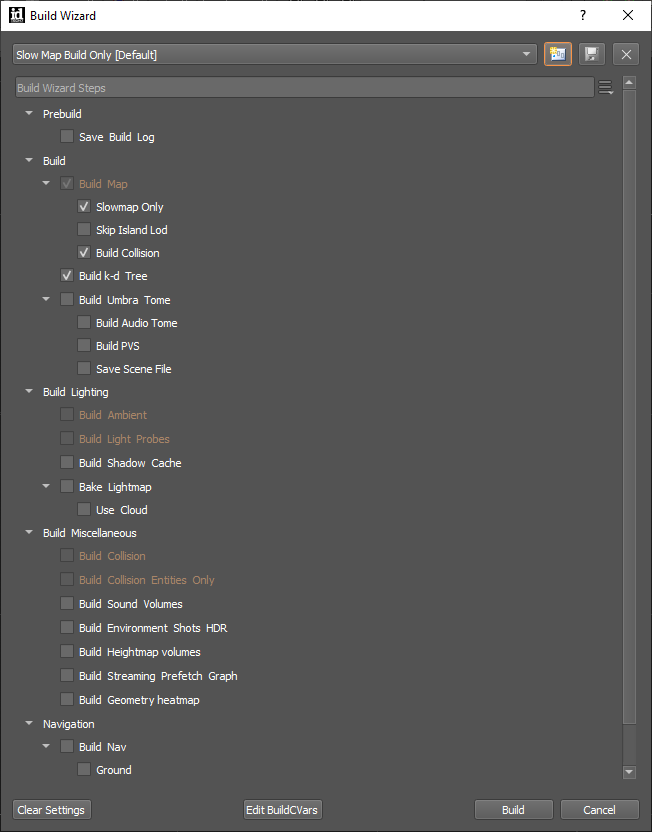
The build CVars, set in the build wizard, can control bake quality, radiosity settings, shadow settings, debugging settings, etc.
Quality Preset
The quality preset automatically balances the bake quality with the bake time in order to save as much time as possible without greatly impacting the bake quality.
The change in visual quality is not dramatic but the bake times are. The High quality setting is really only needed once final work on lighting has started. Super-Low and Low quality bakes will bake faster, leaving the render cloud more available for the studio as a whole.
Build Default Presets (Build Menu)
There are some default settings that have been added as entries in the Build menu for convenience.
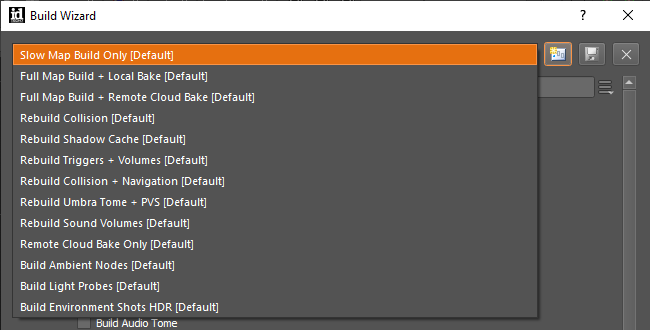
Slow Map Build Only
A Slow Map is 'slow' in performance only. With a Slow Map Build, you can save time by skipping the lengthy megatexture creation process, surface merging, sound building, lightmap creation, decals, and megatexture baking. This method quickly updates any geometry changes and rebuilds collision in your map.
If you are frequently iterating on your map, we highly recommend using Slow Map Build. In general, it should only take about ten minutes to generate a Slow Map Build of a full production map. This will allow you to make changes, quickly build your map, and test it in the engine without any unnecessary delays.
Full Map Build + Local Bake
You should only do a Local Bake only when you are baking a tiny test map. A full production map will take more time to bake locally than you have.
Rebuild Collision
Rebuilding Collision will calculate just the collision component of the map.
This option will save a lot of time when adding and tweaking invisible clipping.
Rebuild Triggers + Volumes
Rebuilding the triggers and volumes is useful when invisible volumes are changing.
You should use the Rebuild Triggers and Volumes option when you are making edits to flight volumes, damage volumes or other invisible volumes.
Rebuild Collision + Navigation
This option will generate the AAS (Area Awareness System) which is used for AI navigation.
An AAS model is also generated which can be used to auto-place ambient nodes. The AAS model can also be used as an input to create a texLOD model.
You should rebuild collision and AAS whenever the world geometry changes will affect the AI navigation.
Rebuild Umbra Tome + PVS
This preset will build umbra tome and PVS without needing to tweak or change individual options within these.
Most Level Designers use this option, but there are times when using this may result in occlusion issues, such as when the world geometry disappears in a certain location or there are small holes and cracks that need to be addressed.
In such cases, you can use Umbra view volumes to make manual fixes. For a more in-depth tutorial, go to: Umbra Volumes
Rebuild Sound Volumes
A Sound Build creates a sound BSP tree from the sound clipping brushes. A BSP tree is used for calculating echos and sound occlusion. Also builds the Potentially Visible Set (PVS) which is useful for occlusion and setting entities to dormant.
Build Ambient Nodes
Ambient nodes are used for lighting dynamic models. Ambient nodes must be built after baking is complete. You can place ambient nodes manually using the entities found under New Entity > info > ambient or you can have ambient nodes placed automatically after the AAS model is generated by selecting Misc > Generate Ambient Nodes.
You should build ambient nodes whenever you make a change to the placement of ambient nodes or make a significant lighting change.
Build Light Probes
Light Probes must be built after baking. Light probes should be rebuilt after lighting or geometry changes in an area visible by light probes.