id Tech Interface (idStudio)
This page describes the most common elements of the id Tech Engine interface (referred to throughout these docs as idStudio) and what they do. The default view in idStudio is made up of several tabbed panels known as panes. Some of the elements described on this page, such as panes and menus, are consistent across various parts of the editor. Familiarizing yourself with these basic concepts regarding the user interface and general functionality will help you navigate idStudio with ease.
Default View
When you open idStudio for the first time, several panes default-open. You should see something similar to this:
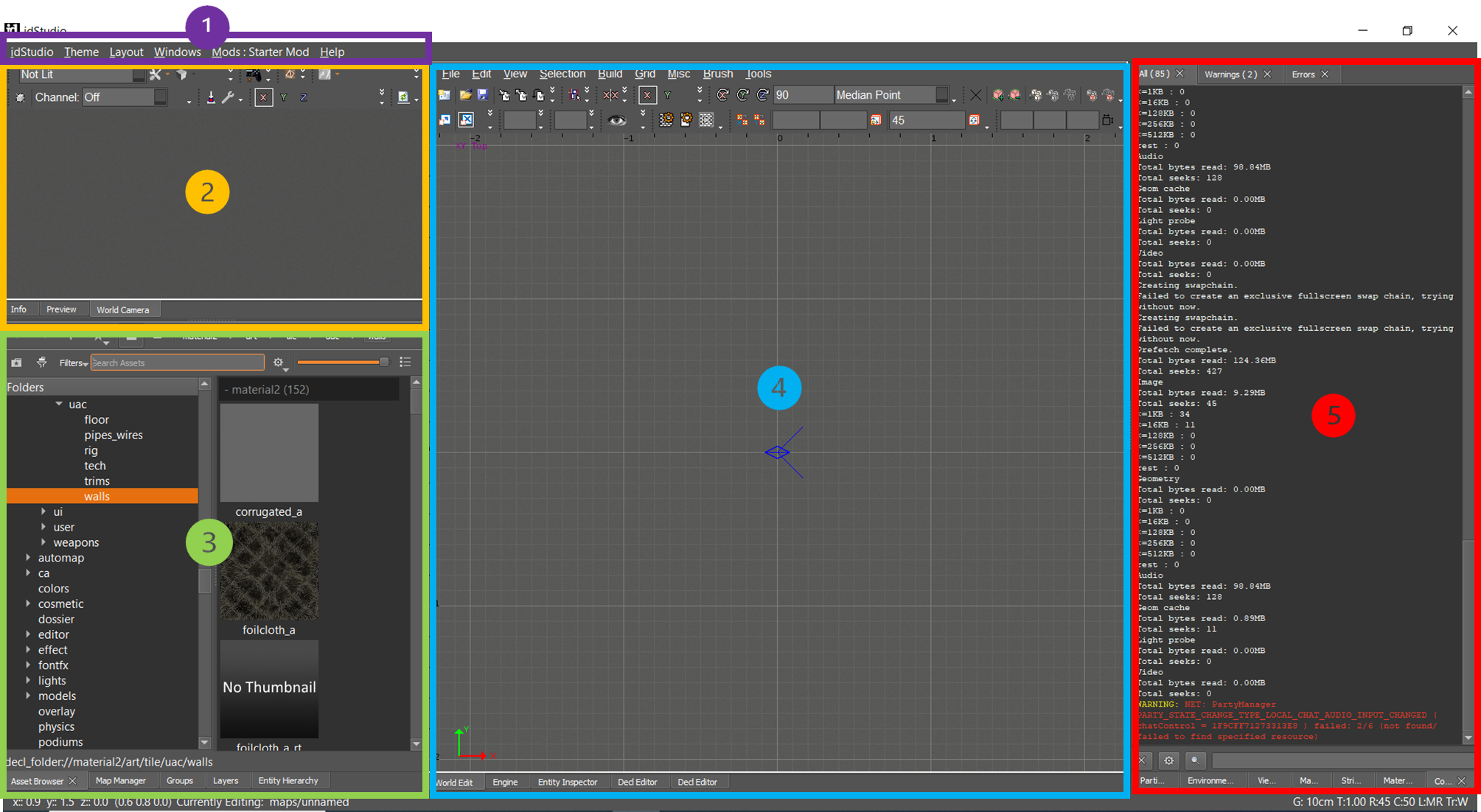
| Pane/Window | Description | |
|---|---|---|
| 1. | Main Menu Bar | Use these menus to access editor-specific commands and functionality. |
| 2. | World Camera | 3D view of World Editor. |
| 3. | Asset Browser | Access all of the Assets in in the game. |
| 4. | World Editor | 2D display of the contents of your map, such as brushes, models, triggers, etc. |
| 5. | Console | Command-line interface for advanced configuration of the game. |
Panes
idStudio displays information in a series of highly customizable screen areas called panes. You can add, remove, and change the panes in a number of ways.
For more information, see: Layout Customization
Tabs
At the bottom of each pane in idStudio, you’ll notice a number of tabs. By default, idStudio opens several editors and tools you may find useful when beginning a project. At any time you can close tabs, add new editor/tool tabs, drag a tab into another pane, or create a new pane to display the tab.
For more information, see: Layout Customization
idStudio Hotkeys
A list of keybinds for idStudio can be found by going to Help → Key Commands.
Main Menu Bar
idStudio has a menu bar located at the top left of the screen with the idStudio, Theme, Layout, Windows, Mods, and Help menus. These menus are present in all editor windows. Other menus are editor-specific.
idStudio Menu
Contains options to open maps and static and animated models, access preferences, and start the Build Game Wizard.
Theme Menu
Contains options for preset screen display themes in idStudio.
Edit and create your own display themes in idStudio → Preferences → Themes tab.
Layout Menu
Contains options for preset idStudio layouts (based around specific editor usage), as well as options for saving a user-created layout.
Windows Menu
Provides access to all of the editors in idStudio, as well as the Asset Browser, Preview Window, and Console.
Mods Menu
Contains options for creating a new mod folder, selecting an existing mod to work with, changing your active mod, packaging and testing your active mod (to be loaded in Sandbox).
Help Menu
Provides access to idStudio documentation and a reference list of key commands.
World Editor
When you open idStudio for the first time, the World Editor opens in the center pane. The World Editor is the main tool used when creating a map in the game. Here, you’ll draw brushes, place entities such as models and lights, and add other gameplay elements.
For more information, see: World Editor & World Camera
Asset Browser
The Asset Browser default-opens in the lower-left area of your screen. The Asset Browser displays the file hierarchy of all assets in the game. Assets include textures, particle effects, materials, models, sounds, etc.
For more information, see: Asset Browser
Console
The developer console default-opens in the right pane when you load idStudio for the first time. The console provides a command-line interface for advanced configuration of the game. Just about any configuration task can be completed from the console.
For more information, see: Console
Engine Tab
Upon first launching idStudio, the Engine tab automatically opens in the center pane, behind the World Editor. Essentially, the Engine tab is the game code operating within a windowed tab. As you refine your mod, you'll utilize the Engine tab to load and test your map.
For more information, see: Engine Tab