Layout Customization
Every user has their own unique preferences and workflow, which is why idStudio offers a variety of layout customization options. idStudio provides preset layouts that are based around specific editor usage, and we also offer the ability to save user-created layouts.
This guide will walk you through the steps to customize your layout according to your needs.
Panes
idStudio displays information in a series of highly customizable screen areas called panes. You can add, remove, and change the panes in a number of ways. This allows you to create a personalized workspace that suits your workflow.
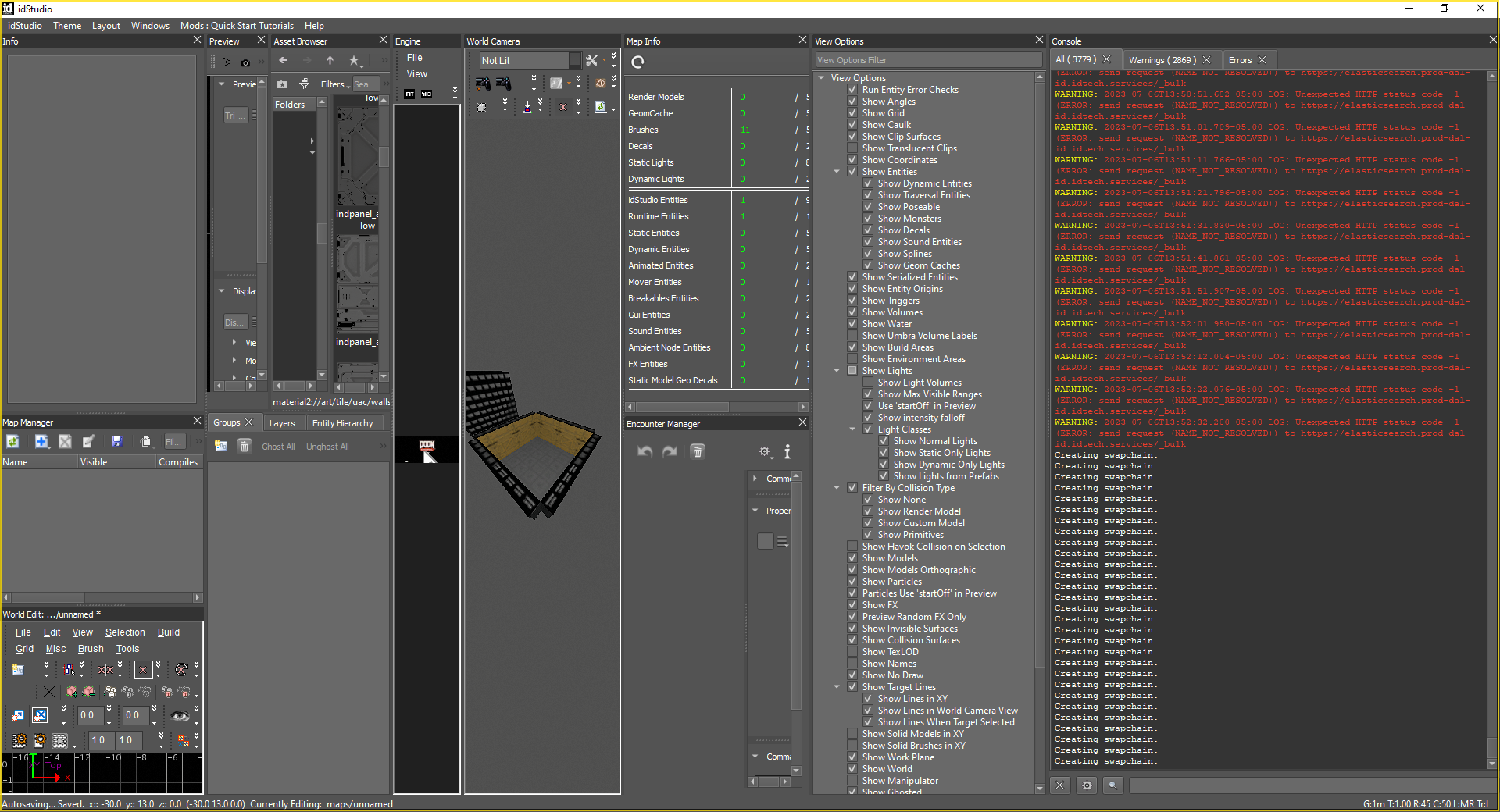 Example – multiple panes make up the user’s idStudio layout
Docking
Docking panes makes it easier for you to access the tools you need quickly without having to search through a cluttered interface. You can dock tools to different parts of the editor interface (different panes), such as the top, bottom, left, or right sides.
Dock a Tool to a New Pane
- Drag the tab of the tool to the edge of an existing pane. This will pull up the docking widget.
- Use the widget to create a new pane to the left, right, above, or below.
Dock a Tool in an Existing Pane
- Drag the tab of the tool to the tab space of pane where you’d like to dock it.
Dock a Tool in a New Window
This is useful when using multiple screens.
- Drag the tab of the tool out of the tab space and hold until it creates a new window (be sure you are not holding at the edge of a pane – doing this will open the docking widget).
Tabs
At the bottom of each pane in idStudio, you’ll notice a number of tabs. By default, idStudio opens several editors and tools you may find useful when beginning a project.
At any time, you can close tabs, add new editor/tool tabs, drag a tab into another pane, or create a new pane to display the tab.
Tabs can moved to the top of a pane by going to idStudio menu → Preferences → Settings tab → idStudio → General Settings → Set Pane Tabs to Top.
You can customize your layout by click-dragging a tab in any pane to one of several locations:
-
Dropping a tab in the Tab Area of an existing pane will add the tab beside any existing Tabs.
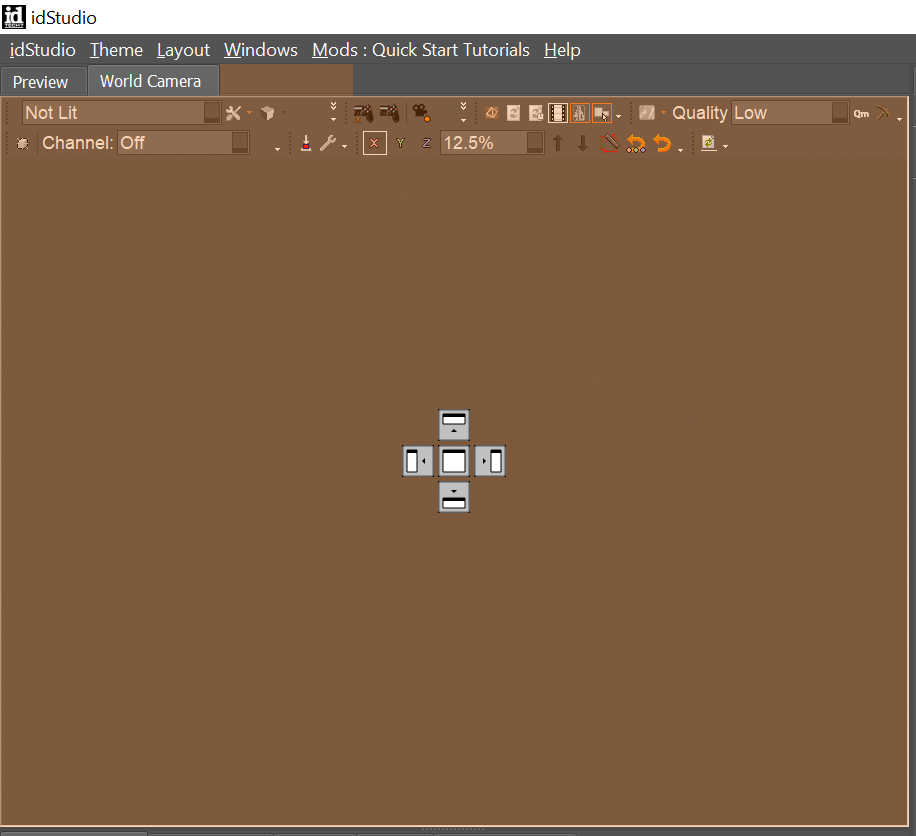
-
Dropping a tab in any Dock Zone will add the editor or tool in a new pane.
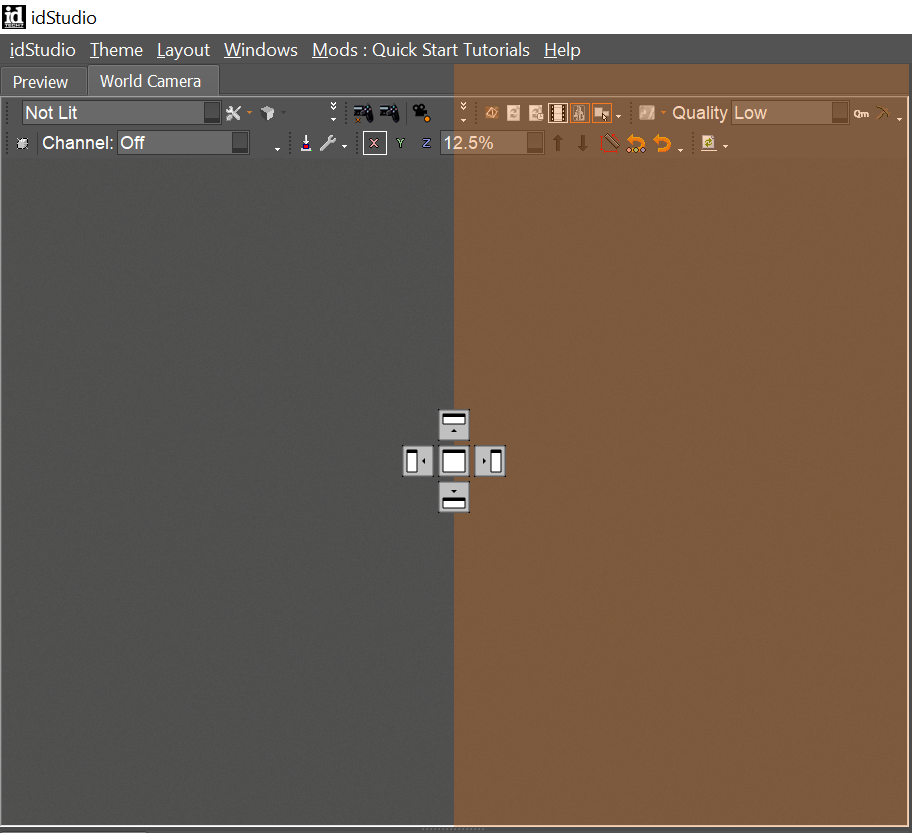
Create & Save a Custom Layout
Once you’ve created a layout of editor panes that best suits your needs, you can save the layout and restore it any time.
Simply go to Layout menu → Save layout, give the layout a Name, and click Save.