World Editor Grid
World Editor's grid is used for snapping object to predefined quantized values, for example an artist may want to snap a placed entity's origin to the nearest whole meter. This guide describes how to change the grid’s snapping step and where to view the grid within the World Editor.
Using the Default Grid
- In idStudio switch to the World Editor.
If you cannot see a World Editor tab, you can request a new World Editor window from the menus: Windows → Editors → World Editor
- In World Editor select the Grid Menu.
On the grid menu will be displayed the default grid actions, these are the different size grid settings that can be selected.
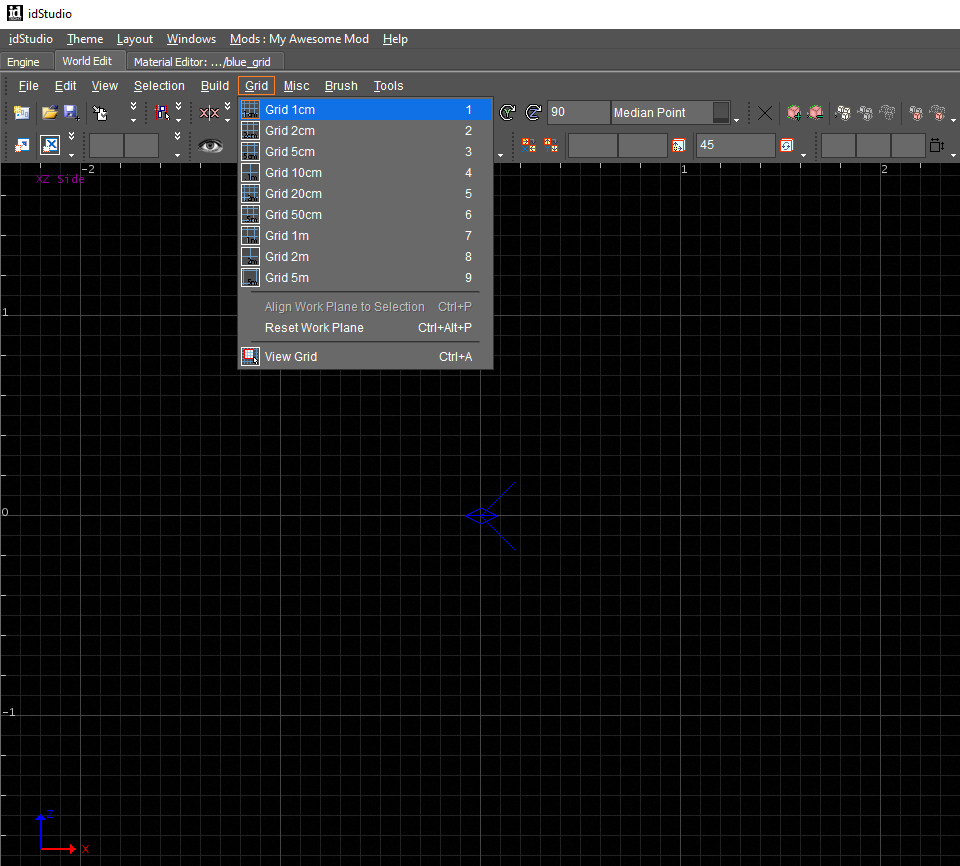
- From the Grid Menu select 1m grid option.
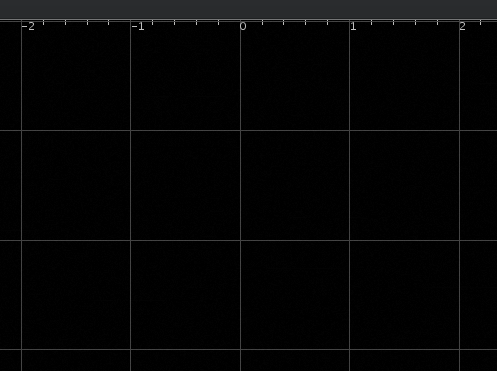
The grid rendering in the orthographic views will automatically update to the newly chosen grid intervals.
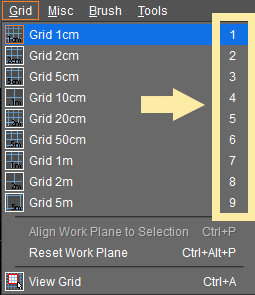
- On the Grid Menu the default grid settings are automatically bound to hot keys 1 through 9.
You can use those hot keys to change the grid size while interacting with the World Editor.
Troubleshooting
Grid Menu and Hot Keys don’t work!
If the Grid Menu or Hot keys are not appearing correctly, double check your Grid Decl settings in the preferences.
If in doubt, return to the default settings.