Display Theme
In idStudio, users have the ability to customize the visual appearance of the editor while working by selecting from a variety of pre-designed screen display themes. Additionally, users can edit these presets to their liking or even create their own unique themes.
To access the available themes, simply navigate to the Theme menu located in the Main Menu Bar.
Preset Themes
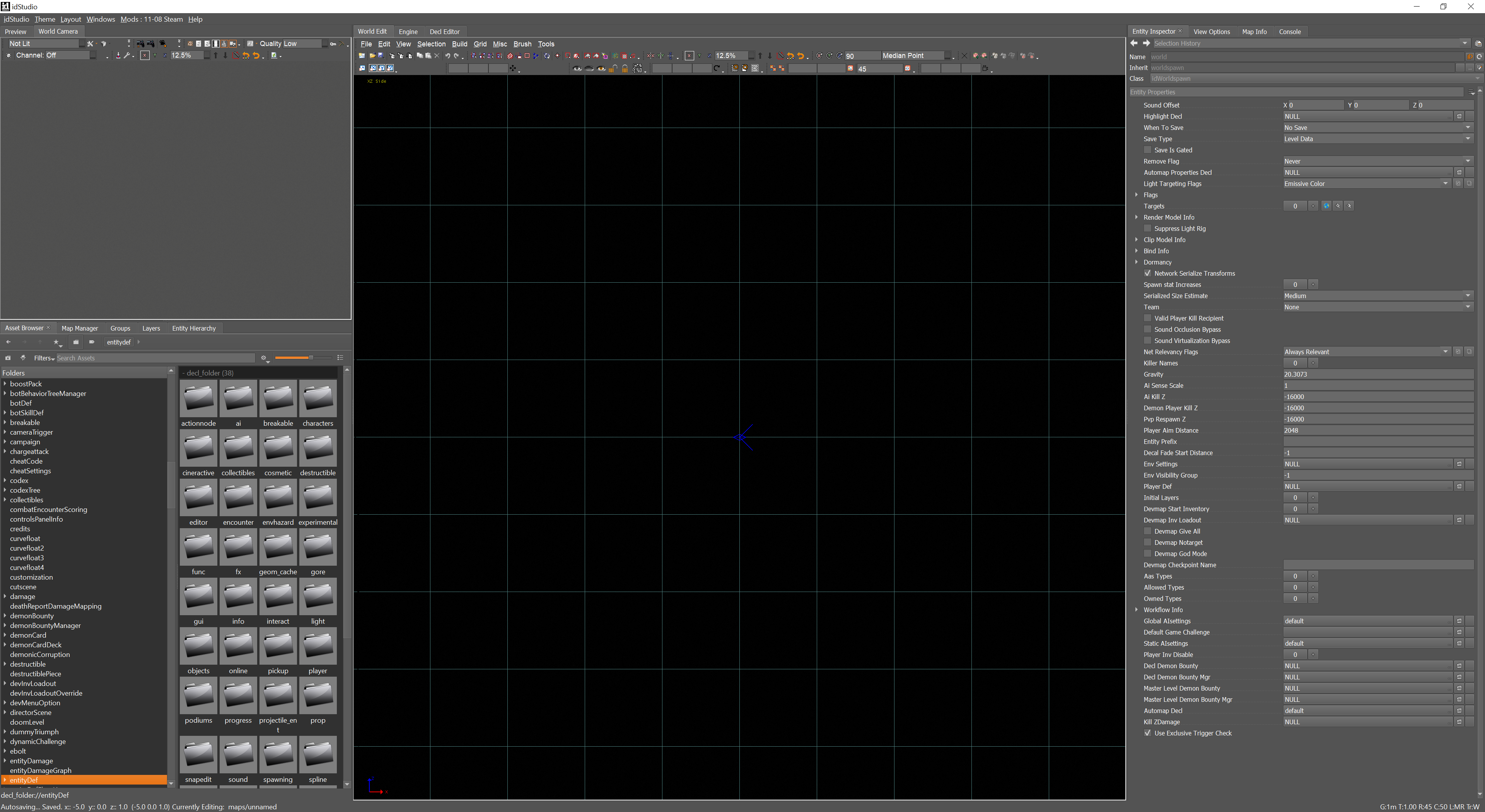
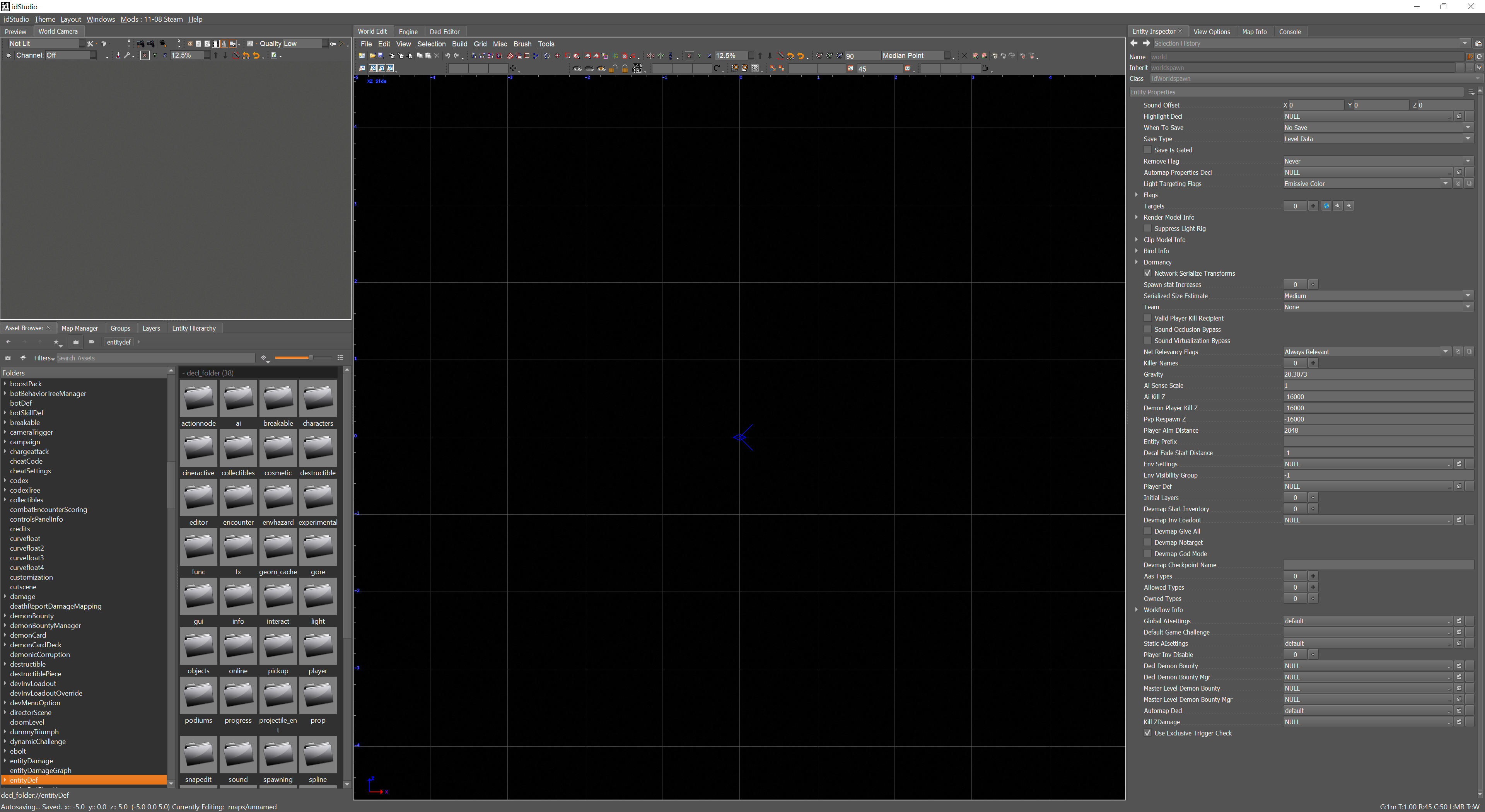
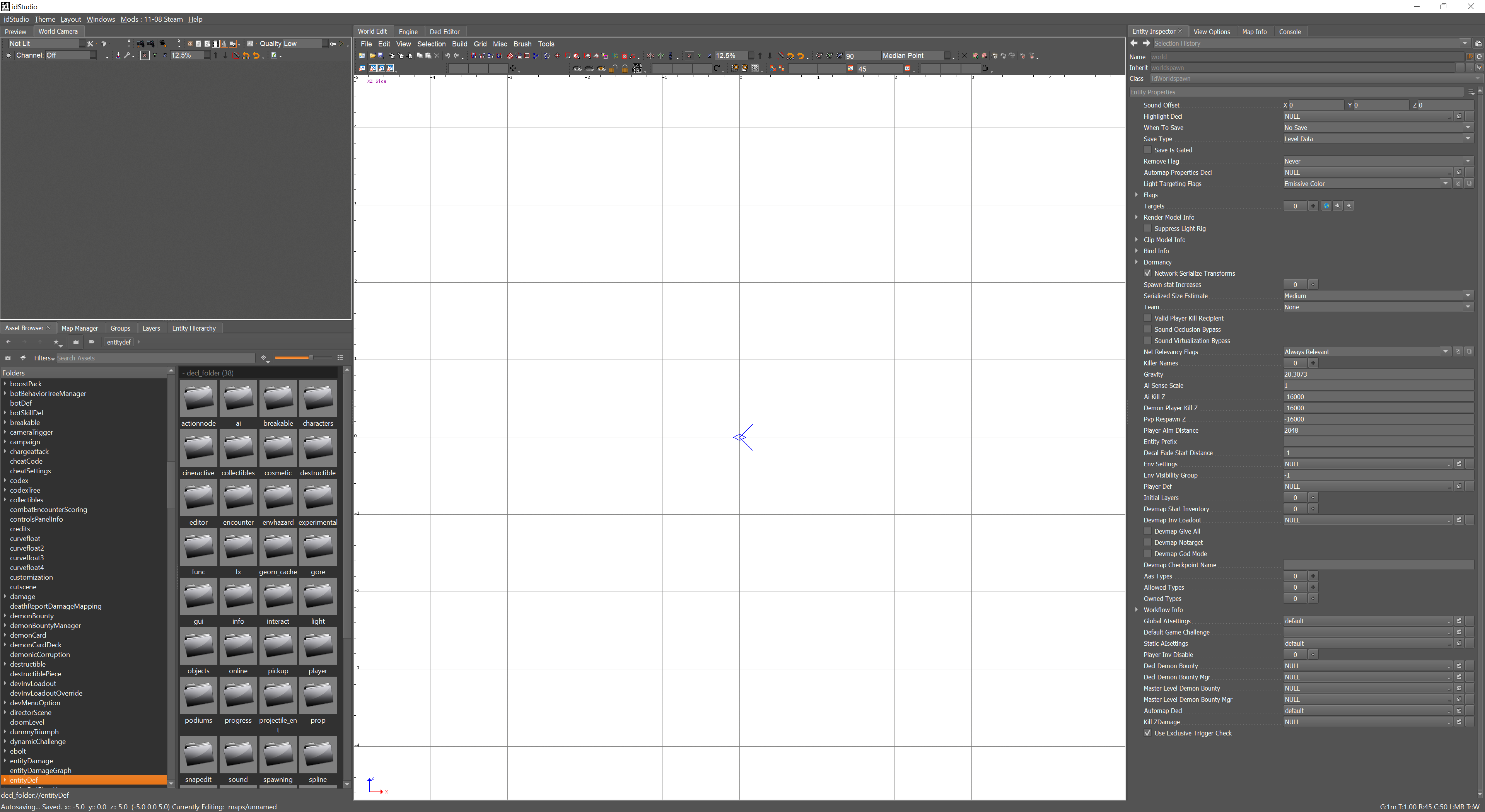
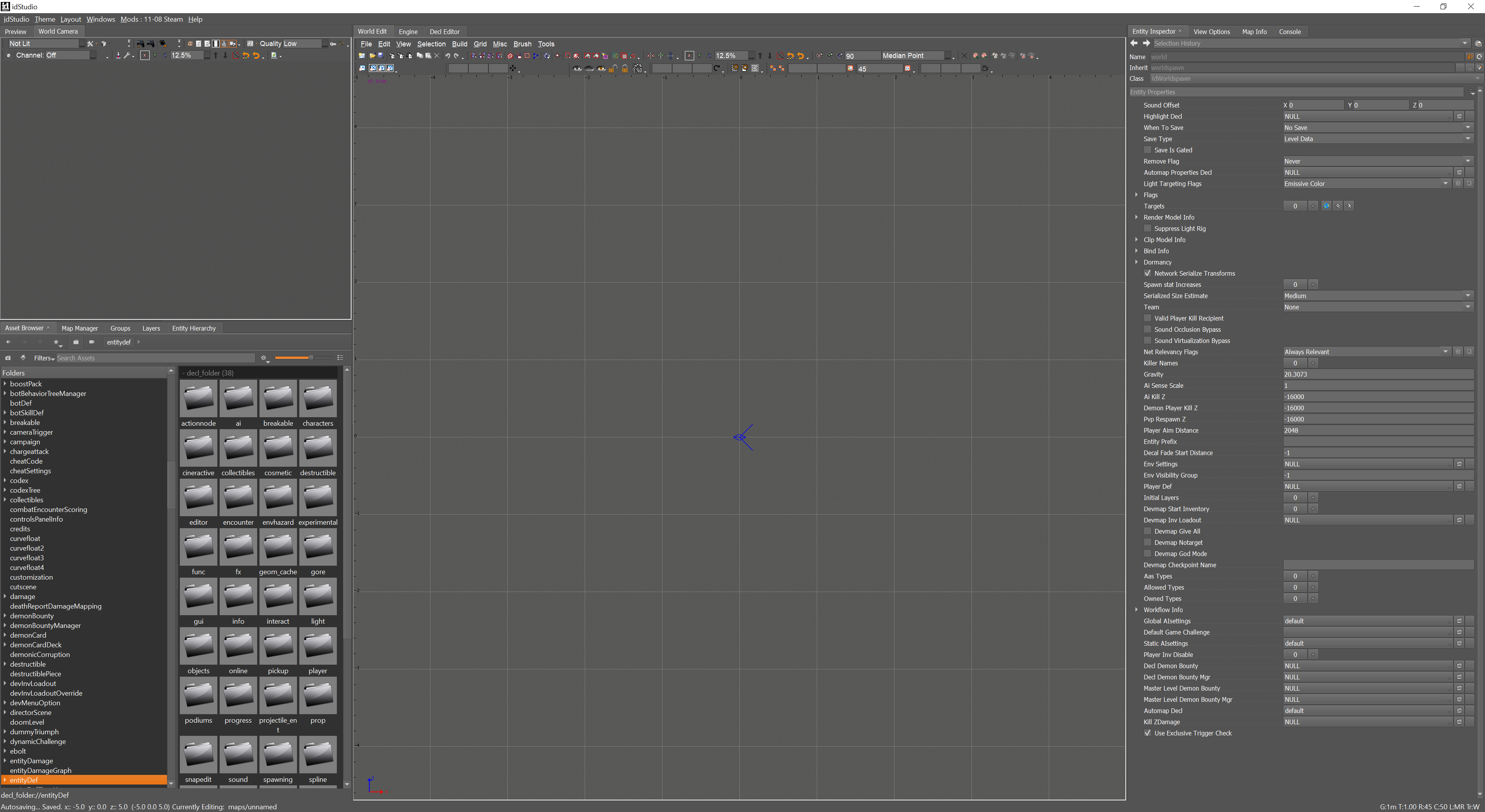
idStudio offers users the convenience of choosing from four pre-designed display themes to enhance their visual experience.
idStudio_Black
idStudio_Dark
idStudio_Light
idStudio_Medium
Edit Themes
If you like the overall feel of a preset theme, but would like to make a few changes to better fit your needs, you can edit the theme in idStudio Preferences.
-
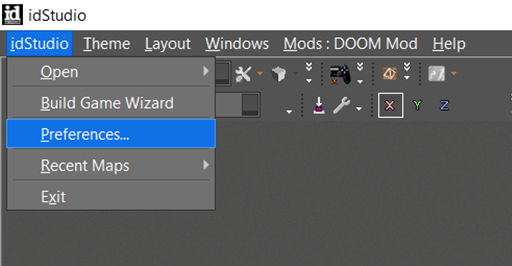
In the Main Menu Bar, go to: idStudio → Preferences
-
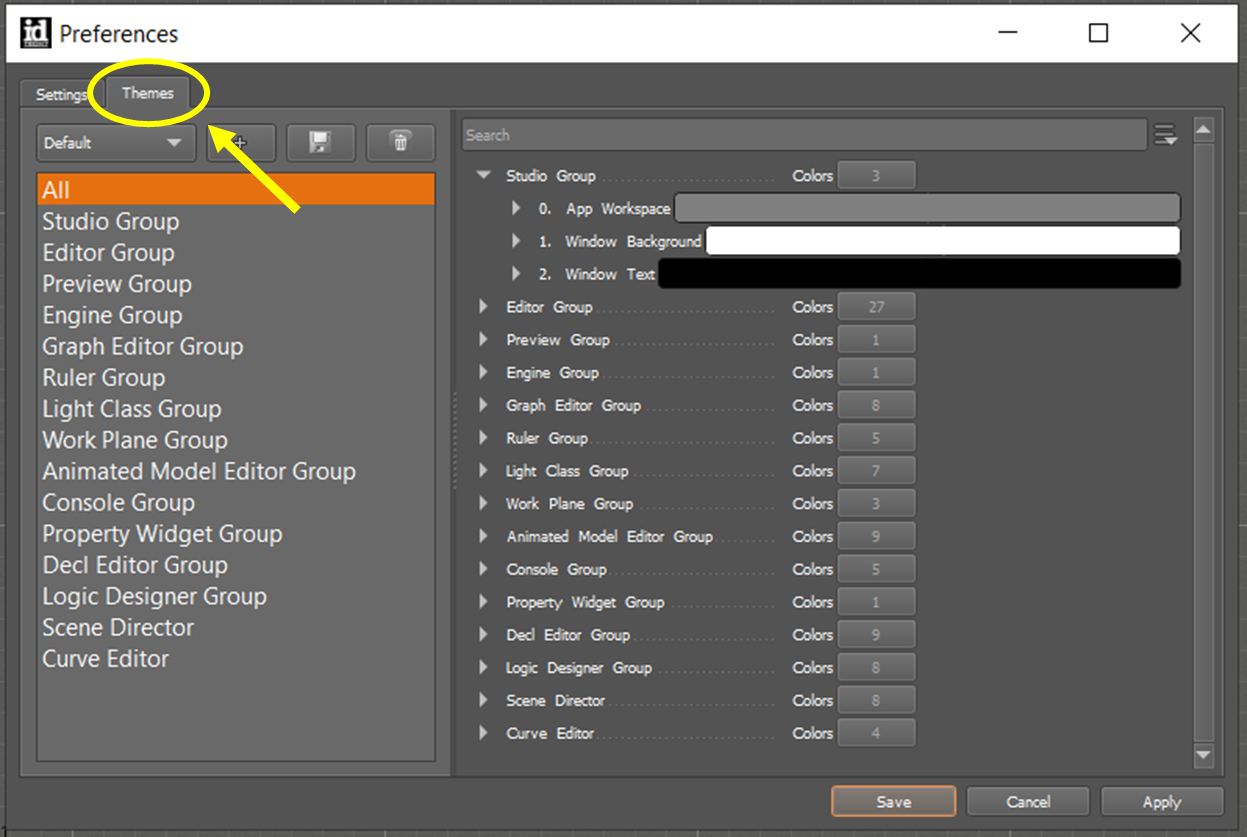
In the Preferences popup window, select the Themes tab.
-
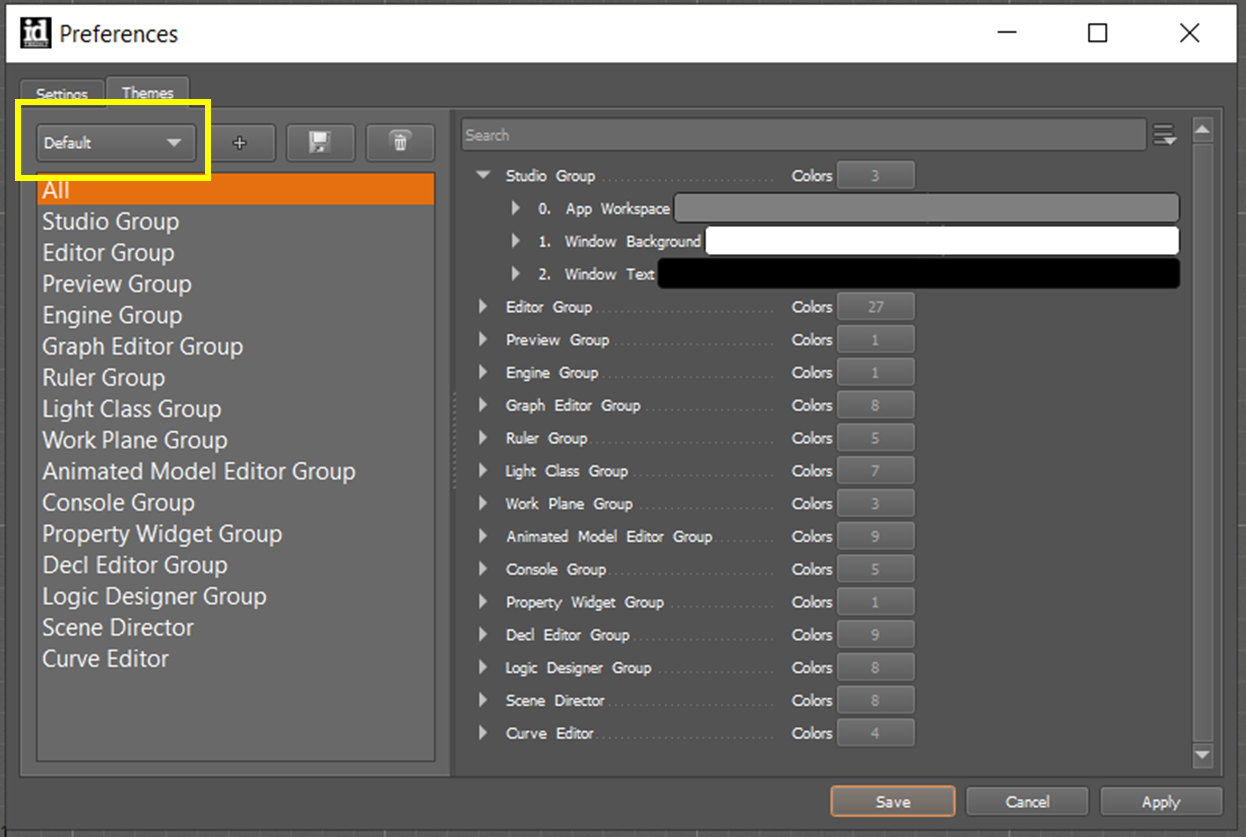
Use the dropdown to select the theme you’d like to edit.
-
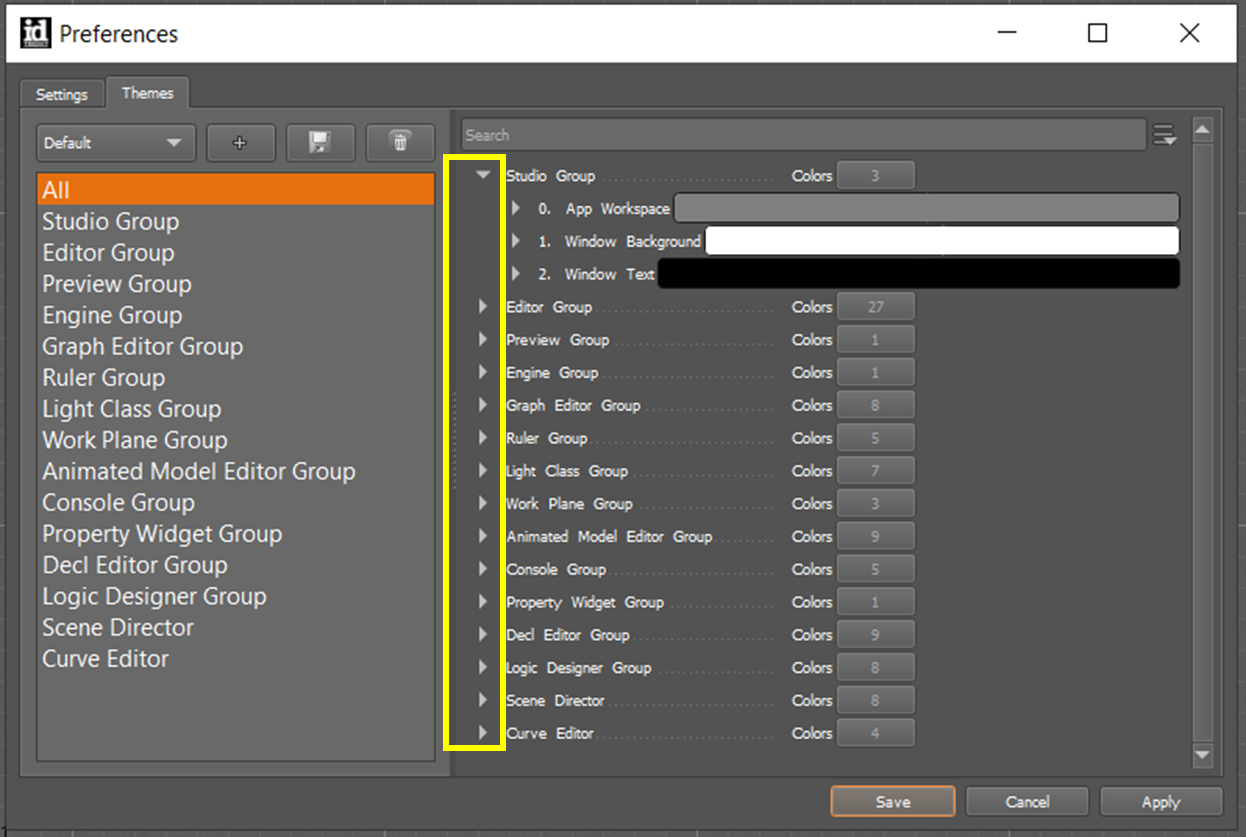
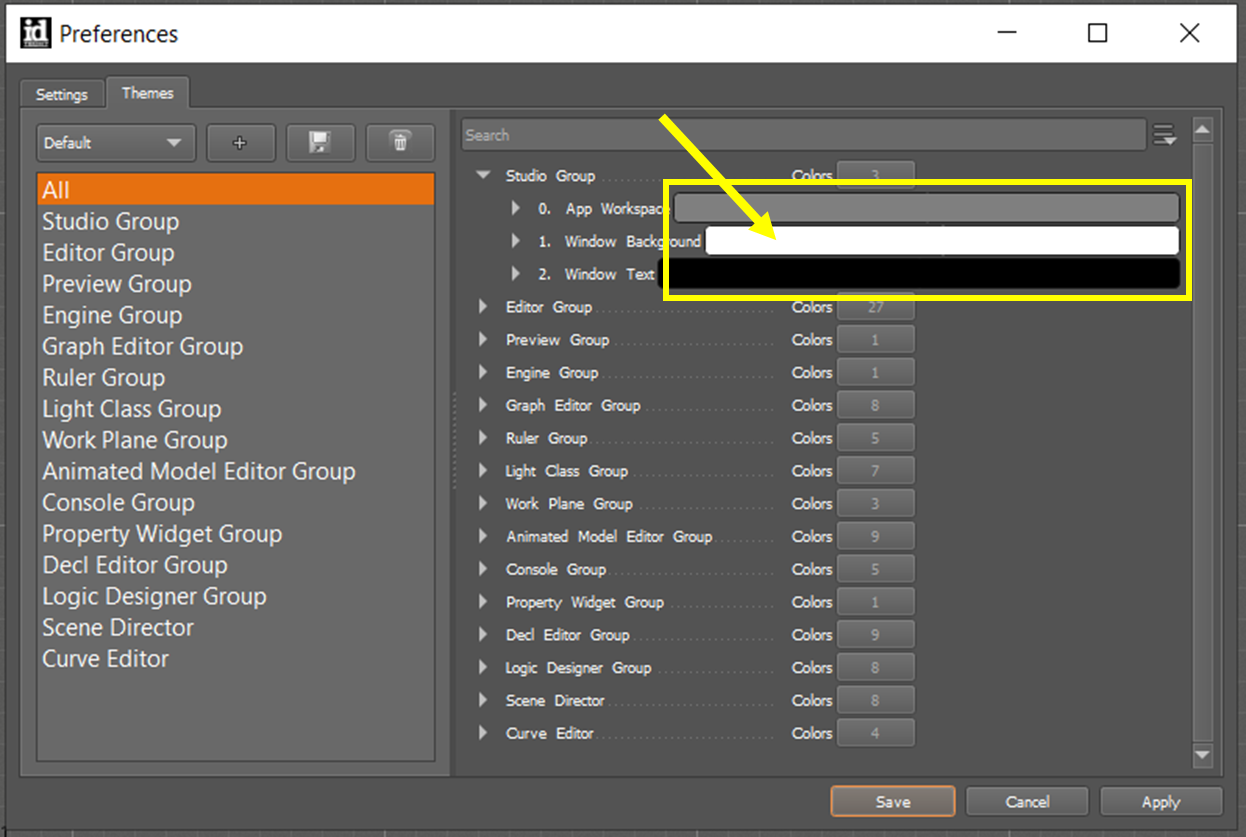
In the right panel, expand the group you’d like to edit.
-
Click on a color panel in the group to open the Color Picker.
-
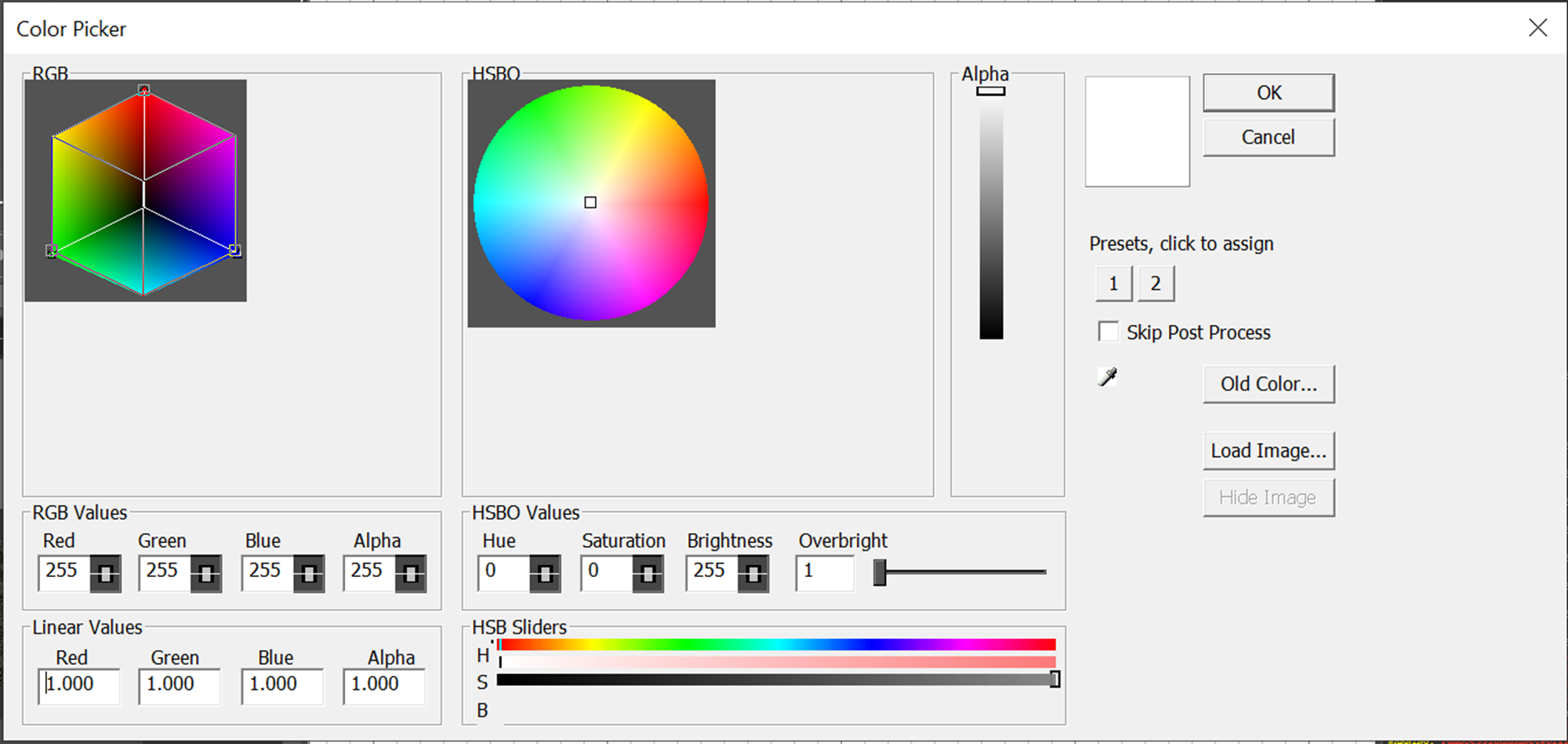
Use the tools in the Color Picker to select your new color, then click OK.
-
Repeat steps 4-6 for any other groups/colors you’d like to edit in the theme.
-
Click Save to update the preset theme.
-
Click Apply to apply the updated preset theme.
Create Your Own Display Theme
You can also create and save your own display theme for use across all of idStudio’s editors and tools.
-
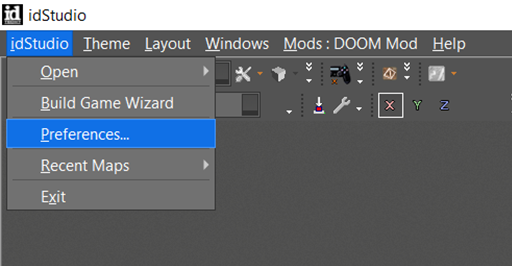
In the Main Menu Bar, go to: idStudio → Preferences
-
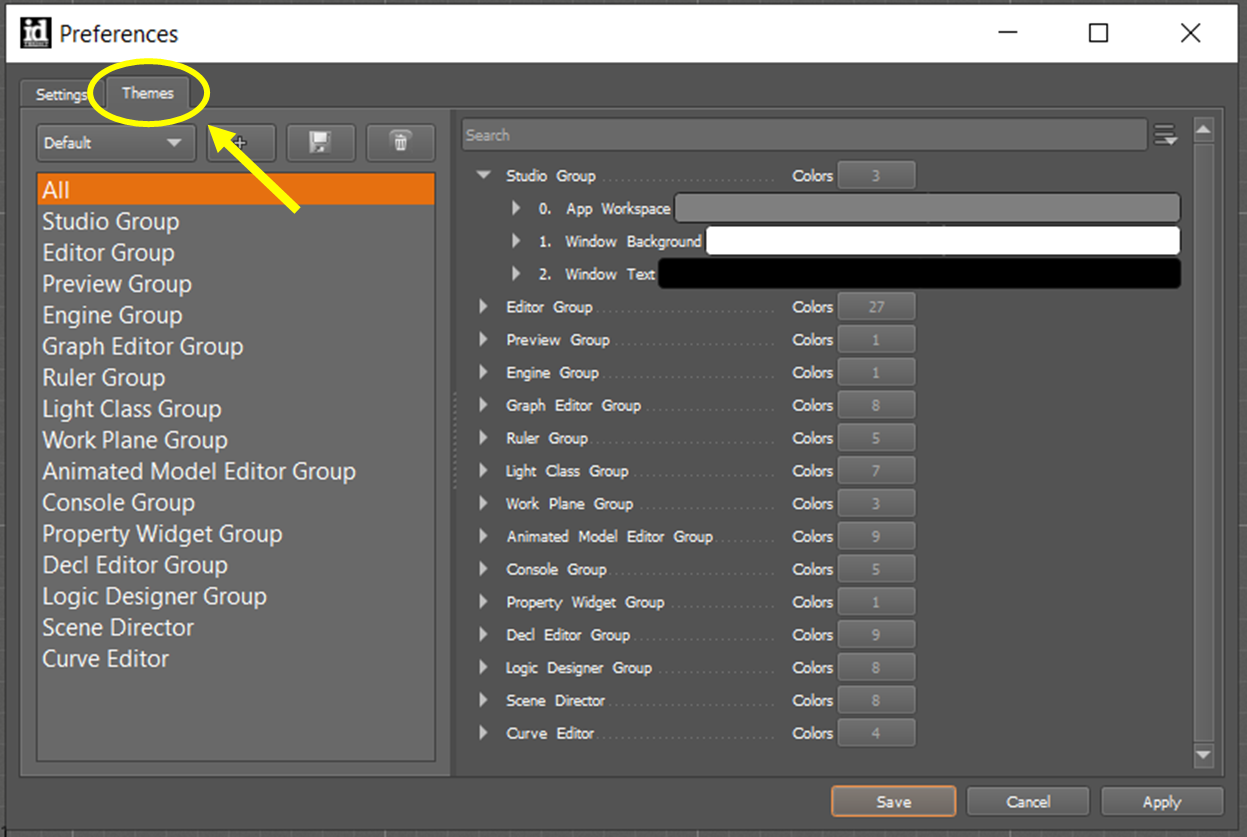
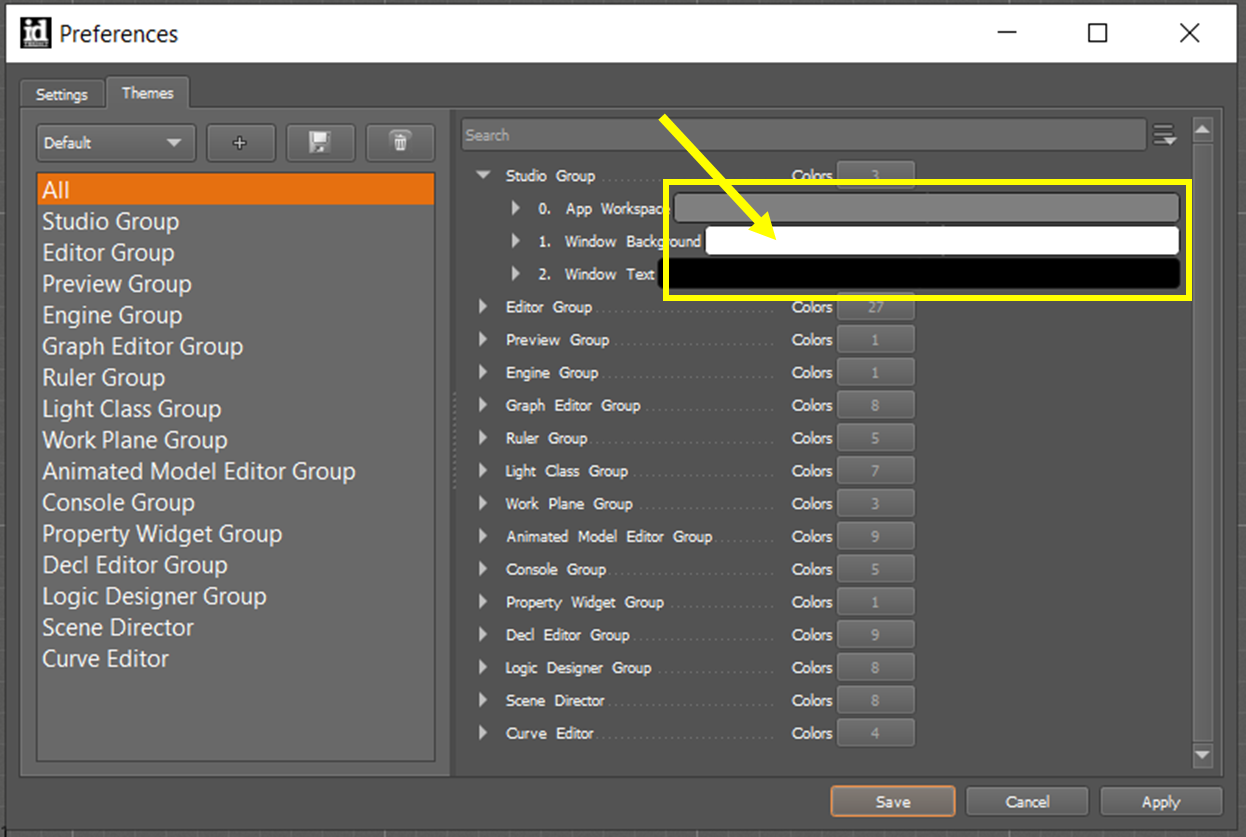
In the Preferences popup window, select the Themes tab.
-
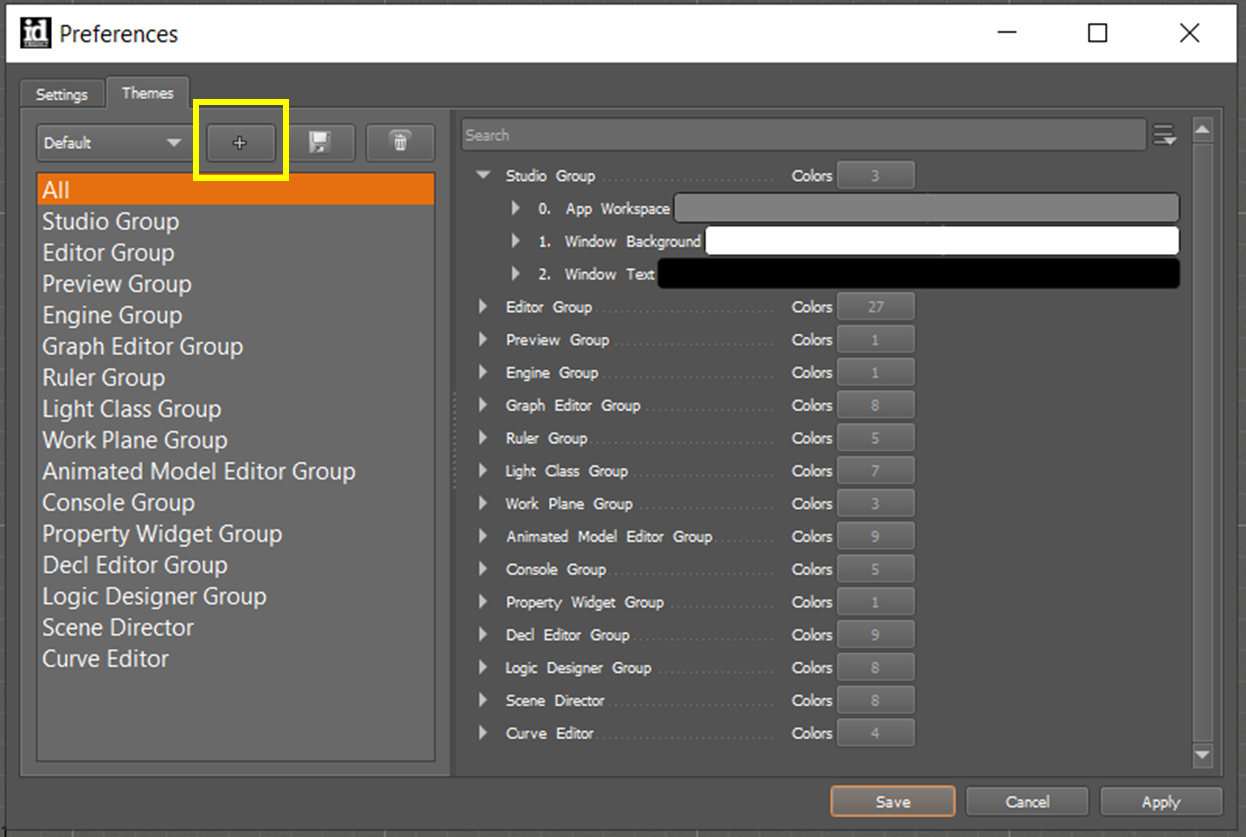
Click the ➕ button to add a new custom theme.
-
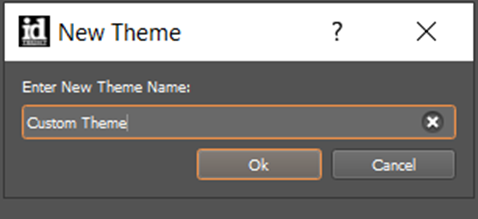
Enter the new theme name into the popup window.
-
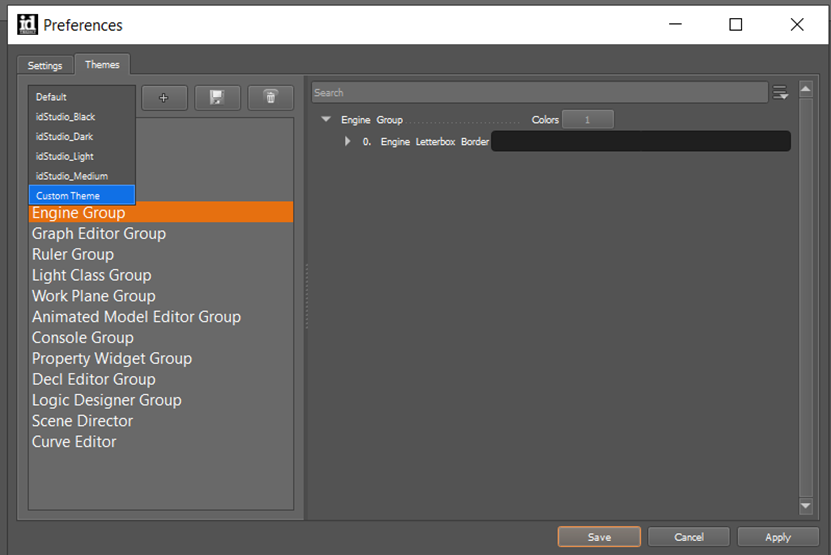
In the Preferences window, use the theme dropdown to select your new custom theme.
-
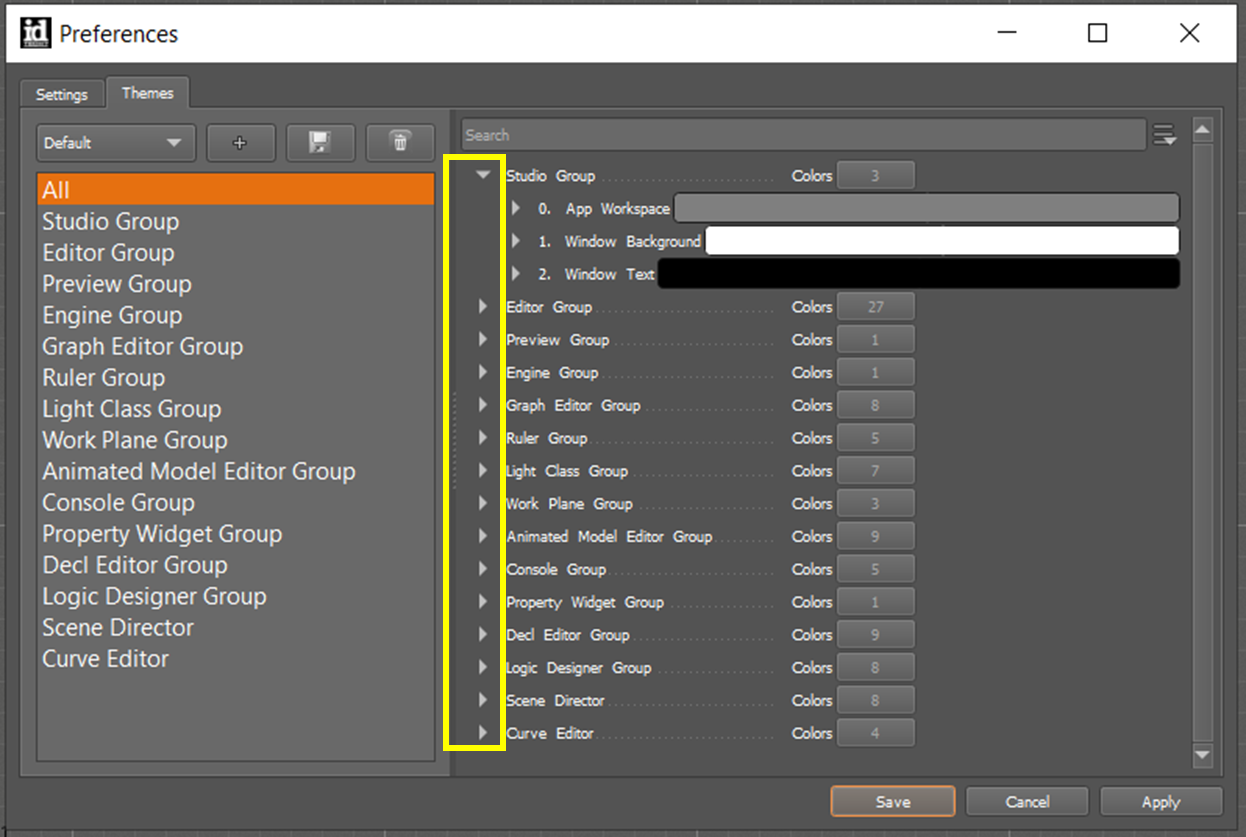
In the right-hand panel, expand the group(s) to display the current colors for each group.
-
Click on a color panel in the group to open the Color Picker.
-
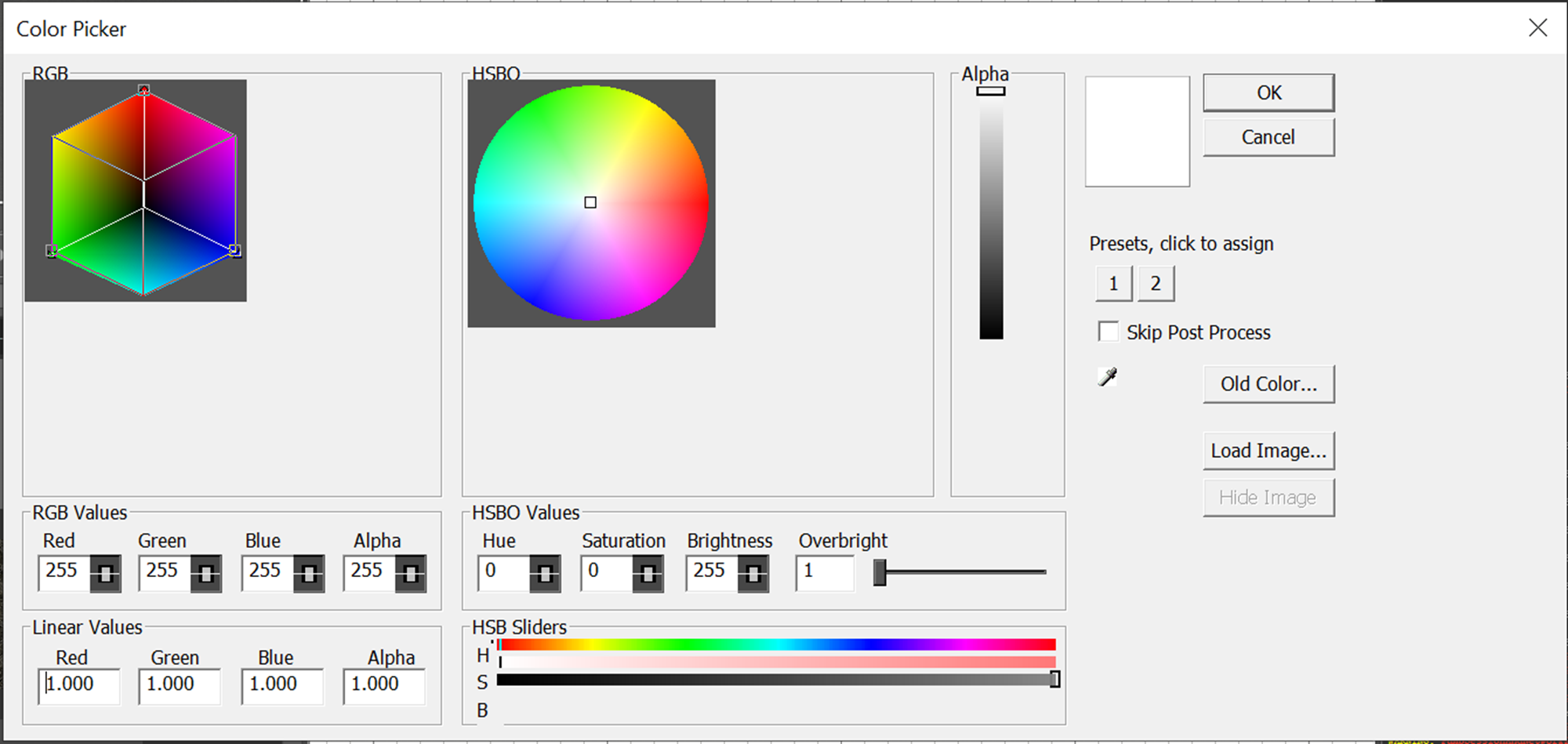
Use the tools in the Color Picker to select your new color, then click OK.
-
Repeat steps 5 & 6 for all colors you’d like to edit in your new theme.
-
Click Save to update the preset theme.
-
Click Apply to apply the updated preset theme.