Decl Editor
The Decl Editor displays all available variables for any code object that can be loaded in the game. These variables are a direct correlation to the C++ code for the game. The base decl sets the initial values of these variables, but these variables can be easily customized to match your preferences and needs by making changes to the decl in the Decl Editor.
Changes made in the Decl Editor are global – all instances of that decl will be changed to match the updated base decl. (Any instances that have already been edited to be different from the base decl will not be affected.)
Changes to a single instance can be made in the appropriate editor for the type of asset (i.e. Entity Inspector, FX Editor, etc.)
Opening anything in Asset Browser will open its decl in Decl Editor. Clicking Edit (from the Right Click menu) on any asset in Asset Browser will open its decl in Decl Editor.
Clicking specialized decls in Asset Browser (e.g. particles, models, logic assets, etc.) will open the decl directly in their respective editors instead of Decl Editor.
Available decl parameters
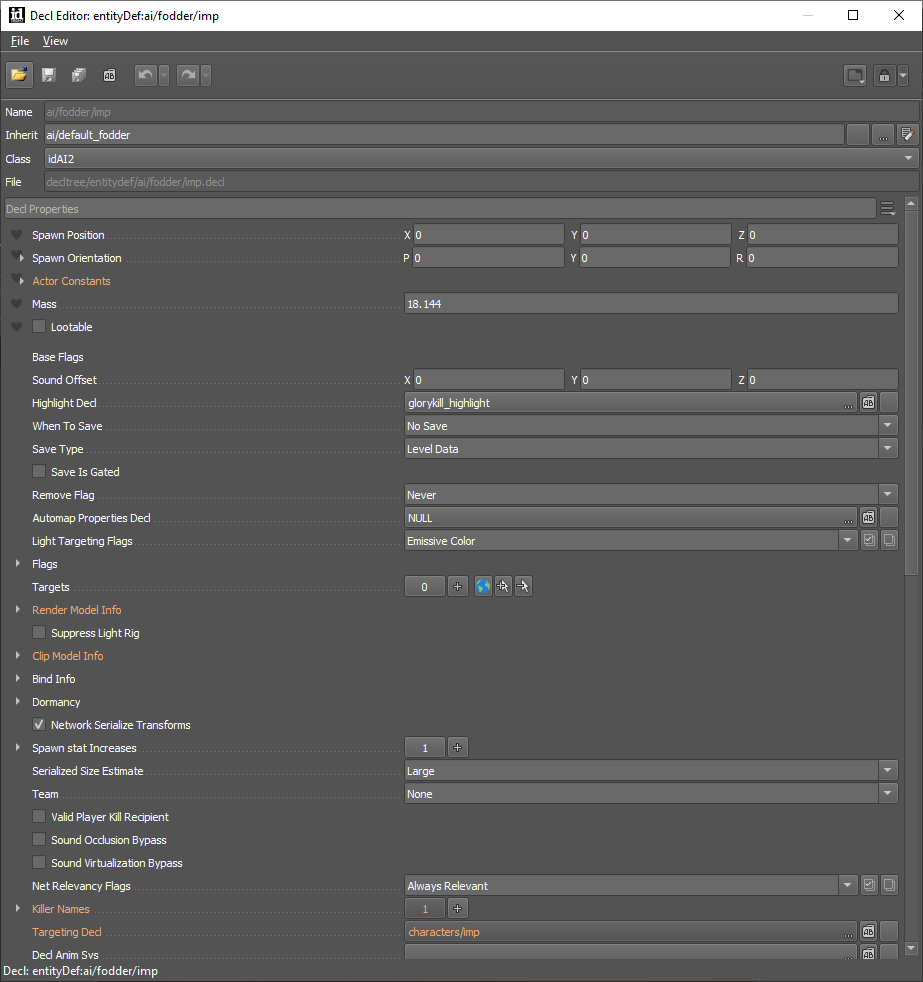
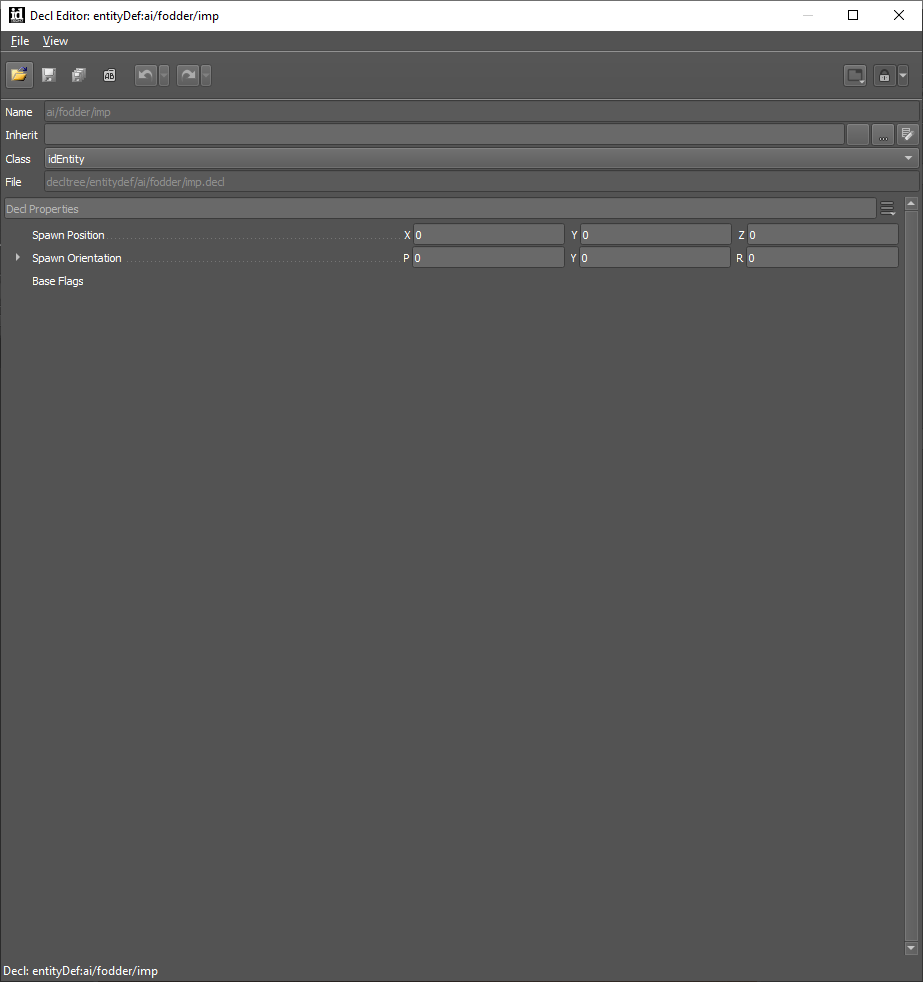
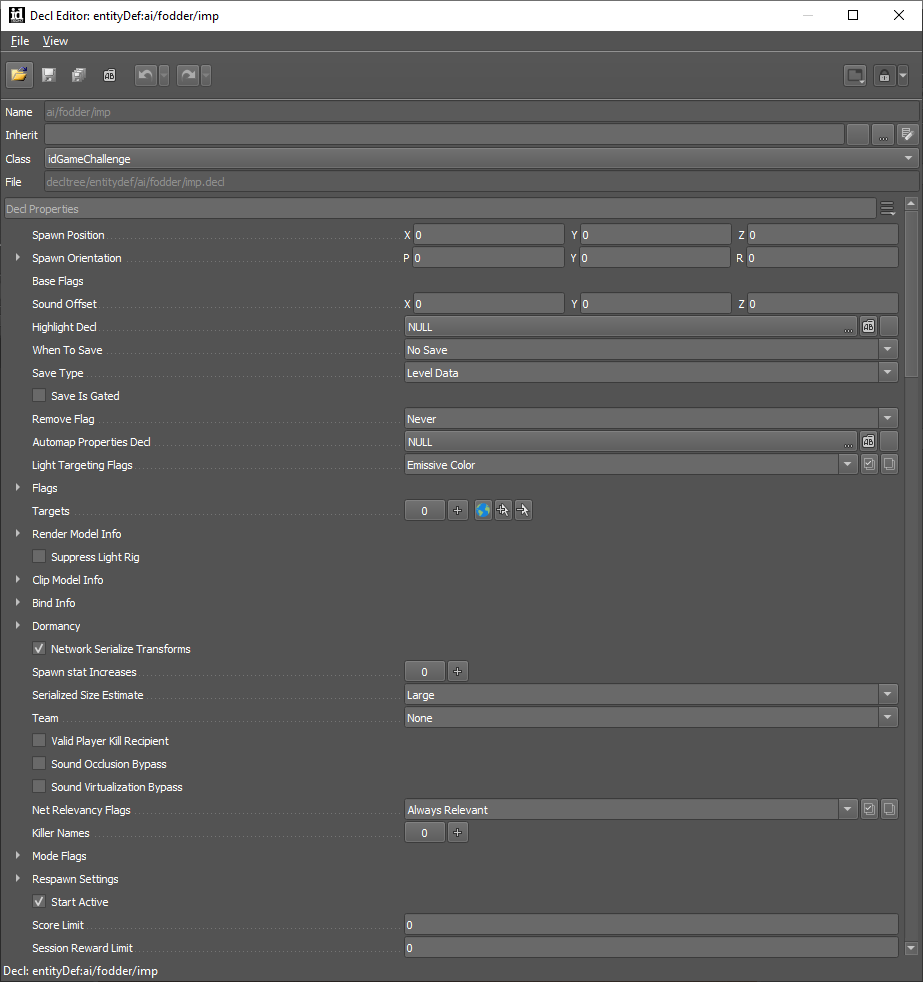
Available decl parameters are determined by the decl class:
Class: idAI2
Inherit: ai/default_fodder
Class: idEntity
Class: idGameChallenge
Decl Editor Interface
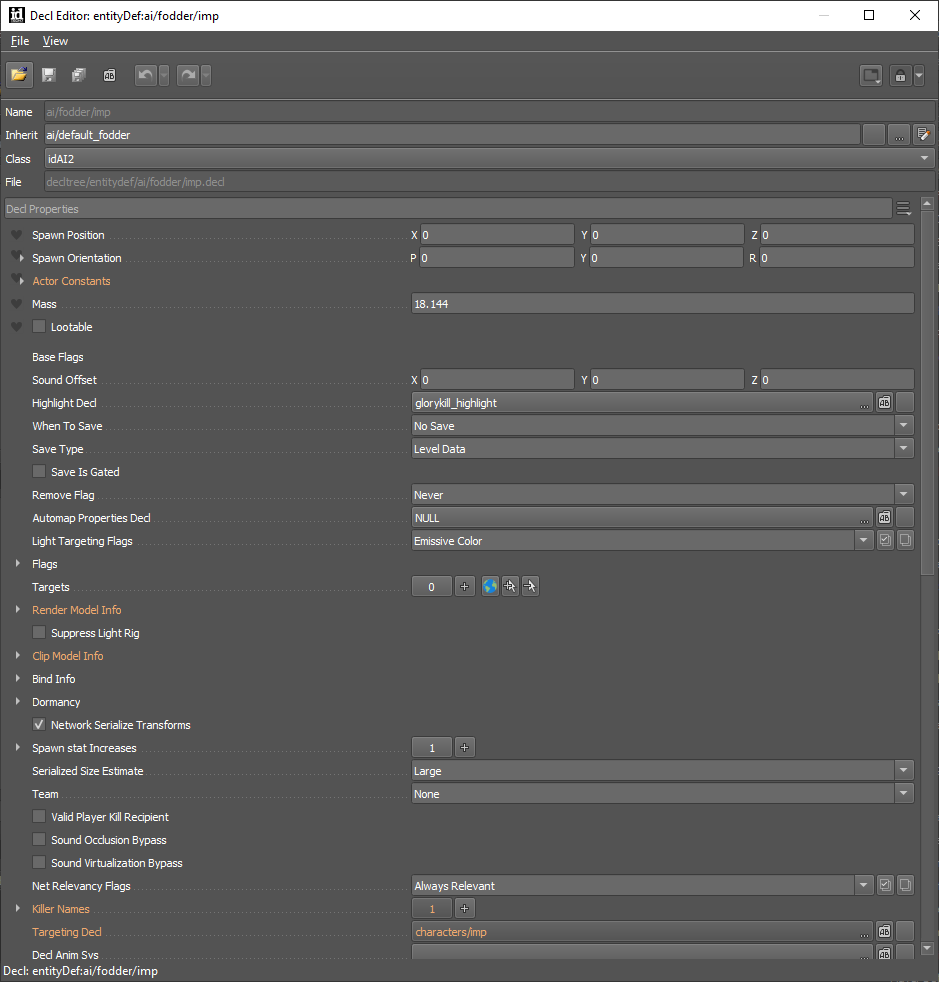
Toolbar
Open
Open a decl
Save
Save changes made to the decl
These changes global and will be applied to all instances of this decl that have not otherwise been edited to differ from the base decl
Undo
Undo a change to the decl
Redo
Reapplies an undone change
Show in Asset Browser
Open the location of the decl in Asset Browser
Layout controls
Save/Set as default/Delete
Lock/unlock Decl Editor
Defaults to lock; Lock forces a new Decl Editor each time you open an item in the Asset Browser; Unlock replaces previous selection in Decl Editor with new selection
Properties search bar
Simple text string search (use this to help locate a specific parameter on the decl)
Search bar options
- sort options for the search
- show def parameters (defining what an entity is – these cannot be changed in Entity Inspector)
- entity setup parameters (opens an additional set of parameters – set what the entity looks like when placing it in the world; defines that the entity is placeable, etc.)
Context menu (Right click)
The context menu changes depending on the property/parameter selected. Right-clicking on a property or parameter will provide you with a list of options for that variable. Below is a list of some of the common options.
Revert to default
Apply the default value for this variable
Apply from Asset Browser
Use the currently selected asset in Asset Browser
Show in Asset Browser
(in decl pointer variables) Display the decl in Asset Browser
Show in Explorer
Open the decl location in File Explorer
Copy
Copies the selection
Add to Favorites
Pulls the property/parameter to the top of the list
Usage notes
- Hovering over a variable will provide information about the type of variable
- Clicking on a decl pointer variable will automatically open a filtered folder of all appropriate decls in Asset Browser to choose from
- Add to favorites will move a variable to the top of the decl (this can be useful when you modify a particular variable often)
- Any favorites will also be linked in Entity Inspector