About
Settings
The DOOM Eternal Launcher supplies a few key settings that allow you to customize how the Launcher behaves.
General
Startup behavior
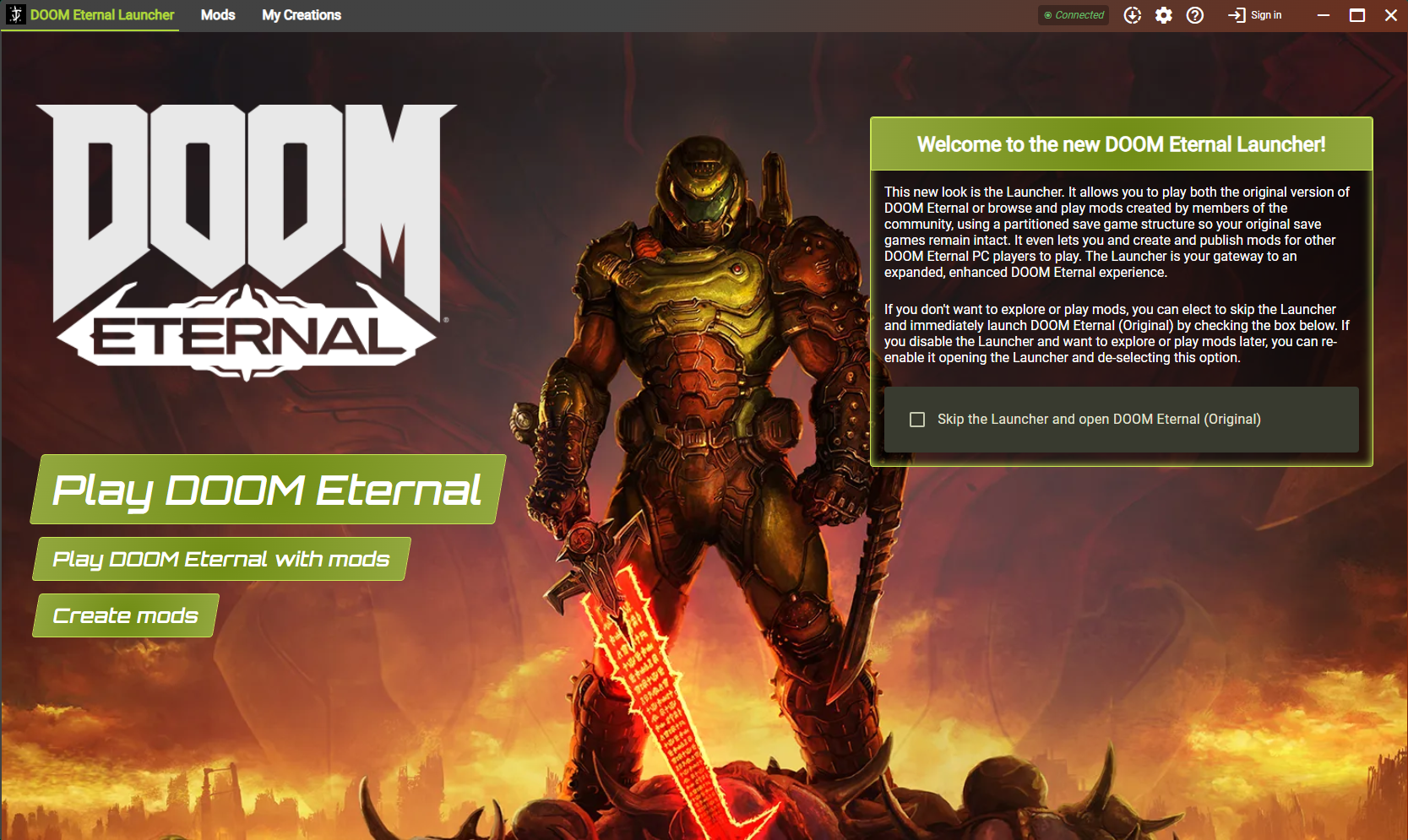
This setting dictates whether or not the DOOM Eternal Launcher is opened when launching through a provider like Steam or the Microsoft Store.
When the option Skip the launcher, and open DOOM Eternal is selected, the Launcher will:
- Immediately launch the standard (non-modded) version of DOOM Eternal.
- Minimize itself to the Windows task bar so that users can still open the Launcher if the need.
This options is also available on the "Home" page of the Launcher. To unset this setting:
- Open the Launcher while playing DOOM Eternal
- Uncheck this value
- Restart both the game and the Launcher
Streamer mode
This setting allows users to hide their own user name while streaming the DOOM Eternal Launcher.
Language
This setting allows you to set your preferred language for the DOOM Eternal Launcher.
Changing this setting will not change the language in the game nor will it change the displayed language of idStudio.
Mods
Save path
This setting controls where the DOOM Eternal Launcher will look for "active mods" on disk. This directory will be where the Launcher installs all mods that are downloaded from the mod servers.
To update this value:
- Open the Settings dialog in the DOOM Eternal Launcher.
- Select the Mods tab.
- Click Select folder.
- Use the file explorer window to select a folder as the new save path.
Adjusting this file path will not automatically migrate any existing active mods from their current directory. Additionally, this will not maintain the current activemod load order.
To maintain both the active mods as well as their load order, please migrate the current "active mods" directory manually.
Active mods cleanup
This utility will find and remove all sub-directories in the current "active mods" save path, that are not valid mods. This tool was added as a handy short cut to help manage space constraints in the mod install directory.
idStudio
Save Path
This setting controls where the idStudio tool will save any new mods it creates.
To update this value:
- Open the Settings dialog in the DOOM Eternal Launcher.
- Select the idStudio tab.
- Click Select folder.
- Use the file explorer window to select a folder as the new save path.
When creating mods through idStudio, it is best to limit idStudio's base save path to a directory with no more than 16 characters. This is because some game asset names are extremely long and exceed filename limits when loading into idStudio. We recommend using a save path for idStudio like: C:\doom.
Additionally, adjusting this file path will not automatically migrate any existing idStudio mods from their current directory. These must be manually migrated.
Asset Packs
Save Path
This setting controls where the DOOM Eternal Launcher will save any asset packs that are downloaded from the mod servers.
To update this value:
- Open the Settings dialog in the DOOM Eternal Launcher.
- Select the Asset packs tab.
- Click Select folder.
- Use the file explorer window to select a folder as the new save path.
Asset packs are large packs of assets that may be required to create/edit a mod in idStudio.
Adjusting this file path will not automatically migrate any existing asset packs from their current directory.
Due to their large space requirements, it is more efficient to manually copy these to their new destination rather than re-downloading from the server.
Asset pack cleanup
Similar to the "Active mods cleanup" tool, this utility will find and remove all sub-directories in the current "asset pack" save path, that are not valid asset packs. This tool was added as a handy short cut to help manage space constraints in the asset pack install directory and is particularly helpful as asset packs are often quite large in size.
Help menu
The Help menu contains several useful links including:
Documentation: An external link to the DOOM Eternal Mods documentation website.Terms of Service: An external link to the ZeniMax Terms of Service.Privacy Policy: An external link to the ZeniMax Privacy Policy.Code of Conduct: An external link to the ZeniMax Code of conduct.About DOOM Eternal Launcher: A dialog that describes the installed versions of the Launcher, Game, and Tools applications (if they are present).
Sign In / Sign Out
The Sign in / Sign out button is located in the application's title bar and will open an authentication dialog that allows you to log into a valid Bethesda.net account.