Mod Using Overlay
Sound Event Types
DOOM Eternal plays sound effects using sound events. There are four distinct type of sound events within the game that mods can use:
| Sound Event Type | Description |
|---|---|
| Ambient sounds | Looping sound effects that are placed within a map along with a stop-event for each effect |
| Fodder sounds | These are generally for custom monster / enemy vocalization sounds. There are events for 3 monsters with 3 different vocalizations per monster, giving 9 sound events in total. |
| Generic sounds | General sound effects. There are 30 of these events, with events 1-20 being single-shot sounds and 21-30 are looping sounds. |
| Weapon sounds | Custom weapons sounds. There are events for 3 different weapons, with slots for four random sounds for each of the weapons events. |
Overlaying Samples for Existing Sound Events
You can replace the samples used by existing sound events in the game. This is done by placing the wav files that you want to use for the samples in the folder located at \<your mod\>\base\sound\ModWavs\Overlay. There are some rules that you must follow in order for the custom samples to be used.
-
All of the samples used by a sound event must be present. You cannot replace only one or some of the samples. If all of the samples are not present, the game will default to the samples that are shipped in the game data.
-
The names of the samples must match the names of the original samples of the game.
-
All samples must be contained in the folder located at
\<your mod\>\base\sound\ModWavs\Overlay. They cannot be organized into subfolders.
Sample Naming Conventions
The filenames for the samples must match that of the original filenames of the samples used in the game.
A list of the names of samples used by each event can be found here. This page contains a list of all of the sound effects available in the game, with the names of the samples that each event uses.
Sound Files for Custom Sound Events
WAV Filenames
The WAV files for each type of sound event have specific names. The expected filenames of each event are given in the table below.
Ambient Sounds
ambience1.wav to ambience20.wav
Fodder Sounds
- Monster 1 -
fodderm1.wav,fodder2m1.wav,fodder3m1.wav - Monster 2 -
fodderm2.wav,fodder2m2.wav,fodder3m2.wav - Monster 3 -
fodderm3.wav,fodder2m3.wav,fodder3m3.wav - Monster 4 -
fodderm4.wav,fodder2m4.wav,fodder3m4.wav - Monster 5 -
fodderm5.wav,fodder2m5.wav,fodder3m5.wav - Monster 6 -
fodderm6.wav,fodder2m6.wav,fodder3m6.wav - Monster 7 -
fodderm7.wav,fodder2m7.wav,fodder3m7.wav - Monster 8 -
fodderm8.wav,fodder2m8.wav,fodder3m8.wav - Monster 9 -
fodderm9.wav,fodder2m9.wav,fodder3m9.wav
Generic Sounds
generic1.wav to generic30.wav
Weapon Sounds
- Weapon 1 -
modp1.waytomodp12.wav - Weapon 2 -
mod2p1.waytomod2p12.wav - Weapon 3 -
mod3p1.waytomod3p12.wav
Conversion to WEM
Once you've crafted your new sound, it will need to be converted into the WEM format. For this process, you will use the WEM Converter in idStudio, which can be found in the Mods menu (see image below).
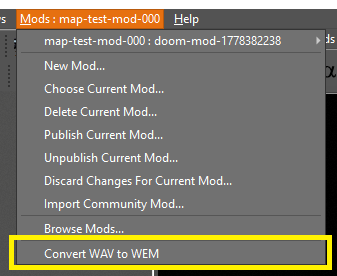
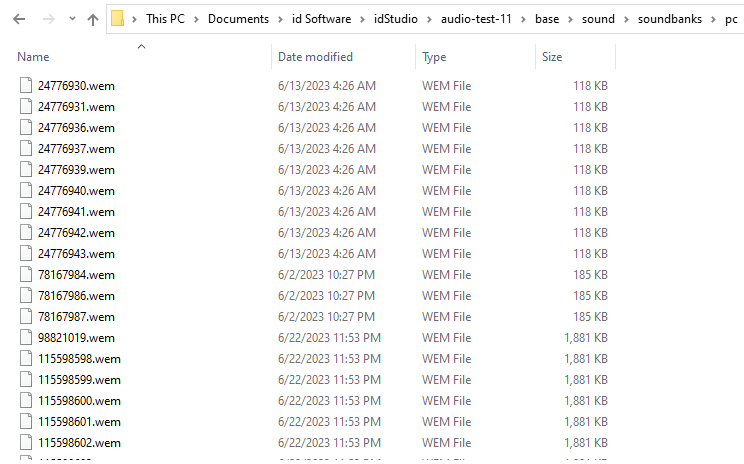
Clicking the "Convert Wav To Wem" option in the menu (highlighted in yellow) will convert all of the wav files found in <your mod>\base\sound\ModWavs\Custom. Once the process has run, the wav files will have been converted into the corresponding wem file located in <your mod>\base\soundbanks\pc, overwriting any existing wem files.
The image below shows an example of what the folder containing your wem files will look like: