Adding Sound Effects to Animations
Procedures
Animation sound effects
- In the Animated Model Editor, open a character or weapon that you wish to attach sound to
- On the right of the model you will see a list of all available animations for the character that are currently in engine. Beneath the model you will see a timeline for the animation. You can click the green Play button to watch the animation loop.
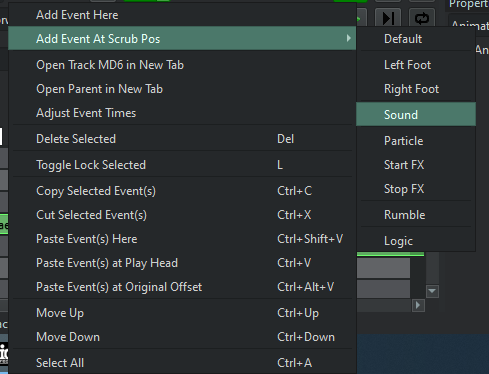
- Right click inside the timeline, hover over Add Event at Scrub Pos, and select Sound. Doing this will add an ae_sound event in the timeline at the bottom of the editor.
tip
Another commonly used sound event tag is ae_soundNoSkip. This will prevent the sound event from being skipped if the animation blends out before the sound tag was reached in the timeline.

AI voice over
AIVoiceOver Tags use a special table that is connected to the AI VO events. This tag references the VO table, and determines whether or not to play a sound based on if the enemy AI dies or not mid-animation.
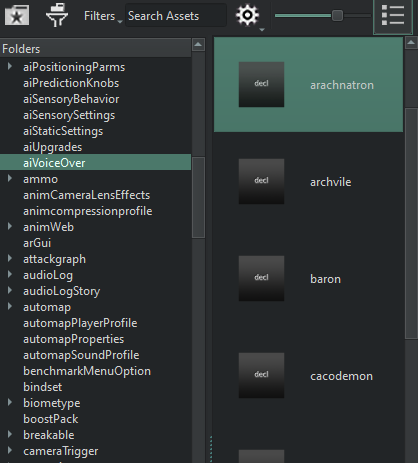
- The aiVoiceOver tables are located under aiVoiceOver in the Asset Browser.
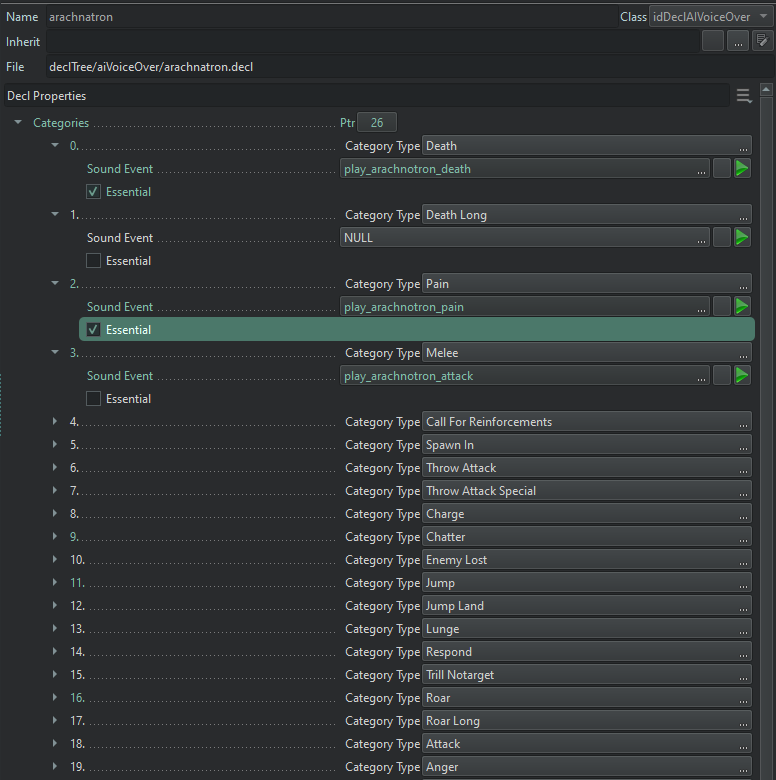
- Open a VoiceOver decl in Decl Editor and specify which sound events correlate to which Category Types
- By checking the Essential box, the sound will play whether the AI dies or not
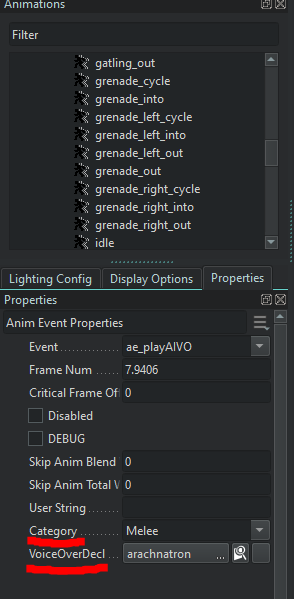
- Now you can use the Event tag ae_playAIVO, and under the VoiceOverDecl property, select the VO Decl that matches your AI. Finally, in the Category property, select which type of sound should be played.