Edit A Destructible Model
Destructibles are static models that can be destroyed during gameplay such as destructible pillars, walls, or combat cover. These items can make a map feel more real and dynamic.
Edit a destructible
- In the Static Model Editor, enable the Toggle Destructible Setup button from the toolbar.
- Go to the Destructible Editor section of the Static Model Editor (right pane) and click the Open button from there. This will open a filter version of the Asset Browser that lists all of the destructible models.
- Select a model.
Destructibles have specific physics properties attached to them and are different from standard static models.
- Global Destructible Properties are the default properties applied the the geo pieces. Set an Override flag on a piece in the list to apply piece-specific properties to the selected geo piece. A new Piece tab will open to display the override properties.
- Set the Display Options to help you view effects of global and piece-override properties.
See information on Display Options below.
- Use the Play and Reset simulation features to preview your changes. Save your destructible decl when the behavior is correct.
See information on Destructible Properties below.
- In the World Editor, add your destructible by going to: New Entity → Destructible → Default. Set the property
Destructible.Declto the destructible decl saved in the previous step.
The destructible must be activated by a trigger or take damage based on the settings.
Display Options
The Display Options can help you view the effects of current Global and/or Piece Override properties.
Highlight Piece
When enabled, the selected piece in the Destructible tab will be highlighted in the view pane.
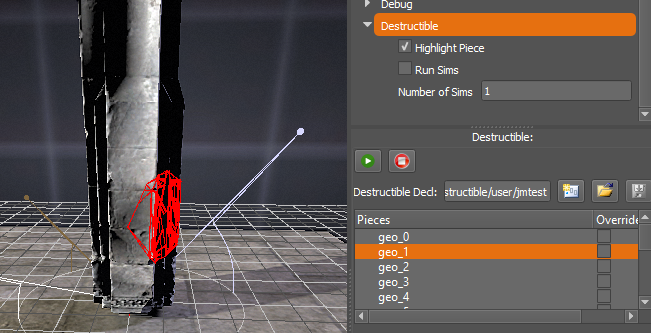
Run Sims
Runs the given number of simulations on a selected piece based on the destructible properties configured in the Destructible tab. The simulated paths will be drawn in the view pane, and represent the translation of the piece's origin.
Use the Play and Reset buttons to force a simulation to run in the view pane.

Destructible Properties
Motion Type
Static, Dynamic, or Keyframed motion.
Motion Properties
The maximum linear/angular speed, the decay/damping, and gravitational forces that will alter the motion.
Linear Direction and Linear Speed will apply a baseline impulse for your destructible that applies to all pieces.
Angular Direction and Angular Speed will define axes by which the destructible will rotate as it moves through the world. This allows us to add some motion to pieces as they fly so that they don’t look so static. Typically, angular motion numbers stay quite low unless the objective is to make the pieces spin a lot.
Material Type
The material type will influence the weight of the model which will influence the forces applied to the destructible.
Flags
Weapon decls may add impulse over the top of these properties, unless the Ignore External Force flag is enabled. This means that a destructible will only get force applied based on the Global Force/Global Preset Data. Weapons or other external forces (explosions, AI stomping around) will not affect the destructible pieces at all. This flag should be reserved for cases which should behave the same way every time the destructible is activated.
Force
The initial forces that will be applied to the geo pieces when the destructible is activated.
Preset Data
The probability shapes that will determine the directions in which geo pieces leave the origin. The custom and random presets are probably not useful for typical level designers.
- Cone: Provide pitch, yaw, and roll in half-angles. Without a damage direction to inherit from, the cone will go upward
- Sphere: The min/max force will be used to distribute all destructible pieces randomly within a sphere shape
The Restrict Bottom Angle chops a cone out of the bottom of the sphere with the given half-angle which becomes a “no-fly-zone” for the destructible pieces.
- Angel Wings: Two cones perpendicular to the applier of impulse. The Change Dir Randomly flag will alternate pieces between the two wings, and the Use Owner Axis keeps the destructible part on the same side (such as the left arachnotron leg sends pieces off to the left).
- Thru Square: Useful for wallbreaks and shotgun blasts, this preset assumes an external force is being applied. This allows for the destructible pieces to have a "goal" to reach over time based on the forces being applied.
Width and height will define the size of the goal square for the pieces. Offset will be from the point of where the impulse was applied, the default is 1 meter behind the origin. Offset From Owner will ignore the incoming force’s directionality (external/weapon offset) and apply it based on the owner’s position.
- Custom: Removes all global force and impulse as well as external forces, driven by per-piece settings. Useful only in very special cases.
- Random: Shoots pieces off in random directions using the min/max Force. Probably not useful.
Impact Force Needed
The minimum amount of force required to bounce.
Removal Time / Fade Time
The Removal Time is the total time between the part spawning and removal. The Fade Time is the last portion of the Removal Time during which the the fade happens. The Fade Time is always less than the total Removal Time.