Material Painter
The Material Painter is a tool in idStudio used with the material blending rendering system. It is designed to paint material on one or multiple static meshes (func/static or func/staticinstance entity types).
Opening the tools/adding meshes to paint
- Select one or more static meshes (
func/staticorfunc/staticinstanceentity types) in World Editor, then Right-click and select Material Painting from the context menu.
If no paint data exists for the selected meshes, the context menu will give you the option to Add VPaint to Map...
- The first mesh you select is the one you paint on, other meshes are only shown to provide context.
- After you start painting, the meshes will appear in a Material Painter window.
See Material Painter interface information below
Material Painter interface
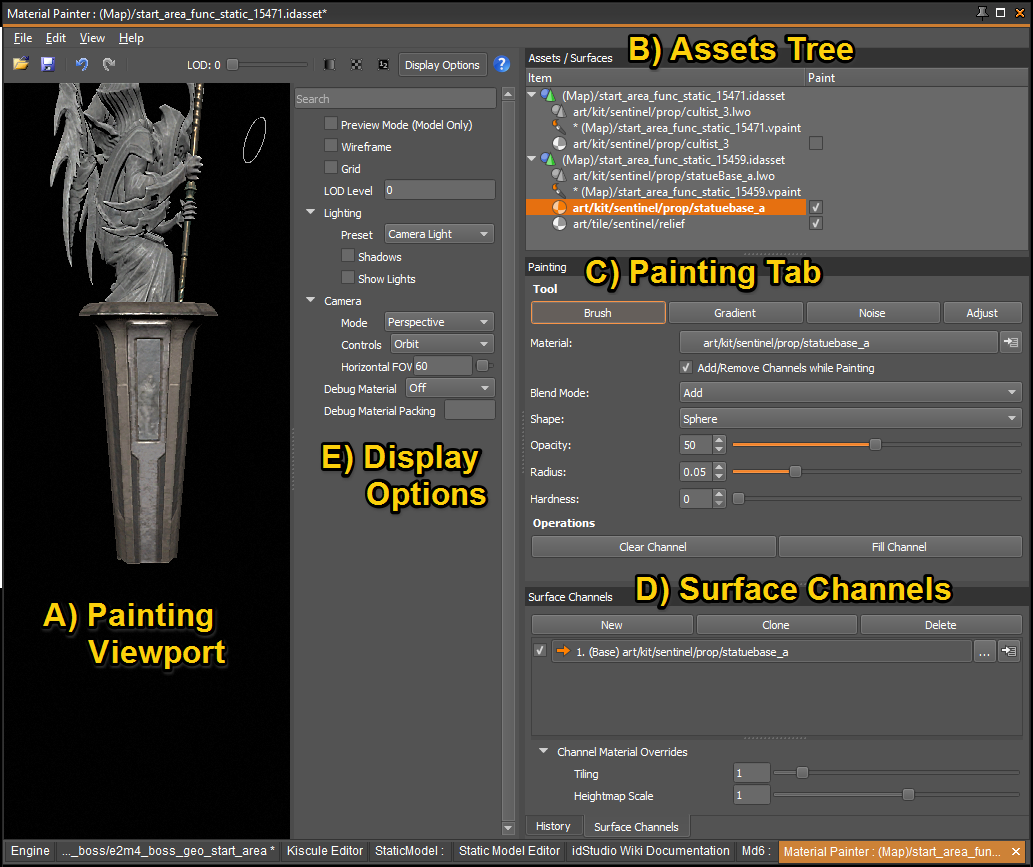
Painting Viewport
On the left of the Material Painter is the painting viewport.
To move the camera in the painting viewport, use View > Show All to center the camera on the selected objects.
Viewport Hotkeys
| Button or Key | Description |
|---|---|
| Left Click | Perform a painting action defined by the selected tool and its options. |
| Right Click | Change the brush size. |
| Alt + Left Click | Rotate the view. |
| Alt + Middle Click or Shift + Alt + Left Click | Pan view. |
| Alt + Right Click or Ctrl + Alt + Left Click or Mouse Wheel | Zoom view. |
| P | Toggles preview mode, when only the model is visible, and not grid wireframe or any other overlay. |
| Shift + Left Click | Selects the surface at the cursor in the Assets Tree. |
Assets Tree
At the root of the Assets tree you will see paint assets. You can have multiple root assets if you select multiple entities before you start vertex painting. The context menu allows you to unload individual assets.
Surfaces are grouped by materials. Select the surface to start painting. You can double click on a surface to center in the viewport.
The check-boxes in the Paint column allow the user to select which surfaces can be painted. This can be used to prevent paint from getting on unintended surfaces.
Painting Tab
This main tools tab allows you to switch between different tools and view the options for each.
Paintbrush tool
By default, painting is done in Add mode. Hold Ctrl while painting to subtract. Other blend modes are available in the options.
Options for shape, size, opacity and hardness are also available.
Switch to the paintbrush with keyboard shortcut B.
Wacom pen pressure is used to alter the opacity of the brush.
Gradient Tool
Switch to the gradient tool with keyboard shortcut G.
Noise Tool
The noise tool uses the current brush size to define the scale of noise features. Hit the R key to pick a new seed. Click and drag while using it to define noise within a radius, or click without moving to fill a layer with noise.
Switch to the noise tool with N.
Adjust Tool
The Adjust Tool allows you to tweak the low, mid and high values of the paintable layers. Hit Apply before painting to actually apply the change.
Clear Channel and Fill Channel
The Fill Channel button will use the current painting settings including the material and opacity to fill the channel.
The Clear Channel button will remove all paint data from the current channel.
Add/Remove Channels while Painting Checkbox
The Add/Remove Channels checkbox will automatically add the selected material to the stack in the Surface Channels pane.
Surface Channels
The Surface Channels view allows you to select the active channel that is being painted at the moment as well as manipulate channels.
Each channel has following controls:
- A Checkbox toggles visibility of the channel. Individual channels can be toggled to see their contribution and the effects of material packing on them. Toggling a channel does not affect how the final painting looks in the map.
- The main button with a material name activates a channel for painting.
- The ellipsis ("...") allows you to change the material that is used for the channel.
- The Jump to Material button allows you to navigate to the Material Editor to adjust material settings.
There are a number of commands available in the channel context menu, allowing you to clear a material reference, remove a channel, and change channel ordering.
Display Options
Display options allows you to change various presentation options, notably:
- It is possible to toggle Wireframe. This is especially useful as paint weights are stored per vertex and you may want to see where vertices are positioned.
- Debug Material option offers a way to look at Blend Weights and Blend Mask directly.
If you do not see Display Options on your screen note the "Display Options" button in the right side of the Toolbar.
History tab
Lets you see all the actions involved in painting a model. You can choose to throw away all your work here if that is ever useful. It also shows undo/redo status.
Keyboard Shortcuts
Shortcuts are active only in the 3D viewport.
| Key Command | Description |
|---|---|
| Shift + Left Click | Select a surface or layer. |
| P | Toggle preview mode, fading or showing the information overlay. |
| X | Cycle through blend debug material visualization modes. |
| C / V | Cycle through channels/validation debug material rendering modes. |
| M | Reset debug material to normal rendering. |
| B | Switch to the Brush tool. |
| E | Switch to the Eraser tool. |
| G | Switch to the Gradient tool. |
| N | Switch to the Noise tool. |
| 1 - 9 | Select the layer for painting. |
| ] / [ | Change the brush size. |
| Shift + ] / [ | Change opacity. |
| , / . | Change hardness. |
| Ctrl + Z / Ctrl + Y | Undo/Redo |
| Ctrl + S | Save |
| Ctrl + Left Click | Paint in Subtract instead of add |
Heightmap
A Heightmap material property is used to add variation to otherwise monotonous transition of weight between vertices. This is a grayscale texture parameter that adjusts how blending between materials is done.
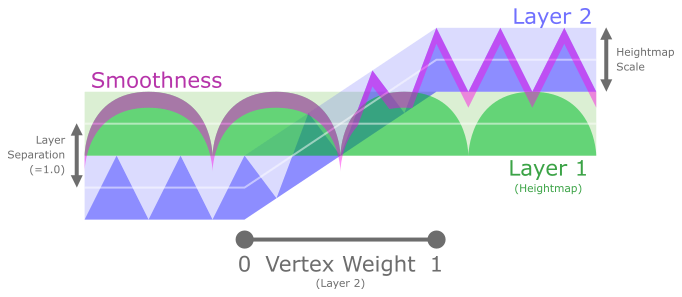
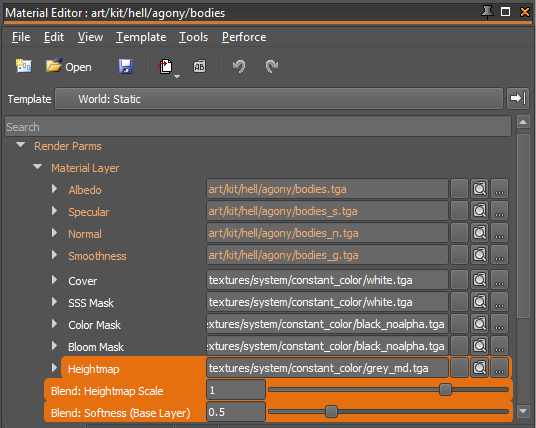
You can specify heightmap in a material of each layer, with separate controls for softness depth and heightmap scaling:
Limitations
Material blending is limited to two materials per triangle. This may cause some noticeable seams between triangles which the artist should be careful to avoid.