Importing Content
When creating your mod, you may want to use external image manipulation and 3D modeling tools to modify existing assets or add new ones to your project. This guide will help you understand how to import these assets into idStudio, so you can use them in your mod. By following these steps, you'll be able to easily incorporate new content into your project and take your modding experience to the next level.
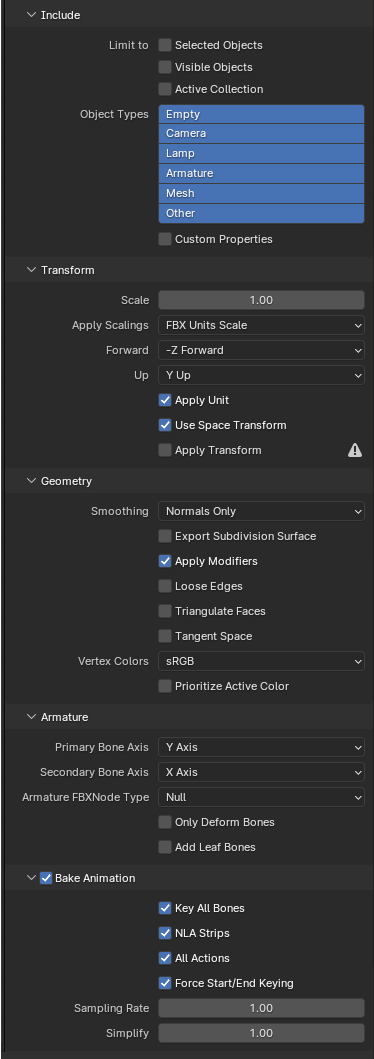
Export Settings for Blender
Remember to check these settings every time you export FBX files from Blender.
- In Transform → Apply Scalings, select FBX Units Scale.
- In Armature, disable Add leaf bones.
Ingestion Procedures
To import an asset into idStudio for use in your map, you’ll need to ensure you’ve saved your externally created file in one of the accepted formats (see above).
You will also need to have started at least one new mod file in idStudio by going to Mods menu → Create new. Doing this will create the necessary folder in your File Explorer.
Static Models
- In your external creation software (e.g. Blender), export your new static model as FBX.
Be sure to apply FBX Units in the scaling of the model before exporting.
In order to export Blender materials to FBX, Blender requires the material to be set up as Principled BSDF. The name of the Blender material should be the name of the material decl you want to use.
- Open File Explorer and add your new asset to the appropriate folder:
- Go to: My Documents → idStudio → ((YOUR MOD)) → base → art → models.
- Add your new static model file to this folder.
If you are unsure where to add your new asset in your File Explorer, open Asset Browser in idStudio and find the asset you’re modifying (or an asset in the same category). Then, Right-click → Show in File explorer to view the folder in your File Explorer.
- In idStudio, open the Static Model Editor: Windows → Editors → Static Model Editor.
- In the Static Model Editor, click the Open ( :open_file_folder: ) button in the toolbar.
- Use the file tree in the dialog box to find your new asset.
Your new model file should appear in the file tree in the same place you added it in File Explorer. If you don’t see it, Right-click and select Refresh folders.
- Select your new asset, and click Okay.
- Create a decl file (if you haven't done so before):
- In Static Model Editor: Utilities → Generate modelAsset decl.
- The model asset decl has now been created and the new static model can either be referenced in other decls, or dropped directly into your map as an entity.
Animated Models
- In your external creation software (e.g. Blender), export your new animated model as FBX.
Be sure to apply FBX Units in the scaling of the model and disable Add leaf bones before exporting.
In order to export Blender materials to FBX, Blender requires the material to be set up as Principled BSDF. The name of the Blender material should be the name of the material decl you want to use.
- Open File Explorer and add your new asset to the appropriate folder:
- Go to: My Documents → idStudio → ((YOUR MOD)) → base → art → models.
- Add your new animated model file to this folder.
If you are unsure where to add your new asset in your File Explorer, open Asset Browser in idStudio and find the asset you’re modifying (or an asset in the same category). Then, Right-click → Show in File Explorer to view the folder in File Explorer.
- In idStudio, open the Animated Model Editor: Windows → Editors → Animated Model Editor.
- In the Animated Model Editor: File → Import FBX → Import Mesh and Skeleton.
- In the popup window, select which meshes to import and whether they should be merged.
This will create md6mesh, md6skl and md6mask.
You can choose to import only the skeleton. Doing so will create the md6skl and md6mask files without md6mesh.
You can also choose to import only the mesh. This will require selecting an already existing md6skl file separated from the input FBX.
- Create an md6.decl file (if you haven't done so before):
- In Animated Model Editor: File → Create and Open.
- Select the recently created md6mesh file.
- The md6.decl has been created and the new model is shown in the Animated Model Editor.
Animations
You will need the skeleton to be used with this animation (md6skl) before importing the animation. You can import it following the steps in Animated Models.
- In your external creation software (e.g. Blender), export your animation as FBX.
Be sure to apply FBX Units in the scaling of the model and disable Add leaf bones before exporting.
The same FBX file could be used to import the animated model, its skeleton and an animation.
- Open File Explorer and add your new asset to the appropriate folder:
- Go to: My Documents → idStudio → ((YOUR MOD)) → base → art → models.
- Add your new animated model file to this folder.
If you are unsure where to add your new asset in your File Explorer, open Asset Browser in idStudio and find the asset you’re modifying (or an asset in the same category). Then, Right-click → Show in File explorer to view the folder in your File Explorer.
- In idStudio, open the Animated Model Editor: Windows → Editors → Animated Model Editor.
- In the Animated Model Editor: File → Import FBX → Import Animation.
Materials
When creating a new model in an outside editing tool, you will assign a material to the geometry in your model.
- Add your imported TGA file to the folder in file explorer that holds similar existing .tga files.
You can use Show in Explorer to find this location.
- Create a new material decl in Asset Browser:
- Right-click → Create a new decl or
- Right-click on an existing material decl → duplicate the decl (this ensures the decl is in the same location as other similar materials).
- In Decl Editor, assign the new TGA to the new decl.
Export Procedures (From idStudio)
Static Model to FBX
- Open the static model to export in Static Model Editor in idStudio.
- In the Static Model Editor, go to: Static Model → Export model to FBX.
- Select the name and path of the new FBX file.
- Open your external content editor (e.g. Blender) and import as FBX.
Animated Model to FBX
- Open the animated model to export in Animated Model Editor in idStudio.
- In the Animated Model Editor, go to: File → Export MD6 File to FBX → Export Mesh and Skeleton.
By selecting Export Mesh, Skeleton and Current Animation instead, the currently selected animation will also be exported to the FBX.
- Select the name and path of the new FBX file.
- Open your external content editor (e.g. Blender) and import as FBX.
Currently, when importing joints from FBX to Blender, they face the wrong direction but can be rotated to animate the model. This issue only affects the visual representation of the skeleton in Blender.
For more information, see Blender's docs on FBX.
Export a Posed Animated Model as Static Model
This process allows the user to export an animated model as static model by selecting a particular frame of animation.
- Open the Animated Model Editor in idStudio.
- Open the animated model you wish to export as a static model.
- Select an animation in the animation tree.
- Select the specific animation frame by dragging in the timeline.
- File → Export → FBX; Then select a destination path.
The model has been exported as static model. Instead of the bind pose, it will be in the animation frame selected.