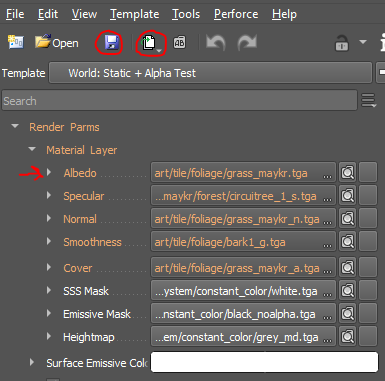
Create A Material Decl
A Material Decl contains all the data required to render a particular material in the engine including render passes, render parms, and other properties.
Material creation
There are a few ways to create a new material: via direct import from an outside authoring tool, via Material Editor, and via Asset Browser (if a folder for similar materials already exists)
Via direct import
Importing a new model into idStudio (from an outside authoring tool) and then opening the file in Material Editor will prompt a dialog box asking you to create new material decls for any unrecognized materials on the model. This option will set up the textures and properties in a material decl as defined in your outside authoring tool.
For more information about importing models created in outside tools, see Importing Assets.
Via Material Editor
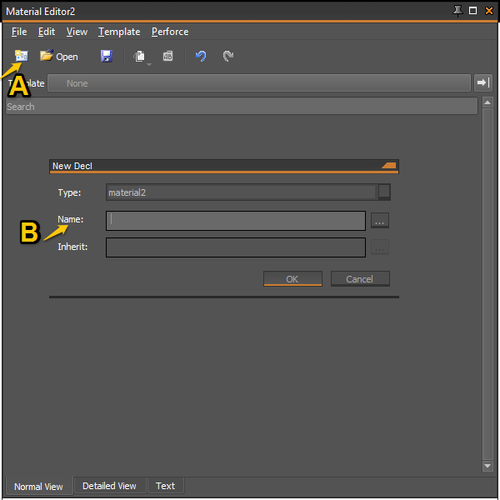
- Open the Material Editor. Click the New button (A) then enter a name (B).
- All material Decls reside within
/game/base/declTree/material2/ - All static world materials are in
/game/base/declTree/material2/art/
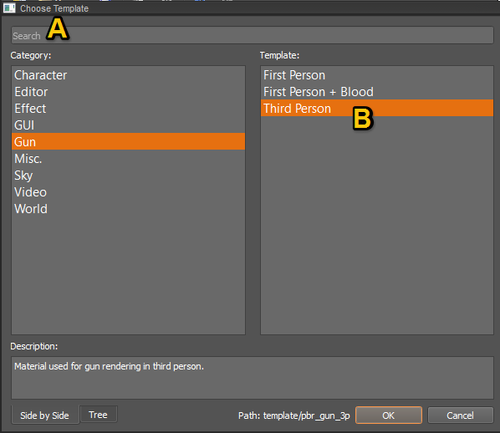
2. Select a template by using the search bar (A) or from the category selection (B). The template can be changed at any time, the editor will preserve any common parameters between the old and new template.
World → Static shader templates are the most common for world building materials unless its a special case.
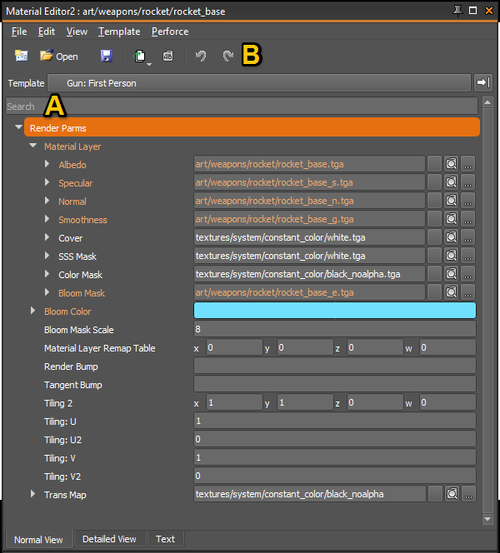
3. Edit any needed parameters. The Search bar (A) allows you to quickly filter parameters. The Undo and Redo buttons (B) are useful for comparing two options or undoing mistakes.
4. Save your new material decl to make it available for use.
Via Asset Browser
- In Asset Browser, Right click on desired destination folder and select Create new decl(s).
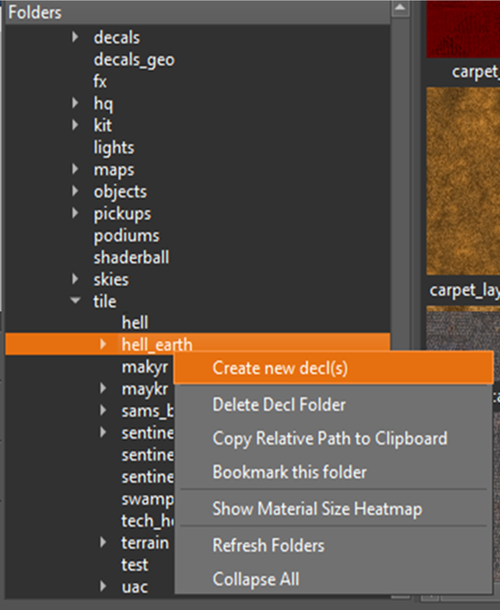
- Replace “newDecl” with desired material name and set up parameters.
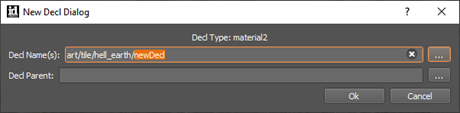
- Save the material to make it available for use.
Selecting a template
You must select a template in order to create a new material. Templates should be based on the render program you wish the material to inherit. Select the category in which your material resides, then select one of the template options available in that category. For example, static world geo will use “static world” (this is the default), and glowing materials should use the “emissive” template.
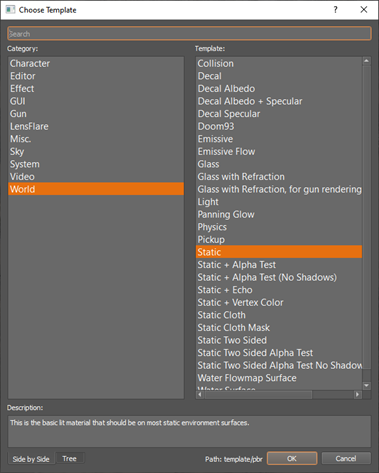
If image maps for the material already exist in corresponding folder structure the material will auto fill. Otherwise you will need to replace the default image fills with desired maps manually.
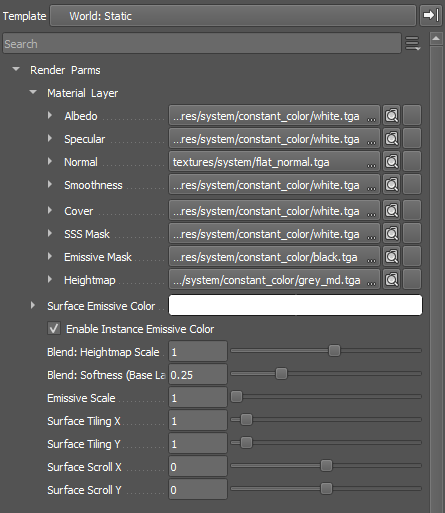
If the corresponding maps exist within the same folder structure as the material name the channels will be populated automatically.
You can replace these channels manually by selecting the desired channel and navigating to the desired texture map.