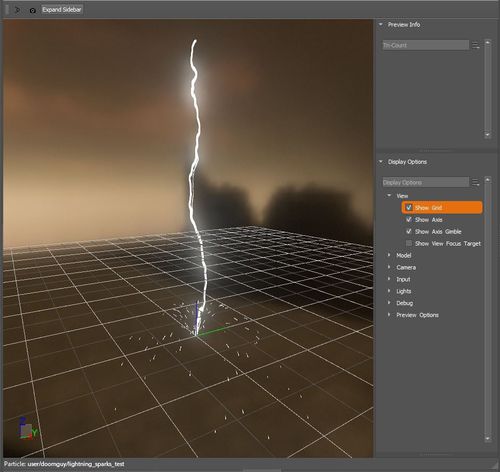
Particle Editor
The Particle Editor is a tool used by Effects Artists to create particle systems which are often utilized to simulate various visual effects such as fire, smoke, and weapon impacts.
Particle system files are collections of particle stages, which consist of a material applied to quads or custom geometry, with an array of features determining aspects like color, size, rotation, speed, and lifetime. Presently, there are two types of particle stages: CPU stages and GPU stages.
CPU stages are parametric, their features calculated based on formulas tied to game time directly, making it easier to create consistent effects such as gameplay feedback. On the other hand, GPU stages can handle a significantly larger number of particles due to the GPU's capability to perform complex calculations. These stages can be parametric or simulation-based.
Particle Editor Interface
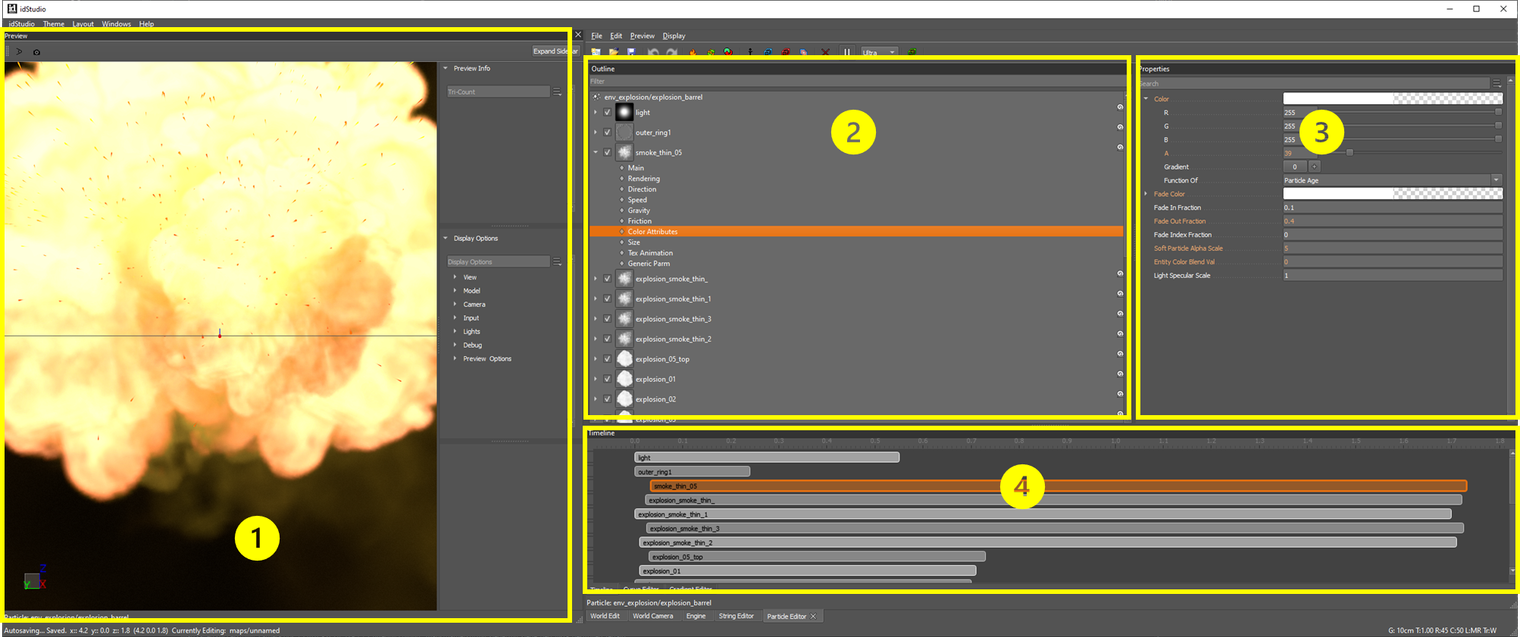
Preview Window
The Preview Window displays the particle effect and any changes made in the editor in real time.
If you do not initially see the Preview window when you open the Particle Editor, it may be in a tab behind the Particle Editor.
It can be useful to dock the Particle Editor and Preview in different panes, so you can see your edits as you make them.
Outline Pane
The Outline Pane displays a list of all of the stages that combine to create the particle effect. Use the dropdown arrows on each stage to see the editable features within a part.
Properties Pane
The Properties Pane displays the properties for the selected stage/feature in the Outline pane. Use this pane to make edits.
Timeline Pane
The Timeline Pane displays the timing and order of stages for the particle effect.
Create and Edit a Particle Decl
The following procedure describes the creation of a basic particle decl that contains two stages: (1) a lightning bolt and (2) sparks spraying from point of impact.
- Open the Particle Editor by going to: Windows → Editors → Particle Editor.
- Create a new particle decl from File → New and a New Decl Dialog window will open.
- Set the Decl Name field. (For this tutorial, use
lightning_sparks_test.)
- Set the Decl Name field. (For this tutorial, use
- Add a particle stage by right-clicking anywhere in the Outline pane.
- Select Add GPU Stage, and name it
lightning.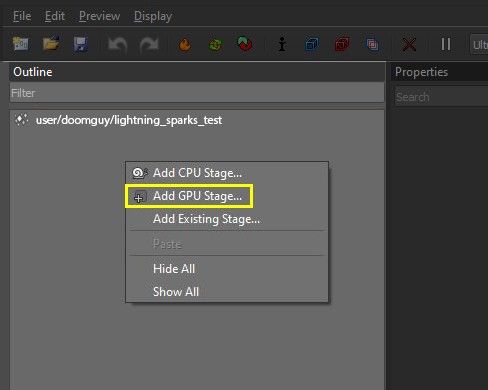
- Select Add GPU Stage, and name it
A New Decl Dialog window will open prompting you to save the newly created stage as a particleStage decl, which is a separate, stand-alone particle decl that can be referenced in other particle decls.
- Click on the dropdown triangle to the left of the newly created lightning stage to expand its list of Features. Select Main and in the Properties pane to the right, enter the following values:
- Spawn Rate:
1 - Material:
effect/lightning/lightning_simple_l
- Spawn Rate:
- Right-click on the stage, select Add Feature, and add Size.
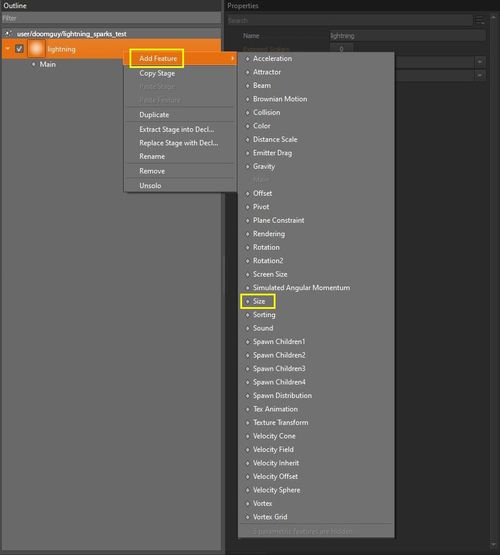
- Set these Properties to the following values:
- Size:
2 - Stretch:
0.1
- Size:
- Repeat the process to add the following features and set their properties with the following values:
- Tex Animation
- Num Columns:
4 - Num Rows:
4
- Num Columns:
- Texture Transform
- Texture Rotate:
90 Cw
- Texture Rotate:
- Pivot
- Pivot Offset:
X=0;Y=1
- Pivot Offset:
- Color
- Overbright:
50
- Overbright:
- Tex Animation
- Now that you've created a Stage, added Features, and modified its Properties, repeat the process to add a sparks stage with the following features and values:
- Main
- Spawn Rate:
100 - Material:
effect/spark/spark_single_02 - Alignment:
Velocity
- Spawn Rate:
- Size
- Size:
0.03 - Stretch:
0.3
- Size:
- Velocity Cone
- Pitch Angle:
45 - Yaw Angle:
45 - Speed:
3
- Pitch Angle:
- Gravity
- Gravity:
9.8
- Gravity:
- Rotation 2
- Type:
Euler - Yaw:
90
- Type:
- Color
- Overbright:
50
- Overbright:
- Main
- Save the new particle decl.