Debugging Lighting & Physically Based Rendering Inputs
This tool provides a range of modes designed to validate art and lighting, addressing various scenarios, aiming to identify and rectify inconsistencies in both the coding and art.
This tool can be activated using the debugLighting CVar or directly accessed in the World Editor view within idStudio.
Debugging Options
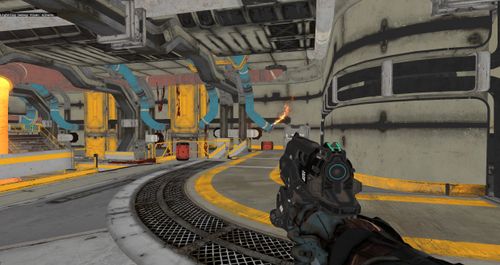
Albedo
Command: debugLighting albedo
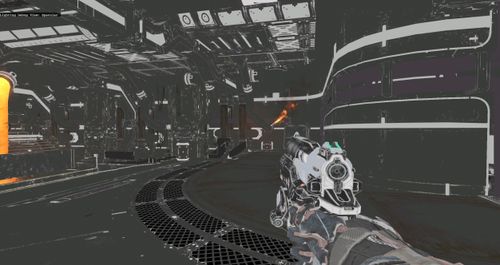
Specular
Command: debugLighting specular
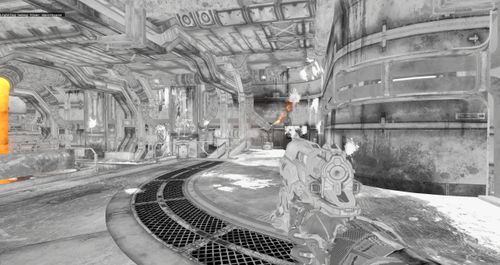
Smoothness
Command: debugLighting smoothness
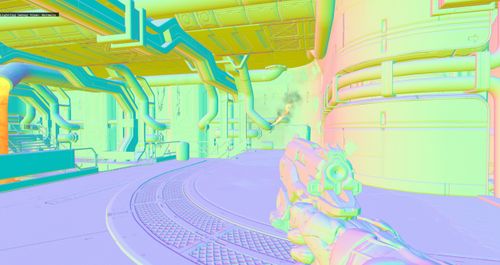
Normal Maps
Command: debugLighting normals
Lighting
Command: debugLighting lighting
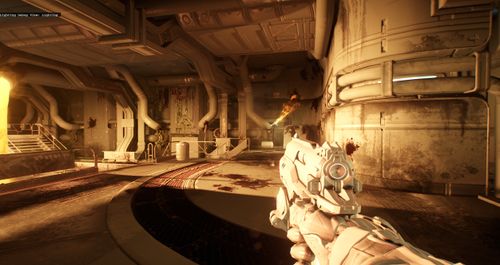
Diffuse Lighting
Command: debugLighting diffuseTerm
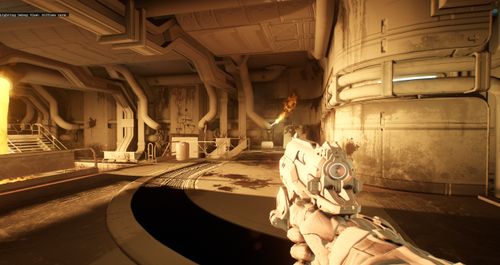
Specular Lighting
Command: debugLighting specularTerm
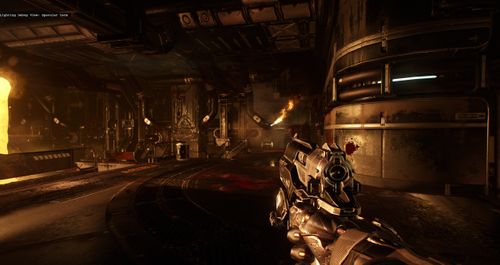
Environment Probes
Command: debugLighting envProbesCheck
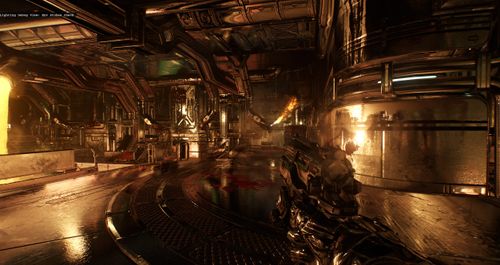
This mode is intended to debug environment probe content.
- See if the scene reflections have any interesting and bright source/contrast, so final reflections look good.
- Combining this tool with the HDR range visualization (type
r_HDRDebug 3on the console to enable) provides additional verification of the range of the inputs in the reflection.
HDR Debug
Command: r_HDRDebug
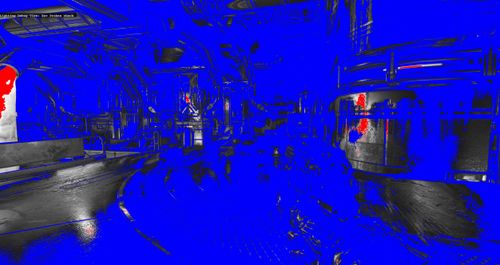
In combination with the environment probe visualization, r_HDRDebug 3 shows if the range of values from the probes have a good contrast between bright and dark areas.
- Blue: Dark areas. This is below
r_hdrDebugRangeMin(default is0.01). - Red: Bright areas. This is above the
r_hdrDebugRangeMax(default is1.0). - Grayscale: Relatively bright areas. These are between the
r_hdrDebugRangeMinandr_hdrDebugRangeMax.
Ambient Lighting
Command: debugLighting ambientCheck
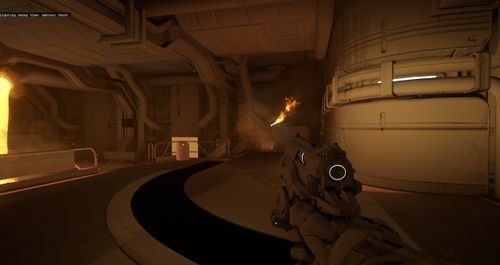
Lighting Overdraw
Command: debugLighting lightingOverdraw

This mode shows the amount of overdraw on the screen coming from lights and environment probes. This is a good indicator of performance issues.
- Blue: Good.
- Green: This area has about 5 lights overlapping. Keep an eye on these regions.
- Red: More than 10 lights overlapping. This will likely hurt performance.
Lights Overdraw
Command: debugLighting lightsOverdraw
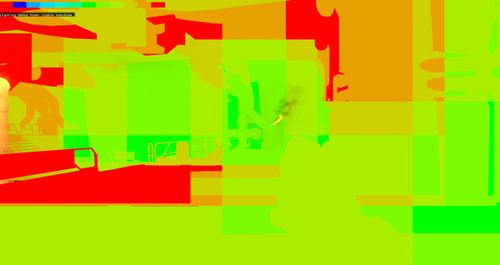
Similar to Lighting overdraw, but this mode helps track whether too many lights are affecting specific regions.
Environment Probe Overdraw
Command: debugLighting envProbesOverdraw

Similar to Lighting overdraw, but this mode helps track whether too many environment probes are affecting specific regions.
Decal Overdraw
Command: debugLighting decalsOverdraw
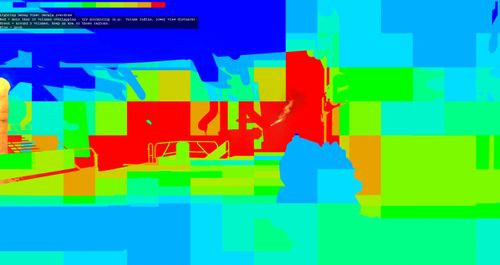
- Blue: Good.
- Green: This area has about 5 lights overlapping. Keep an eye on these regions.
- Red: More than 10 lights overlapping. This will likely hurt performance.
PBR Validate All
Command: debugLighting pbrValidateAll
- Green: Valid albedo and specular values.
- Red: Invalid non-metal albedo. The value is too low.
- Yellow: Invalid metal albedo. The value is too high.
- White: Invalid non-metal albedo. The value is too high.
- Red (Striped): Invalid specular.
- Yellow (Striped): Ambiguous specular. This value can be valid or invalid depending on the intended material. Less common surfaces like gems, oxidized metals and treated metals will fall into this ambiguous range. While, common materials like wood, plaster, stone and clean metals should not.
PBR Validate Non-Metals
Command: debugLighting pbrValidateNonMetals
Similar to PBR validate all, but the metal surfaces are not considered (set to grayscale).
PBR Validate Metals
Command: debugLighting pbrValidateMetals
Similar to PBR validate all, but the non-metal surfaces are not considered (set to grayscale).
PBR Validate Smoothness
Command: debugLighting pbrValidateSmoothness
This mode is used for evaluating material smoothness. The smoothness input is divided into categories/segments so that it is easier to judge the relative smoothness of various surfaces. Materials should fall into a category that is reasonable given their microsurface properties.
- Dark Blue: Flat material.
- Blue: Matte material.
- Green: Semi-smooth material.
- Yellow: Smooth material.
- Red: Glass/water material.