Create & Edit FX Decls
This guide will walk you through: - Creating a basic FX decl that contains fire and sparks. - Placing the FX decl in a user test map. - Editing and updating the FX decl, particle decl, or map entity while in engine.
Additional Requirements
The following are not required but will make the process easier to follow if they are already set up: - A user test map - A user folder in your FX directory
Create an FX Decl
- Open the FX editor by going to: Windows → Editors → FX Editor.
- The New Decl Dialog window will pop up prompting for a name and parent.
- Click on the three dots button to open the New Decl Location window.
- Navigate to your user folder.
- Enter
fire_wall_testin the File Name field and click Open. - This will take you back to the New Decl Location window with the Decl Name(s) field filled out. Click OK.
tipThe default directory is set to
declTree/fx/ - Open your newly created FX decl from: File → Open FX.
info
In the search dialog window you can either enter the name in the Search Assets field or you can search through the directories in the left pane. Decl files within the selected folder will appear in the right pane.
- Right-click anywhere in the left pane and click on Add New Group to create a new group. Name it
fire_wall. - Right-click on the newly created group, click on Add Action, select Particle, and name it
fire. - In the Action Properties pane, under Particle Parms → Decl Prt, assign a particle decl by clicking on the empty field, which will open the search window.
- Type
fire_round_min the search filter and locate thefire_round_mparticle decl in the right pane. - Press OK.
- Type
- Scroll down the properties list and check Looping to turn it on. (This applies only to the Fire action.)
- Repeat the process to add another Particle Action and assign a small burst of sparks called
spark_burst_m.
Test the FX Decl
To test an FX decl in the engine, the quickest and simplest way is to add it to a custom user map. Testing this way, you can quickly load and reload the map in order to iterate on the FX decl.
- Load your user test map in World Editor.
- Once you've loaded a test map, there are two map entities used to view the FX:
- func_fx - single automatic trigger.
- func_fx_random - looping automatic trigger.
- Right-click in the World Editor or World Camera view and go to: New Entity → func → fx.
- With the newly created func_fx entity selected, go to the Entity Inspector and click on the FX Effect field to open the search dialog window and search for your newly created FX decl (
fire_wall_test). - Position this entity in your test map (preferably near a wall) and save.
- Load a slowmap build of your test map and go to the Engine tab to test.
All func_fx and func_fx_random map entities trigger automatically unless the Start Off property has been checked in the entity.
Editing and Updating in the Engine
It is possible to edit and iterate the FX while the engine is running but it depends on where the modifications are being done:
- Particle Decl level
- FX Decl level
- Map Entity level
Particle Decl Level
If you are making changes in the Particle Decl (via the Particle Editor), the engine will update automatically.
FX Decl Level
If changes are being made in the FX decl (via the FX Editor), you will have to save the decl then reload the map entity holding the FX decl by hitting the circular arrow in the upper right corner of the Entity Inspector.
Map Entity Level
If changes are being made in the map entity (via the Entity Inspector), all you have to do is click the Reload button in the Entity Inspector.
Cvar Trigger
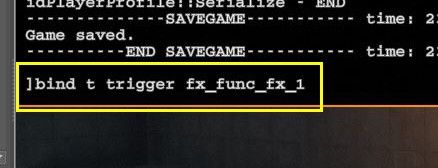
Another way to trigger the FX map entity is to use the cvar trigger [entity name] in the console.
You can also bind the command to a key (bind [key] trigger [entity name]) and then trigger the FX at will.