Animated Model Editor
The Animated Model Editor provides several tools that are useful while editing the id Tech proprietary MD6 animation format. This editor provides options for animation tagging, gore wound setup, and AI collision setup. The Animated Model Editor is generally used for AI character art and animation setup.
Animated Model Editor Interface
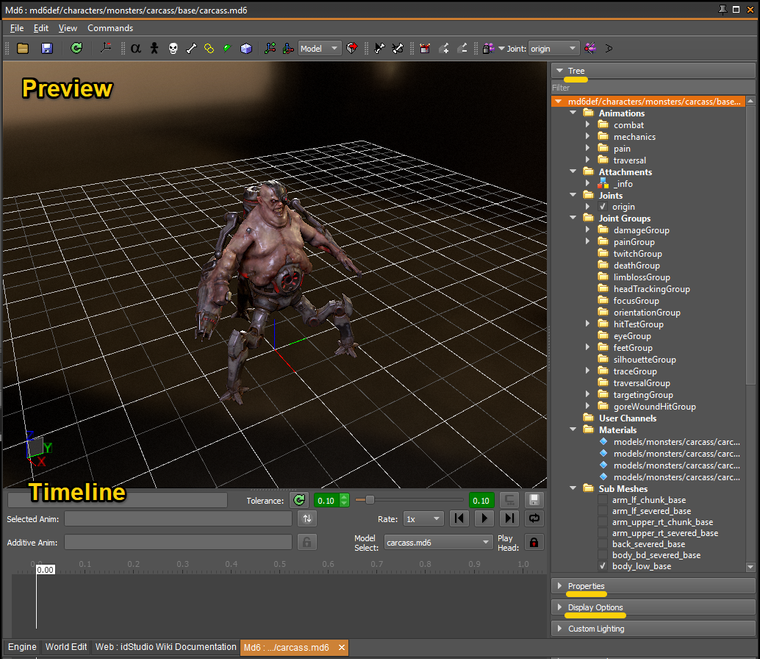
There are five main parts to the Animated Model Editor: the Preview, Properties, Tree, Timeline, and Display Options.
Preview
The Preview section displays a visual representation of the MD6 animated model and allows you to view changes as they are made in the editor. The Preview pane is context-sensitive – representing the currently selected data in Tree and Timeline.
Properties
The Properties section allows you to manipulate the properties on an animated model. The Properties section is context-sensitive – representing the currently selected data in Tree and Timeline.
Tree
The Tree view organizes the various animations, joints, meshes, and other data contained in the MD6 into a hierarchy.
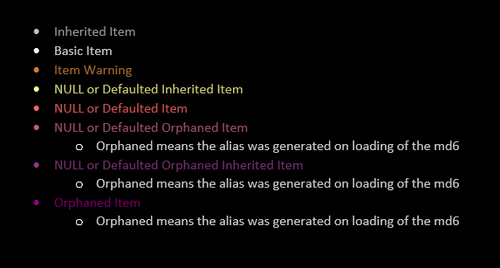
Entries in the tree may be colored based on the following key. Color options can be edited from the Themes menu.
Animations
All of the individual .md6anim files, which each contain a single animation, which can be played on the model defined by the .md6mesh.
Attachments
The most common attachments are joint tags, which are positions relative to a Joint and are typically stored in a directory titled _info.
Joints
An immutable list of joints. The joint positions can be repositioned in the preview window, but all changes are temporary and will not be saved.
Joint Groups
A Joint Group is a mutable grouping of Joints which may be used for a variety of purposes.
For example, the hitTestGroup is a Joint Group used to define a hit sphere around each joint in group to define where a player must shoot to trigger a certain event. Game logic can use this information to trigger various animations, fx, wounds, etc. The hit spheres can be edited in the Properties pane.
User Channels
Displays extra data, imported from Maya, per keyframe. This data is not editable in the Animated Model Editor.
Materials
A list of all the unique materials in the animated model. These are not editable directly in the Animated Model Editor, instead the context menu will open a specified material in the Material Editor.
Sub-Meshes
Sub-meshes are imported from Modo. Due to certain technical restrictions, such as vertex count limits, a sub-mesh may be split into multiple sub-meshes during export and stored as a Sub-mesh Group.
Mesh Kits
Mesh Kits may contain multiple sub-meshes and are useful for turning on or off portions of the animated model.
For example, in the case of destructible demons, the Mancubus armor is made up of several Mesh Kits which are disabled as the player shoots them off.
Sync AnimWeb Tree
Shows all sync anims in a sync entity when a sync entity is loaded. Otherwise empty.
Wounds
Not shown by default. Will be displayed only when a gore container is loaded.
Ragdoll Physics
Here you can enable the debug drawing for the bodies, ragdoll constraints, the resulting skeleton (all bodies connected by constraints get a line drawn between them), and the animation skeleton from the joint animator.
Timeline
The Timeline section contains controls and information related to the playback of animations from the tree.
The Selected Anim will reflect the last-selected animation from the tree.
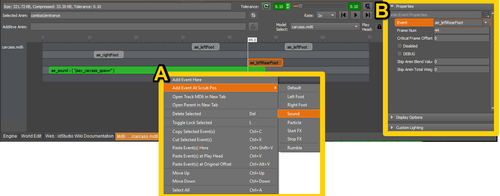
The Timeline displays animation rows which contain events. The gray events are animation events while the green events are sound events.
New events can be added to an animation track from the right-click Context menu (A). A selected event can be edited in the Properties section (B).
Display Options
Display Options influence how data is displayed in the Preview and Timeline sections of the tool.
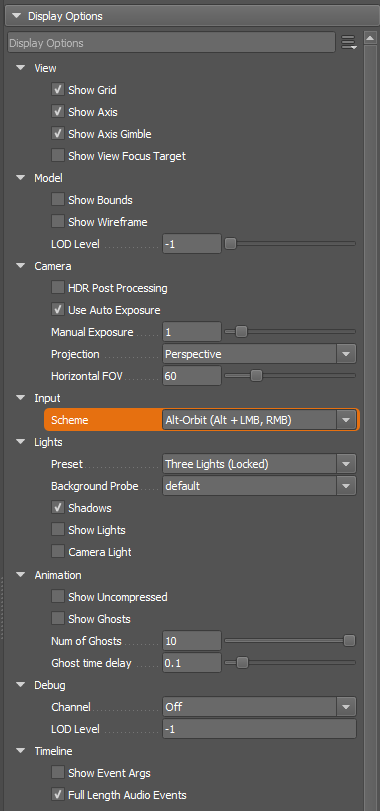
Under the Animation Display Options, the Animation Ghosting feature may be enabled to support debugging.
The Basics
To learn about Animation Ghosting, go to: Animation Ghosting
For more information on Sub-Mesh Groups, see: Sub-mesh Groups
To learn how to create and edit a Gore Container, go to: Create and Edit a Gore Container
To learn how to set up a Light Rig, go to: Set up a Light Rig
Troubleshooting
Error: joint group '' of type '' has invalid joint reference ''
If you are seeing these warnings when loading skinned models in the AME (note there is no joint name in the warning), check the array size using a text editor. The joints have most likely been removed in a rig update and the array just has missing entries.
This requires hand editing the modelSkinned file. After editing, reload the asset in the AME to make sure the joint groups all still load properly.