Maps 101
The Basic Level Design Tutorial Maps asset pack is a starter map pack with blockout maps that illustrate certain design features in DOOM Eternal for Modders. Below is a list of the maps found in the asset pack along with a visual overview of each map, the map name, a description of the map, and an explanation of what the map demonstrates.
scale_standards.map
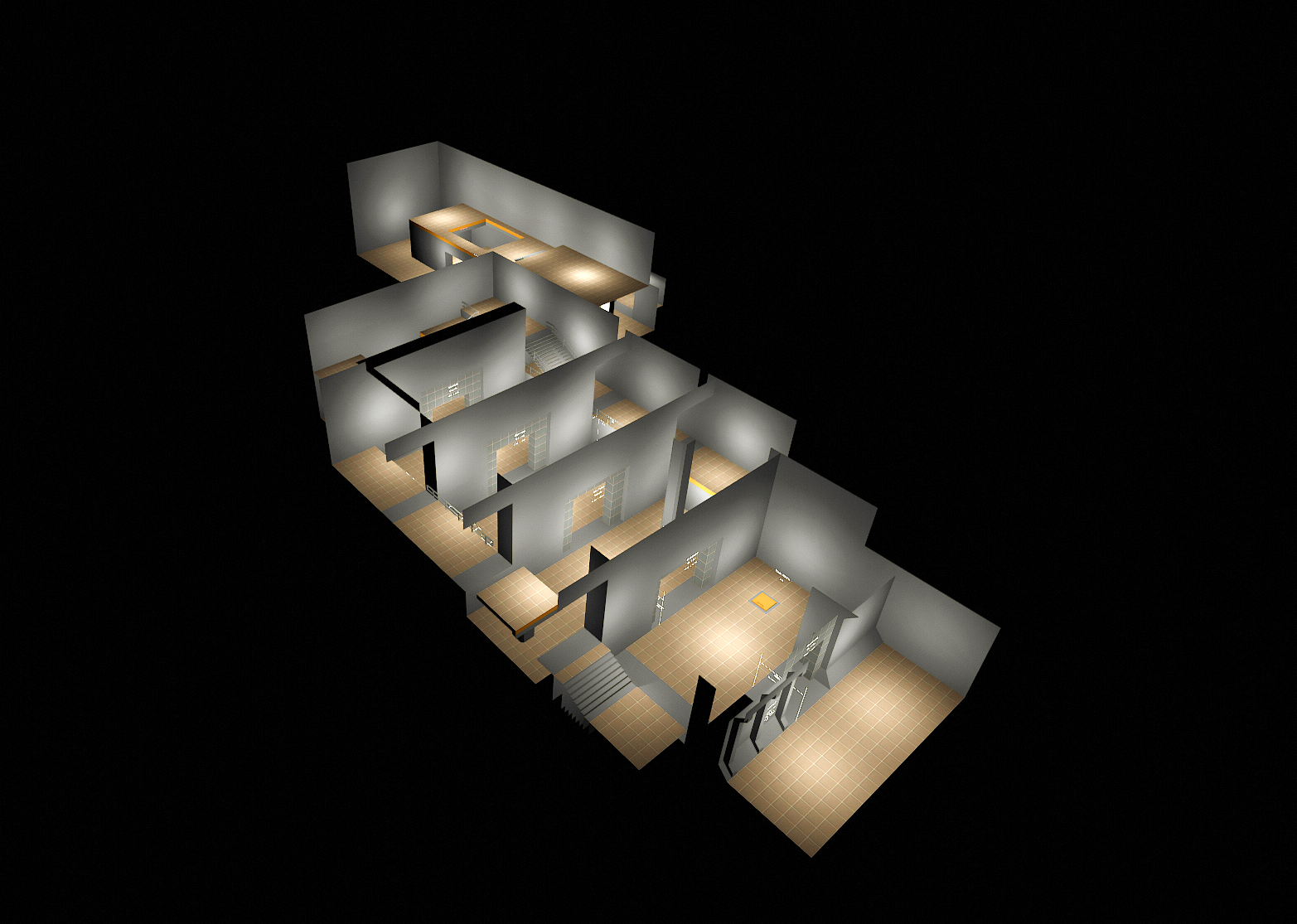
| Property | Value |
|---|---|
| Name | "General Map Scale Standards" Map |
| Description | This map demonstrates the common standards used for scale/measurement in Doom Eternal. This map includes blockout references such as the width and height of hallways and doors. These scale standards were found to work best within Doom Eternal but are not requisite for mods. The scale standards are annotated with the specifications and are laid out as seen in the image attached. |
| Notes | - Each square represents a 1m x 1m x 1m block - A description of these standards can be found on the wall in the first room of this map - This map demonstrates the scale standards (height, width, length, separation distance) referenced when adding the following to a map: - Doorways of various sizes- Ledges- Platforms- Stairs- Pressure Plates |
scale_dash_ledge.map
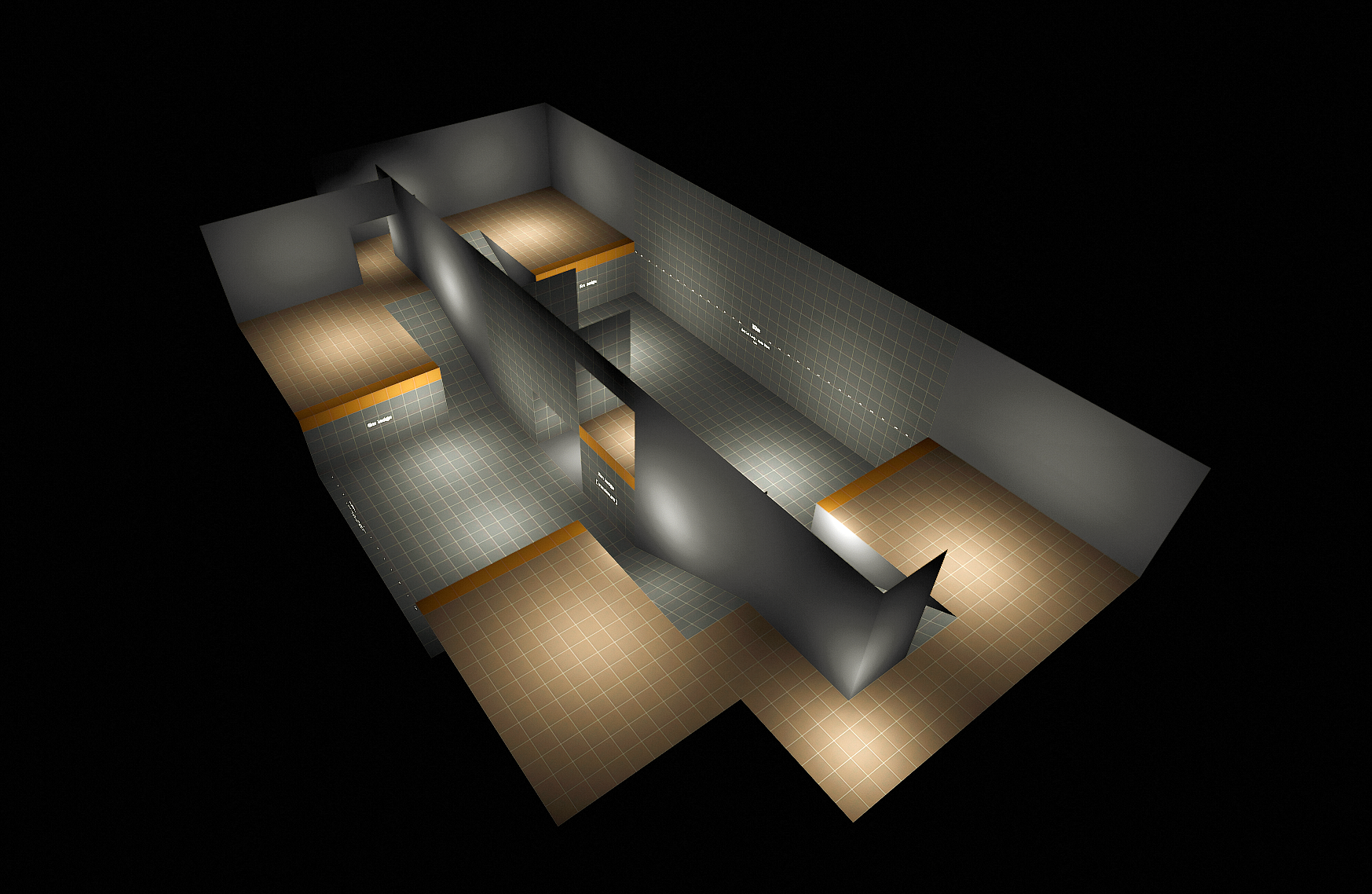
| Property | Value |
|---|---|
| Name | "Dash and Ledge Scale Standards" Map |
| Description | This map demonstrates scale standards for player character dash. You can see the max distance you can dash, how far you can go off a ledge, and gives the max height of a ledge which you can pull yourself up on. |
ai_path_simple.map
| Property | Value |
|---|---|
| Name | "AI Pathing Types Demo" Map |
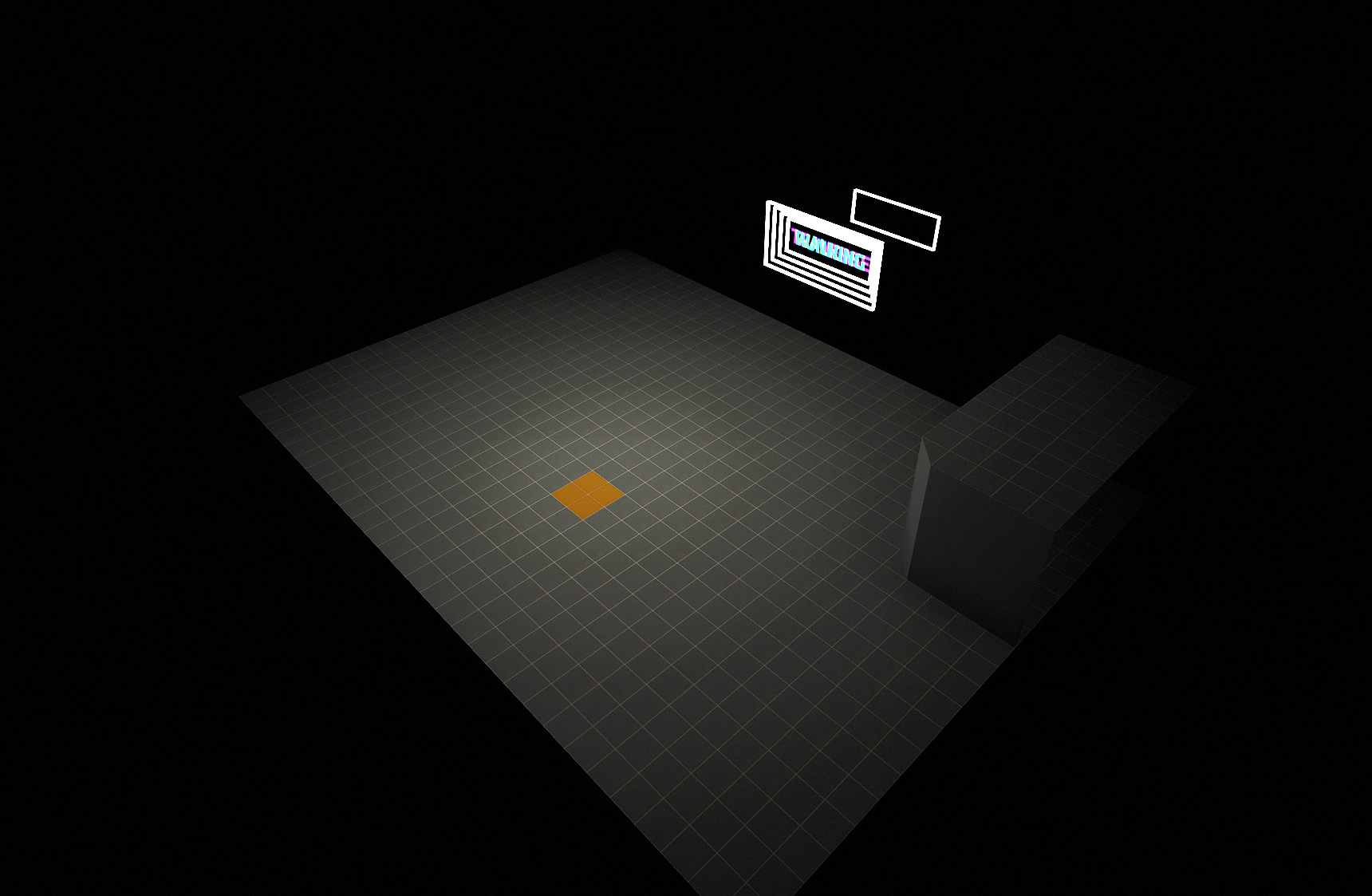
| Description | This map demonstrates various AI pathing types. The map is a simple box with an elevated space in one corner and contains a player character. The character demonstrates AI pathing for walking, running, jumping, and traversing. The type of pathing currently being demonstrated is shown on the flashing marquee (i.e. "WALKING"). To change the type of pathing demonstrated, navigate the character to step on the orange square on the floor. This will change both the type of AI pathing being currently demonstrated and the words on the marquee. See image for an overview of this map. |
clip_test.map
| Property | Value |
|---|---|
| Name | "Clip Brushes Demo" Map |
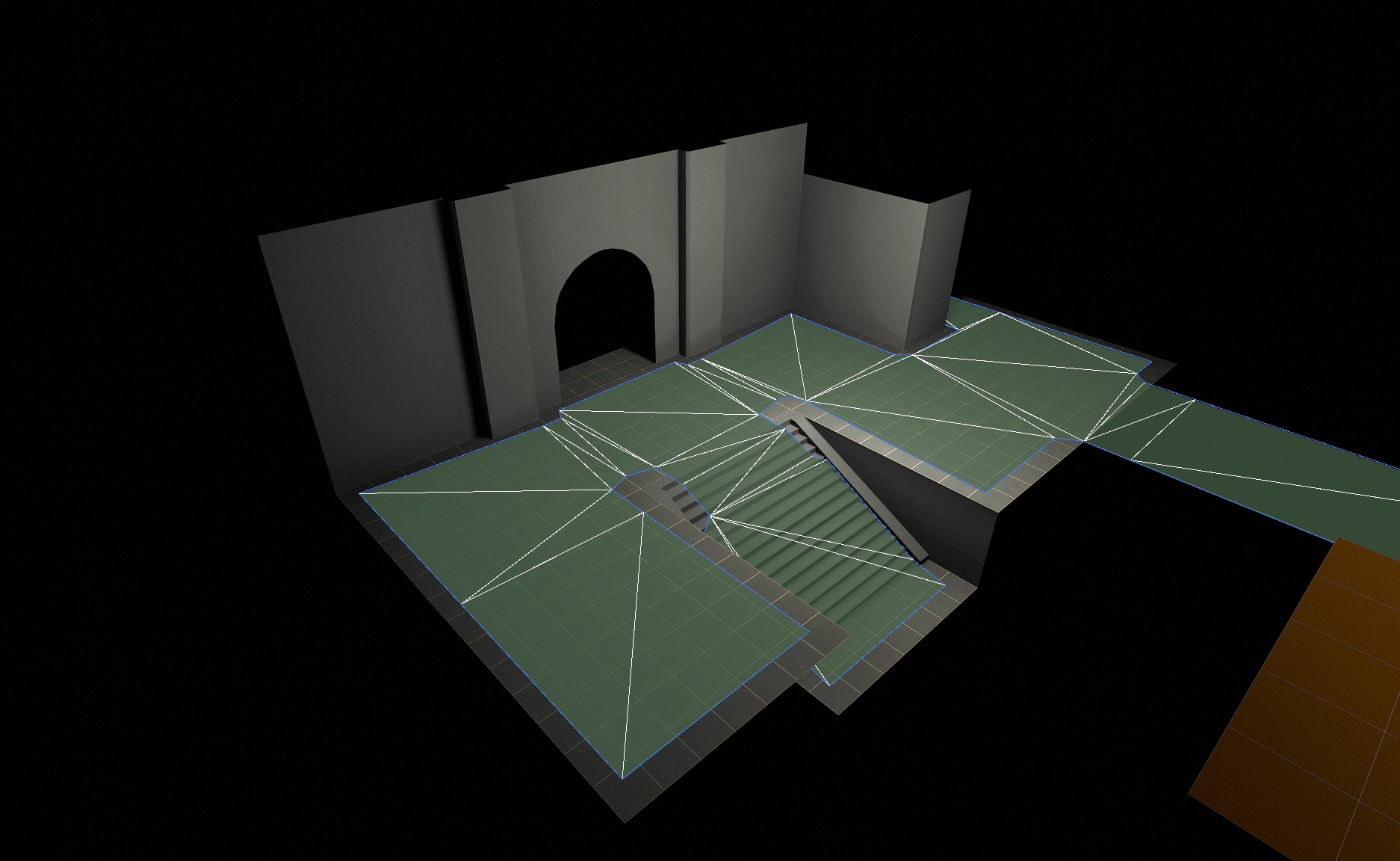
| Description | This map demonstrates how to clip a level and is a general overview of how to utilize the clip brushes. More specifically, it demonstrates Clip, Clip No areas, Monster Clip No areas, and AAS Solid Clip. This should give you a sense of how to utilize clip brushes to generate nav, simplify collision, smooth player movement, and generally simplify the world. Monster Clip No areas can be added to corner-type areas to shape the nav into what the AI needs and prevent enemy monster AI from potentially getting stuck and looking weird. |
| Notes | Each clip brush is a single brush material because one texture per clip brush is the general rule of thumb. |
important
In the image above: Please note that "Small Nav" is turned on.
door_simple.map
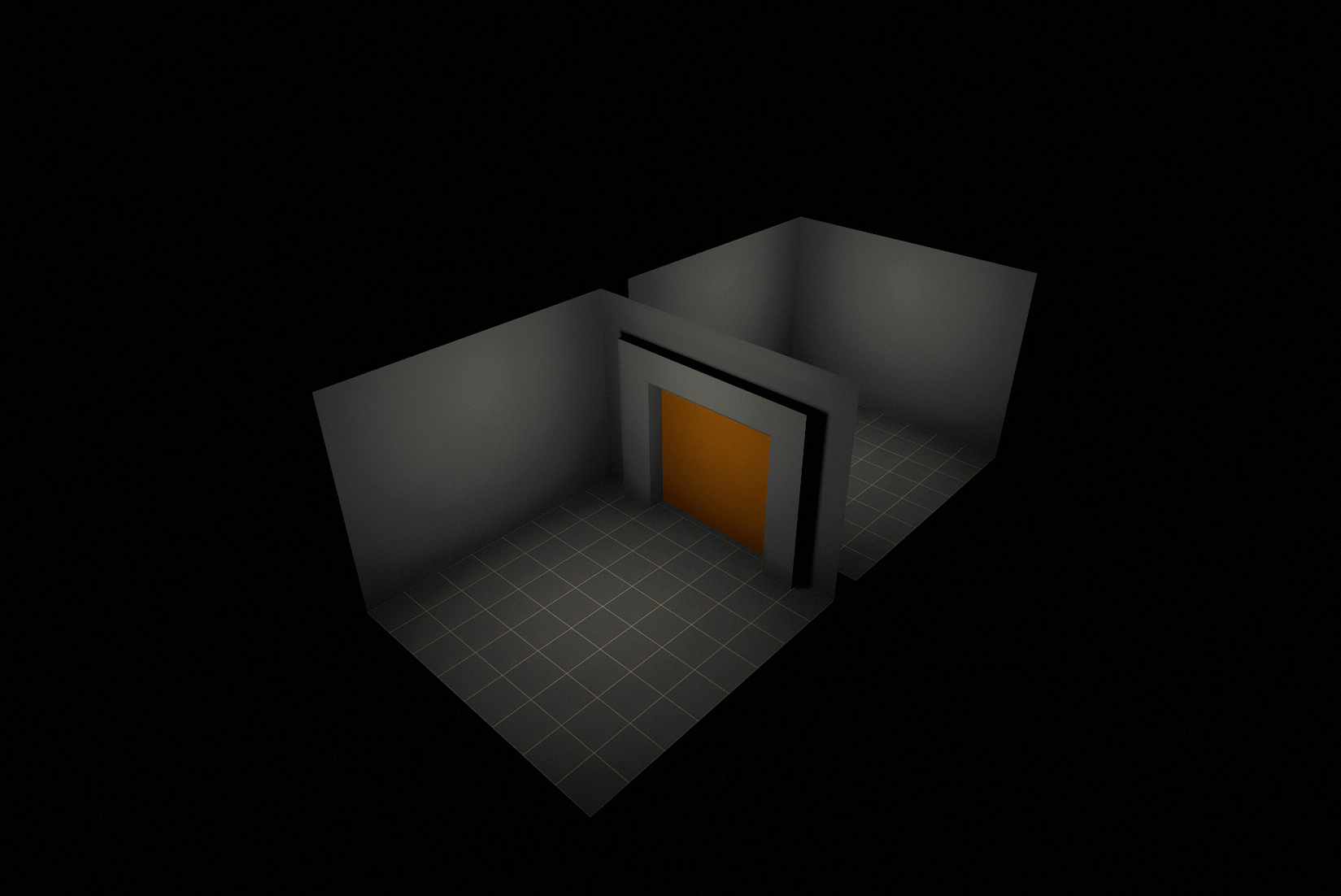
| Property | Value |
|---|---|
| Name | "Door Trigger Demo" Map |
| Description | This map demonstrates the use of an info logic door state or a door trigger. It is a very simple box map with only a logic scripted door. |
elevator_simple.map
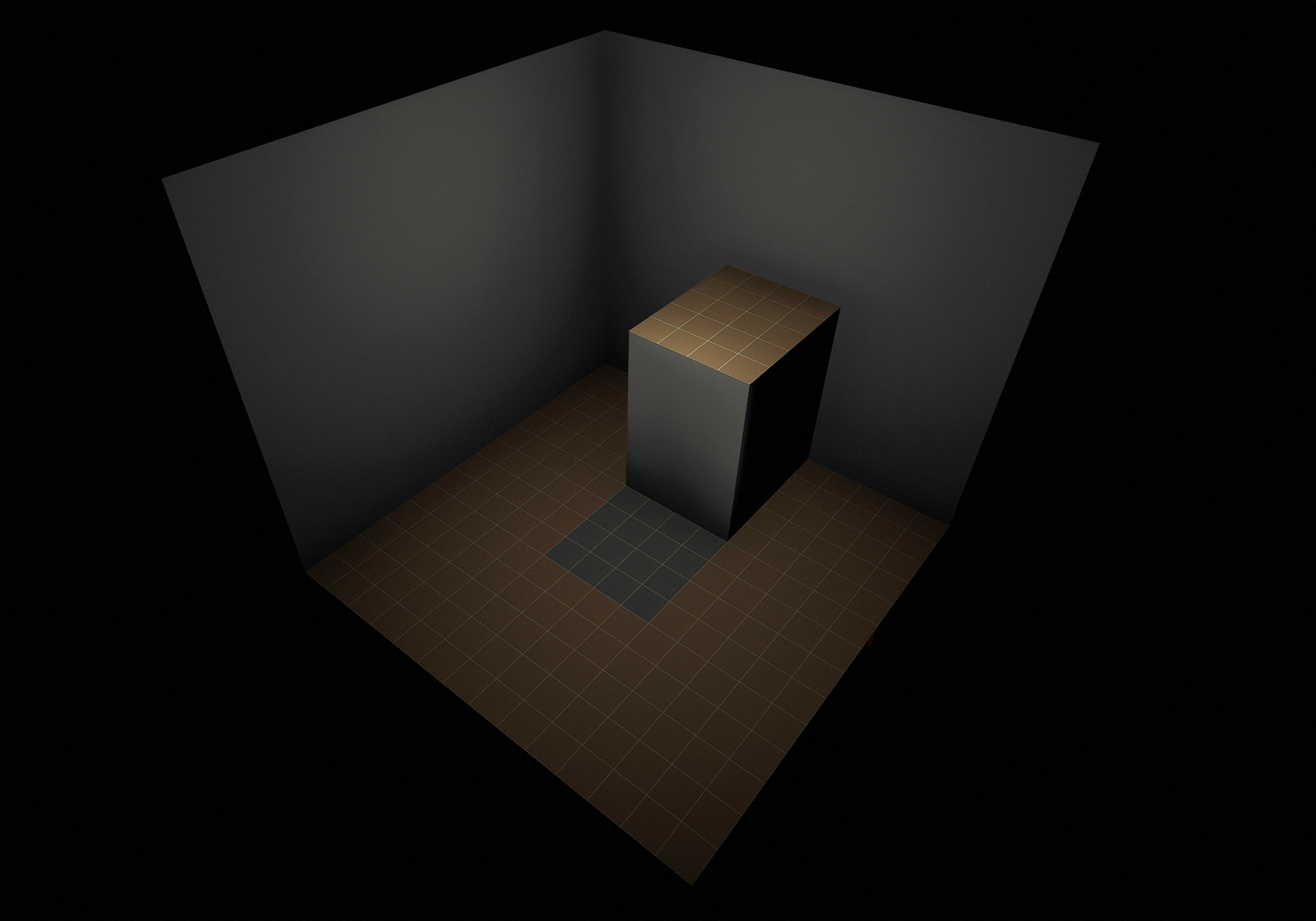
| Property | Value |
|---|---|
| Name | "Basic Elevator Demo" Map |
| Description | This map demonstrates the simple use of the func_mover entity in the form of a basic elevator. The entity is triggered by a single trigger that has a wait variable to determine when the trigger is used. In this map, the wait variable is set to seven seconds. There are move commands which show how far to move up and down. |
flight_nav_test.map
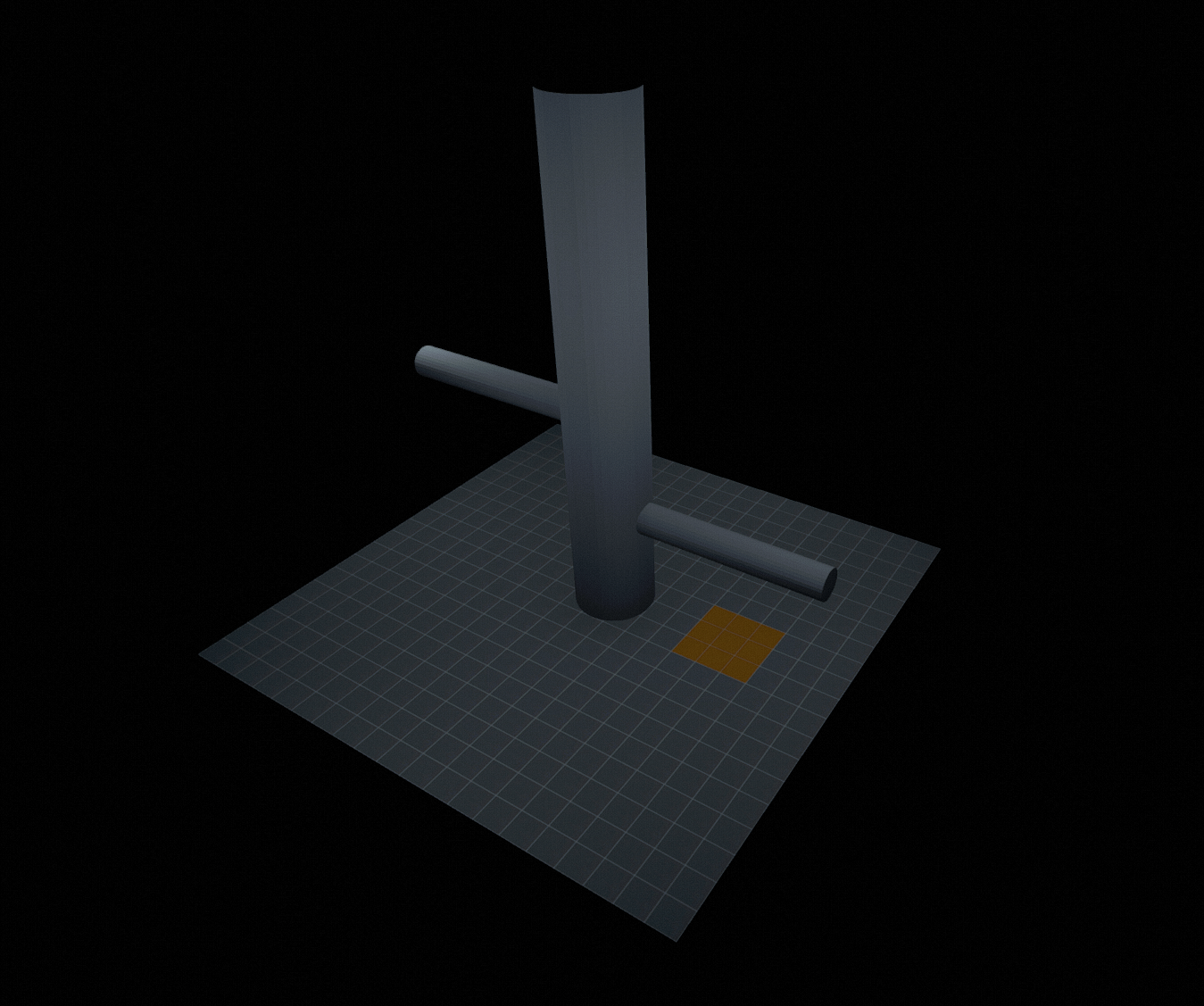
| Property | Value |
|---|---|
| Name | "Flying AI Demo" Map |
| Description | This map demonstrates flying AI pathing. The box map contains a large vertical pole with two small horizontal bars extending from it on opposite sides. A Cacodemon will spawn and fly around the pole, demonstrating how flying AI navigates the air without crashing into stationary objects. |
| Notes | Flying AI is all one single speed, unlike the character in the "AI Pathing Types Demo" Map. |
spline_mover_modifier.map
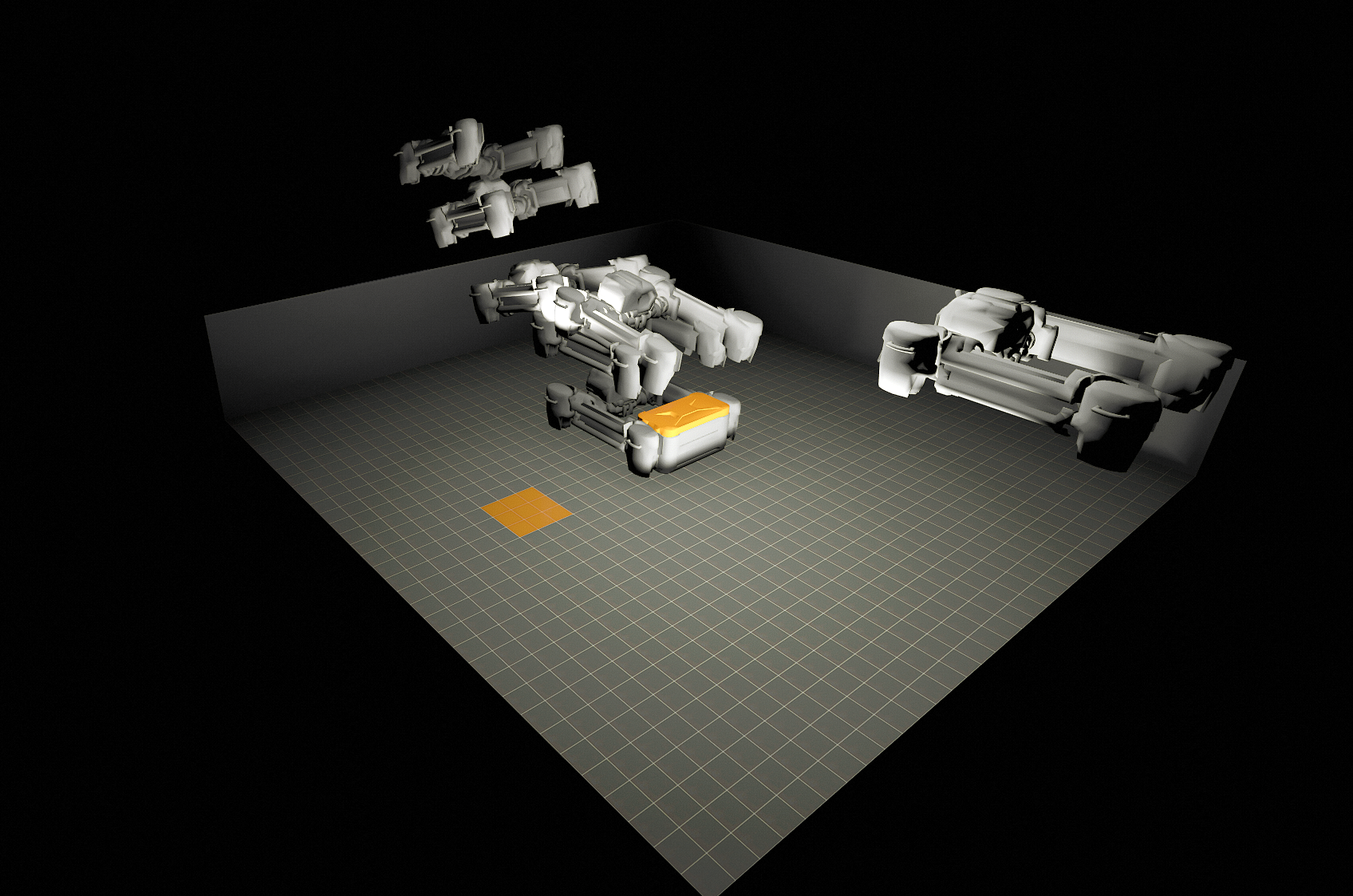
| Property | Value |
|---|---|
| Name | "Spline Mover Modifier" Map |
| Description | This map demonstrates how to use a spline and moving modifier. It shows a drone flying in, picking up a crate, waiting for a few seconds, then flying off while holding the crate. The spline shows the overall path of the object’s movement. The modifiers allow keyframes to be set to adjust the object’s position and specific movement while following the path from the spline. This allows for more realistic movement to be set in the editor without the need to create unique animation. |
portal_floor_example.map
| Property | Value |
|---|---|
| Name | "Portal Demo" Map |
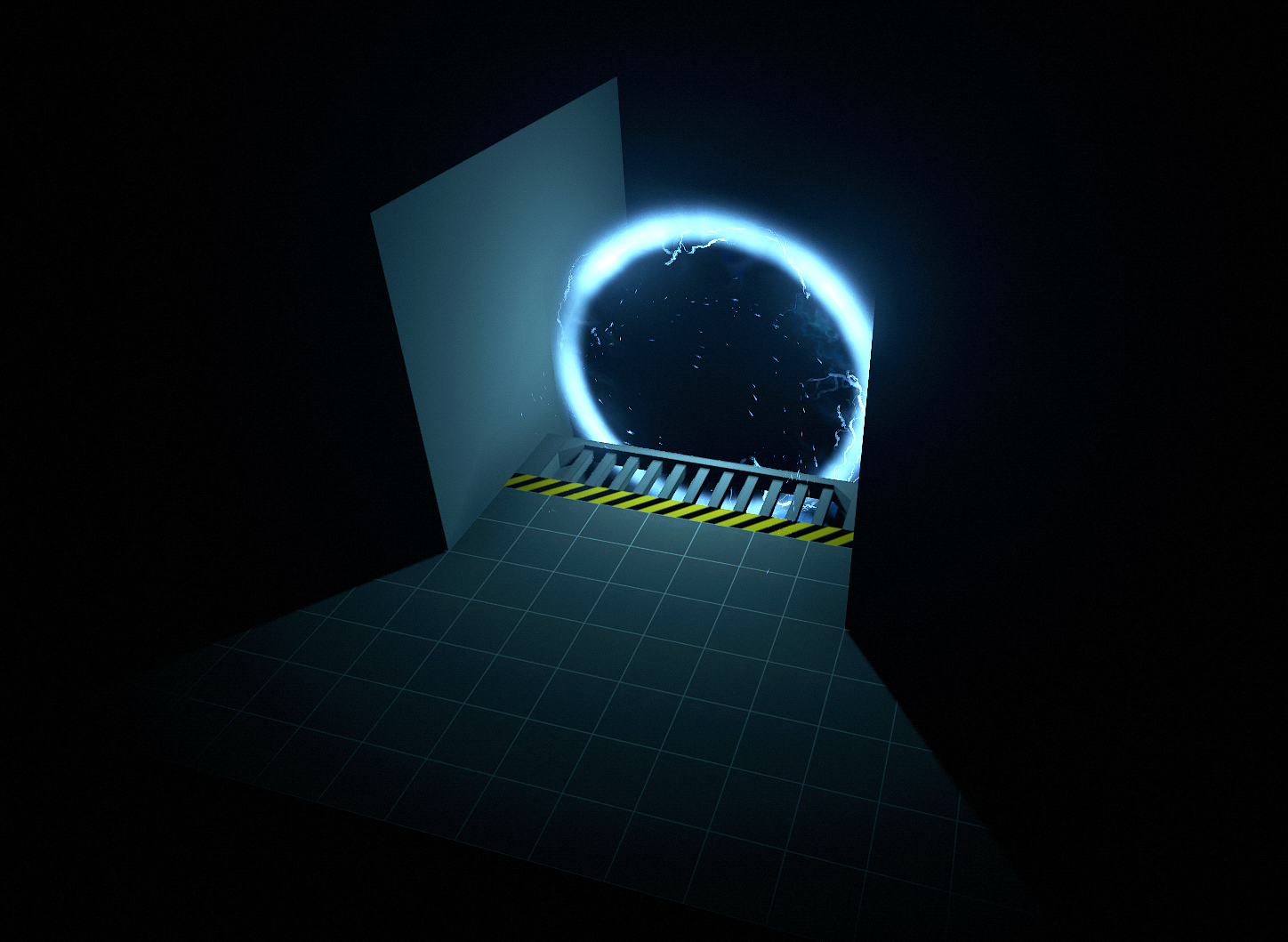
| Description | This map is a basic example of a portal. It shows the placement of a portal between industrial themed flooring and shows what entity and VFX to use when creating a portal. |
tip
It is best to have the portal sitting slightly below the floor (rather than sitting atop the floor) so that the player character will enter through the center of the portal.
pressure_plate.map
| Property | Value |
|---|---|
| Name | "Pressure Plate Trigger Demo" Map |
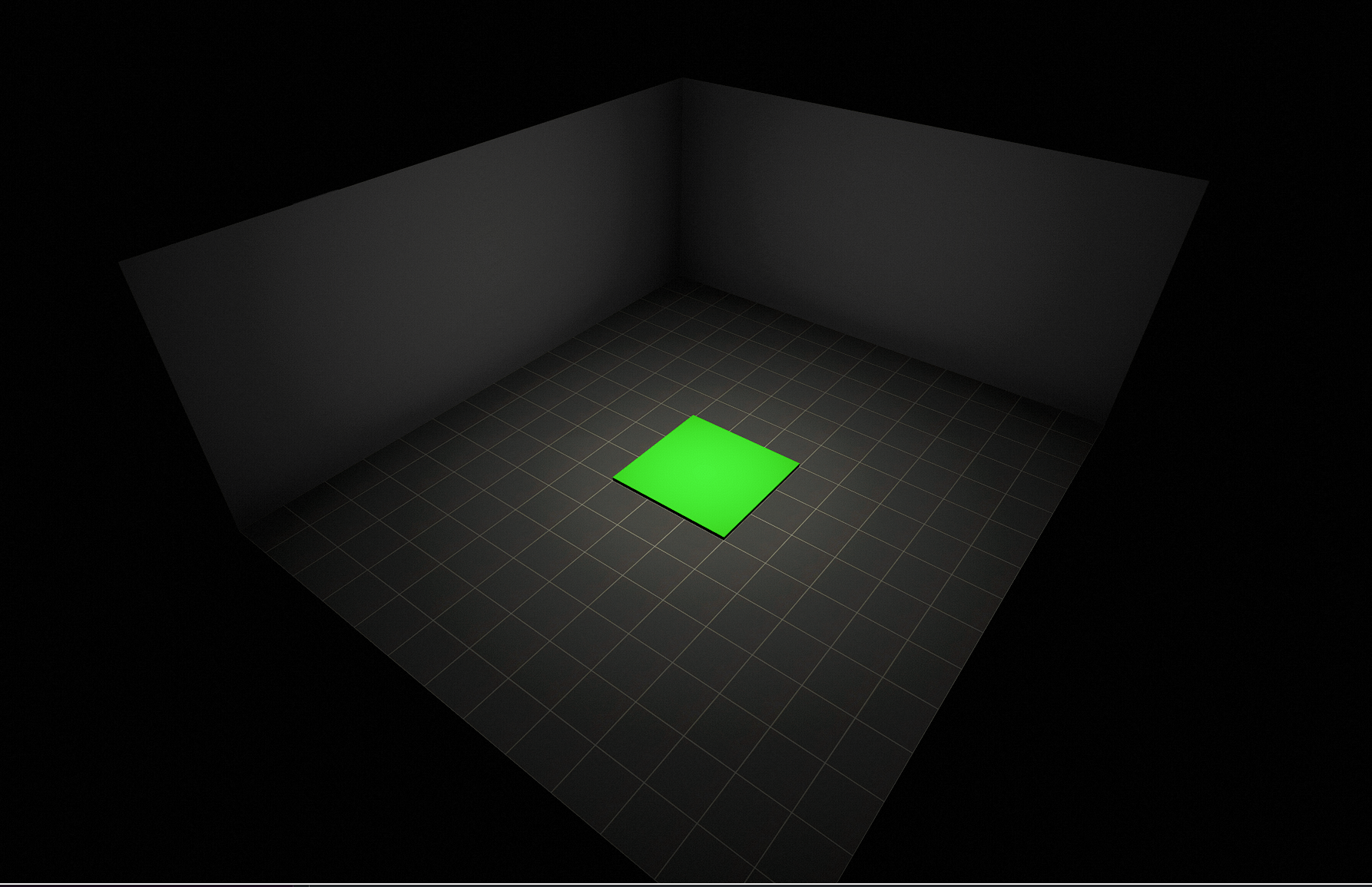
| Description | This map demonstrates the use of a trigger as a pressure plate in game. When the player character steps on the trigger in the center of the map, the trigger "plate" will make a clink SFX and move down slightly. The trigger can be set to either where it (a) remains in its "down" state after triggered, or (b) resumes its "up" state after the player character steps off the pressure plate. The important aspect of this is adjusting the timing of the trigger and the plate mover so that they operate simultaneously. |
| Notes | This feature is often used for puzzles in maps. |
wall_climb_simple.map
| Property | Value |
|---|---|
| Name | "Wall Climb Demo" Map |
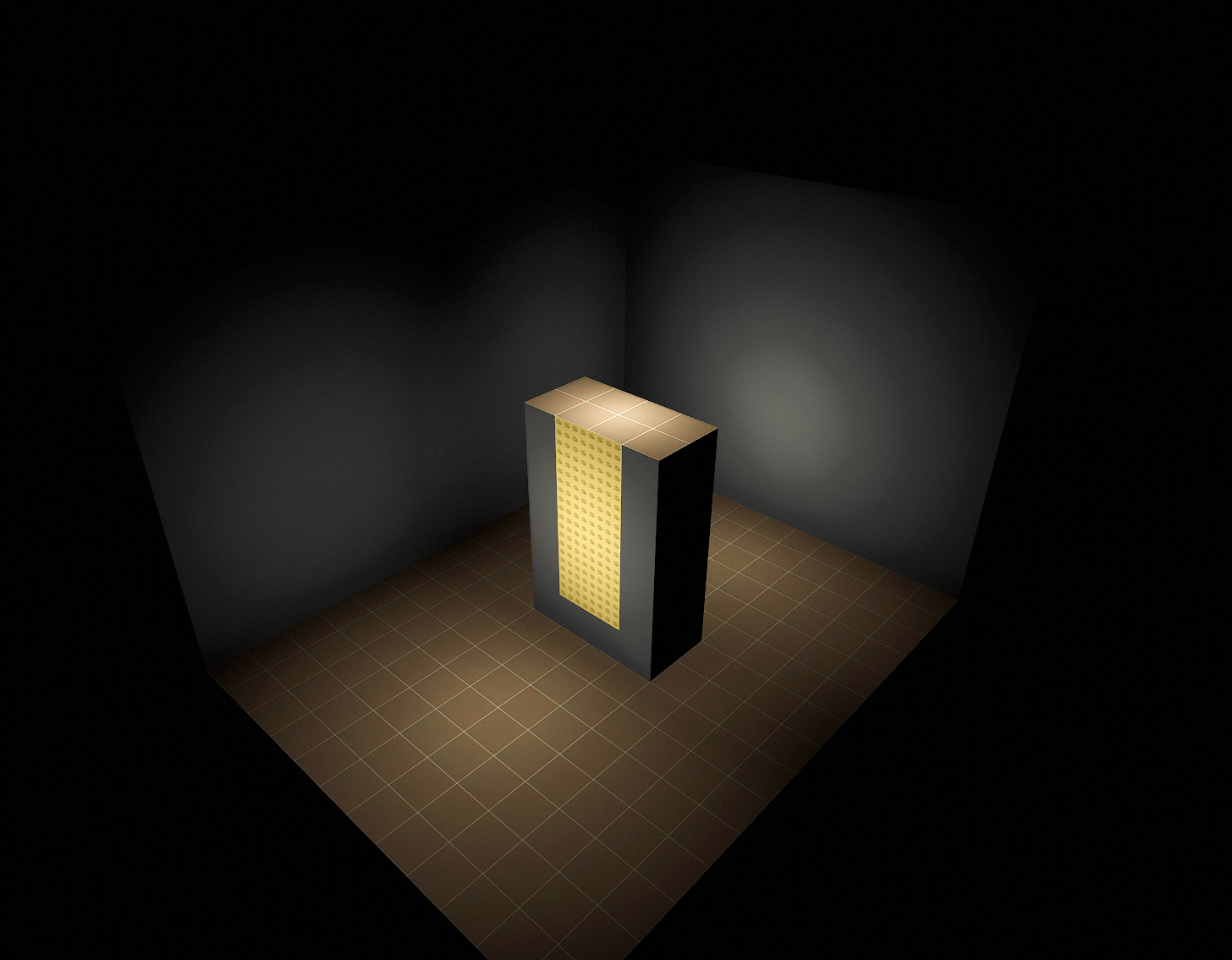
| Description | This map demonstrates the complete functionality of wall climb material on a brush through use of Wall Climb and Wall Climb No Draw brushes. It features a simple box with a large vertical dual-sided wall in the center. One side of the wall has Wall Climb and the other has Wall Climb No Draw. Wall Climb No Draw is the default that we use in game because it allows you to have material behind it. |
trigger_simple.map
| Property | Value |
|---|---|
| Name | "Basic Trigger Demo" Map |
| Description | This map demonstrates the use of a trigger in game. A trigger is the most basic scripting entities in our tools. It is a single volume that you drag out. The most effective and common way to utilize a trigger is to have the player walk through a trigger which is then tied to script or entity logic. |
checkpoint_test.map
| Property | Value |
|---|---|
| Name | "Basic Checkpoints Demo" Map |
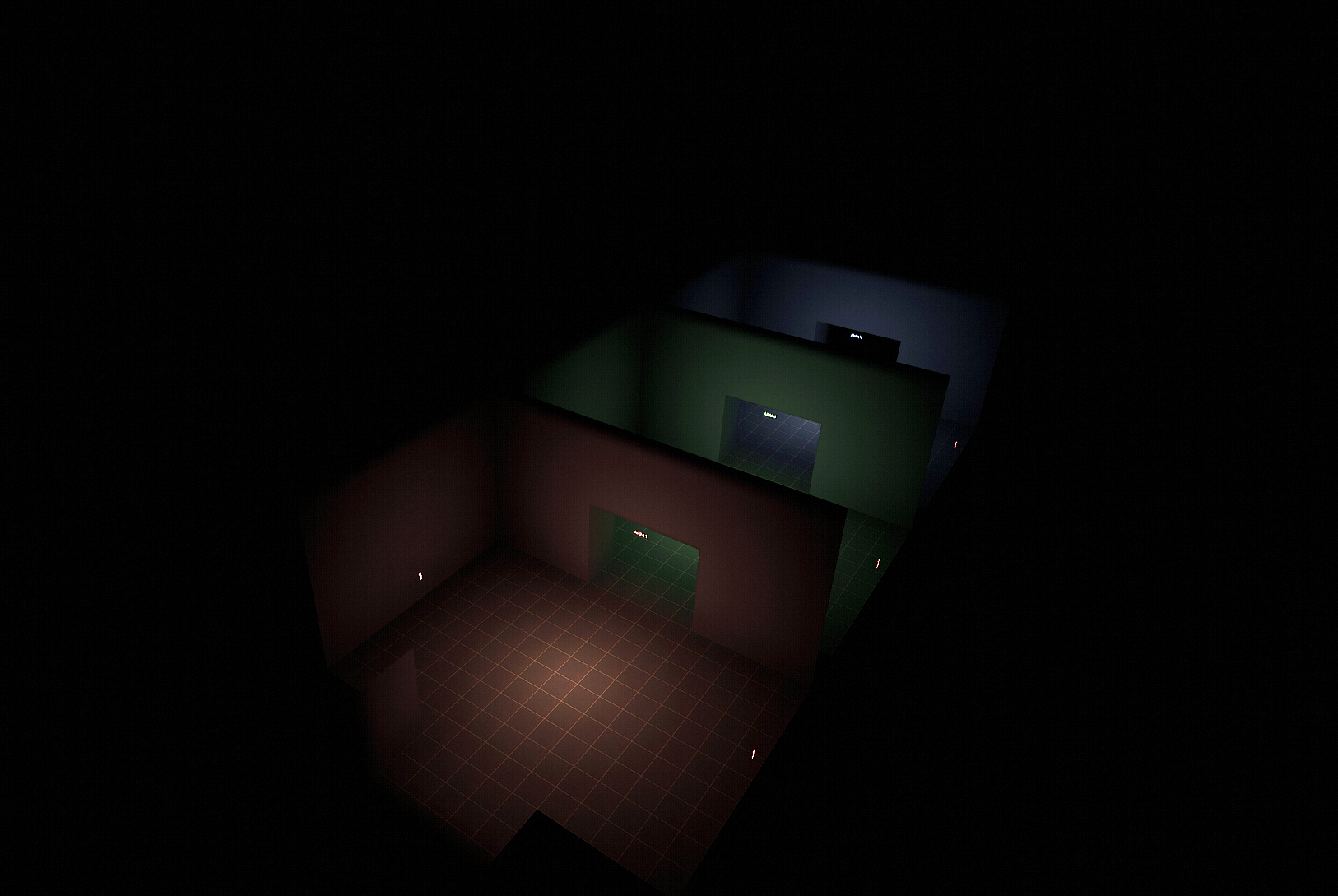
| Description | This map demonstrates the set up for checkpoints in game. It features three checkpoints which show how progress is marked as the player progresses through them. Using this map should enable you to set up a checkpoint and understand how checkpoint saves work in game. |