Add Traversals to a Map
Adding a traversal will allow an AI to jump, climb, leap, fly or otherwise move from one surface to another based on the existing animations programmed for that AI.
For more information about the types of traversal nodes, see: Traversal Editor Reference
Traversal Placement - Setup
Before you start placing traversal nodes into the map, you’ll need to prepare your map by building the nav mesh, loading an AI gen pack, and enabling traversal mode.
Build NavMmesh
- Select the all of the geometry (brushes) in the map and add them to a group.
For more information about creating a new group, see: Groups Tool Reference | Create a new group
- Name the group nav.
- Rebuild collision and navigation by going to: Build menu → Rebuild collision + Navigation
You can also use the Build Wizard to rebuild collision and navigation mesh.
- Open the View Options tool by going to: World Editor → Tools menu → View Options
- Select ( :ballot_box_with_check: ) the Show Nav option to display nav mesh in the World Camera.
Small, medium, large, and super options adjust the nav mesh for the size of different AI.
Load a Genpack
Genpacks specify the entity type for which you are placing traversal information, as well as the type of traversals being placed.
- With your map open in World Editor, open the Traversal Editor by going to: World Editor → Tools menu → Traversal Editor
- Open a Genpack containing all of the animations that can be used to build a traversal. Traversal Editor → Gen Pack menu → Open Genpack
- A filtered folder in Asset Browser will pop up. Select either a specific AI folder, and then a specific genpack. Or, select a genpack by category (small, medium, large).
Enable Traversal Mode
- In Traversal Editor, press the Toggle Traversal Mode button.
Once Traversal Mode is toggled on and a node type is selected, the mouse cursor changes to a +.
Traversal Mode prevents other entities in the map from being selected.
Traversal Placement - Single-Standard Node
- Ensure you’ve completed Setup steps above.
- In the Traversal Editor, press the Single-standard Mode button to select the single-standard traversal type.
- Ctrl + Left-click in the World Camera to place the start point of the traversal. (A yellow dot will appear.)
- Ctrl + Left-click to place the second point (endpoint) of the traversal.
If there is no nav mesh underneath a placed node, or the tool cant find an appropriate animation that fits the space, the tool will not place the traversal.
- Define the span (available width) of your start point by dragging the yellow extrusion arrow on the traversal widget.
Traversal Placement - Chain Node
- Ensure you’ve completed Setup steps above.
- In the Traversal Editor, press the Chain Mode button to select the chain traversal type.
- Ctrl + Left-click in the World Camera to place the start point of the chain node. (A yellow dot will appear.)
- Ctrl + Left-click to place the second point (endpoint) of the first chain traversal node.
- Now, to add linking nodes that form the chain, select the Add button.
- Then, press Ctrl + Left-click in the World Camera. Link nodes will automatically connect to the currently selected chain node.
If your chain includes wall climbs, ensure the loaded Genpack supports wall climbs.
You will also need to toggle the wallclimb button for nodes in the chain where you’d like the tool to ignore nav and select animation based on the geometry surface.
- To end a chain, press the Chain-Single Mode button.
- Then Ctrl + Left-click to place the Chain-Single node at the end of the chain. (This node stops the chain and allows AI to exit.)
Ctrl + J will quickly link a newly placed chain traversal node to the last chain traversal node you placed.
Traversal Placement - Universal Node
- Ensure you’ve completed Setup steps above.
- In the Traversal Editor, press the Universal Mode button to select the universal traversal type.
- Ctrl + Left-click in the World Camera to place the start point of the traversal. (A yellow dot will appear.)
- Ctrl + Left-click to place the second point (endpoint) of the traversal.
If there is no nav mesh underneath a placed node, or the tool cant find an appropriate animation that fits the space, the tool will not place the traversal.
- Define the span (available width) of your start point by dragging the yellow extrusion arrow on the traversal widget.
You can add multiple traversals to already placed nodes. Select the Ultimate traversal type, then toggle the Add option, before selecting the existing traversal nodes.
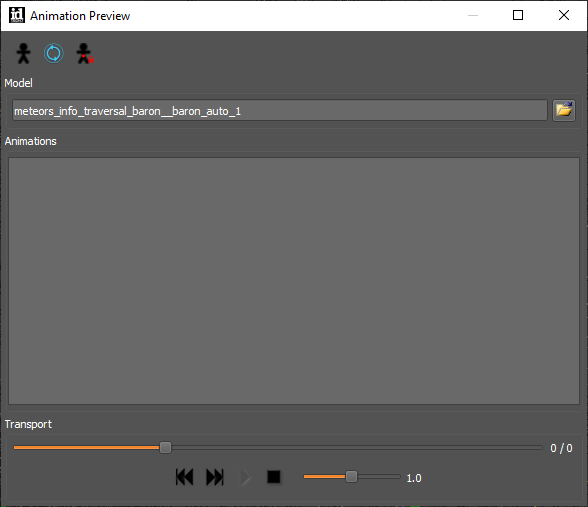
Animation Preview
Animation Preview allows you to watch and adjust the animations attached to each traversal in World Camera.
When a traversal node is selected, Animation Preview lists the animation files contained on that node. Select a single animation from the list and press the play button to see the animation in World Camera. You can change the playback rate or scrub through the animation using the control options.
Open Animation Preview by going to: idStudio menu → Editors → Animation Preview.