String Editor
The String Editor is used to manage and edit string resources for the game. It replaces the lang file system completely, treating strings as individual resources loaded by the engine. This is a more natural approach for game development and is similar to editing decls for content creation in-game. There is one main english.lang file plus feature-specific lang files that are compiled together into one blang.
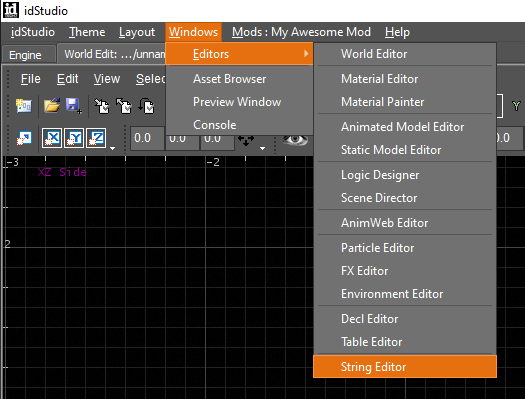
To open the editor from in-game, use the command editstrings.
String Editor Interface
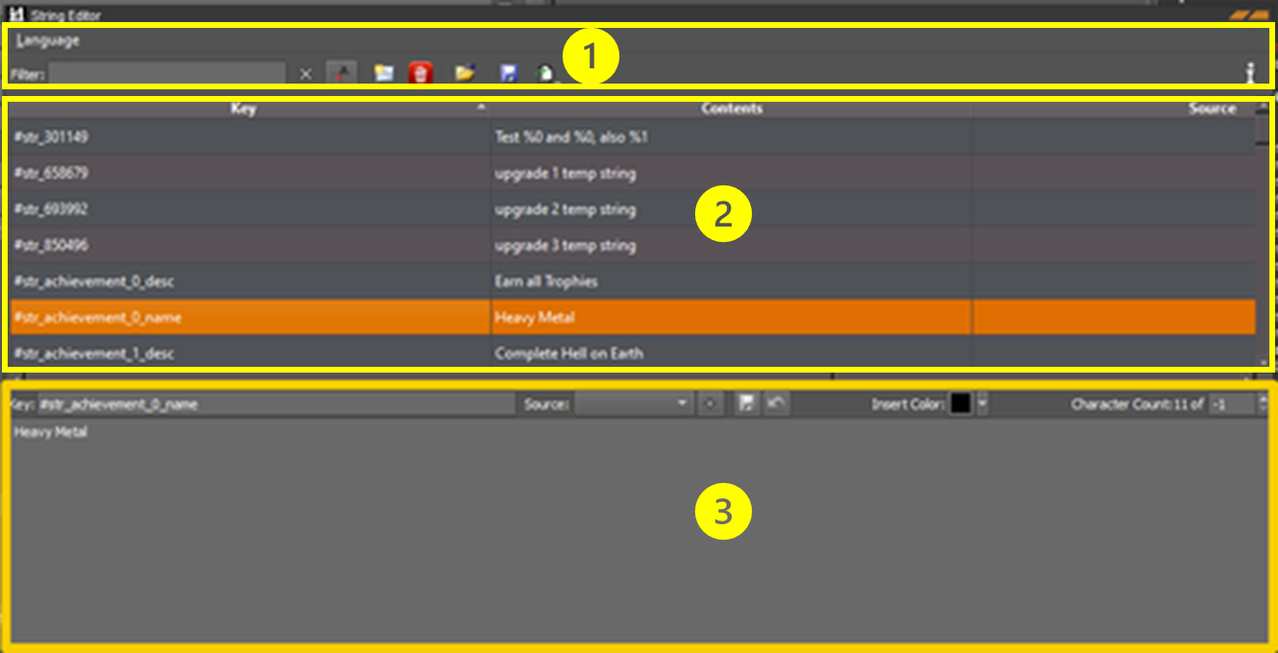
1 - Toolbar
The toolbar contains:
- A Language dropdown menu
- A Filter search box
- Various buttons for Save, Open, New, etc.
2 - String Table
This section displays the string table or a filtered subset of the string table.
There are three columns for each string:
- Key: A string key is a unique identifier which is consistent across all localizations.
- Contents: Contents show the text that will be displayed in-game.
- Source: The source is the
langfile or feature-specificlangfile the key comes from.- If this column is left empty, the source used is the base lang file (e.g.
english.lang).
- If this column is left empty, the source used is the base lang file (e.g.
3 - Edit Area
This section allows you to edit the selected string.
Filtering Strings
You can use the Filter search box in the toolbar to locate existing strings (see image below). The filter can use string keys, contents, or sources to sort strings.

The Case-Sensitivity button controls whether the filter is case-sensitive or not.

The search history is saved on shutdown and persists across launches of idStudio.

Localization
Use the Language dropdown to switch between language files. Click on Language and select your desired language, as in the image below.

Editing Existing Strings
-
Select the string you want to edit from the list.
infoSome editing options will appear towards the bottom of the String Editor.
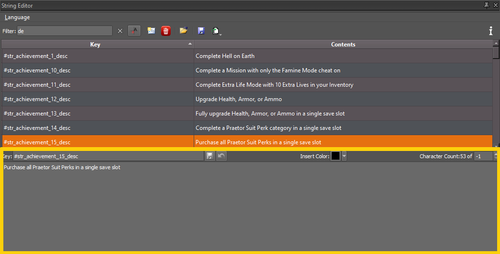
-
Edit the string key directly.
infoThe String Editor will validate your changes. If the key already exists, the Editor will provide a warning and block you from saving the new key. See the image below as an example of the warning provided.

-
Select the lang file used as a source for the string key using the Source dropdown, shown below.

This dropdown lists all available feature-specific lang files. Use the + button next to the Source dropdown to add a new feature-specific lang file.
infoIf nothing has been selected in this dropdown, the string will be left in the base lang file (e.g.
english.lang). -
Edit the string body using the Insert Color dropdown, as shown below.
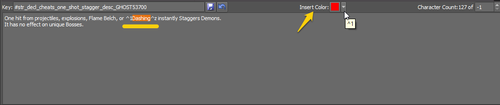
This will insert id Tech color markup around any selected text.
-
Use the Character Count box to limit string length, as shown below.
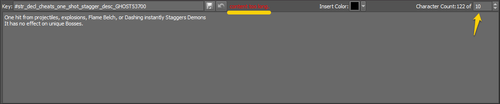
This feature is used when there are UI space constraints. There are two possible results based on the value you choose, shown in the table below.
Value Result Set to -1The string will not have a maximum length. Set to >-1The string will have the corresponding length. infoIf the string is too long, the Editor will provide a warning and block you from saving it.
-
Use the Save button shown below to save your changes to the string table stored in memory.
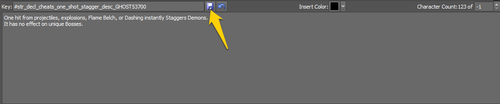
Your changes will then be available immediately in-engine.
Adding New Strings
There are two ways to add new strings:
- Using the Wizard
- Importing from CSV
From the Wizard
- To open the new string wizard, click the Create A New String button in the toolbar (or CTRL + N).
- Select a Prefix and Component.
- These will become the first part of the string key.
You can add new prefixes and components to the file game/base/idstudio/string_editor.state.
You must add a user key, this will become the second part of the string key.
You can save your selections as a preset, which may speed up the process of adding many strings of similar types. When you make a new string, it will remember the last preset you used.

3. Save to update the string table.
Certain characters may be processed incorrectly when imported from CSV, namely special characters (e.g. ^ and '). To ensure that a string is read correctly, put quotation marks around the string. For example:
-
0Hiwill incorrectly import as0 Hi. -
"0Hi"will import correctly as0Hi.
Import From CSV
-
Bulk import many strings using the Import from CSV button (CTRL + I).
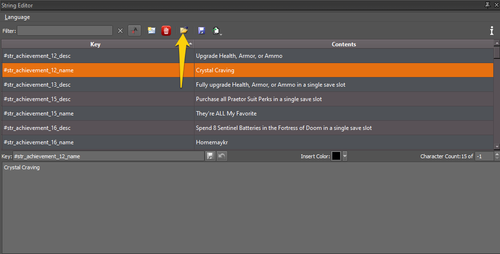
-
Your file must be saved as a csv and must contain only two columns:
-
String ID
-
String Contents

-
Removing Strings
-
Select one or more strings.
-
Hit the red Trash button to delete the string(s).
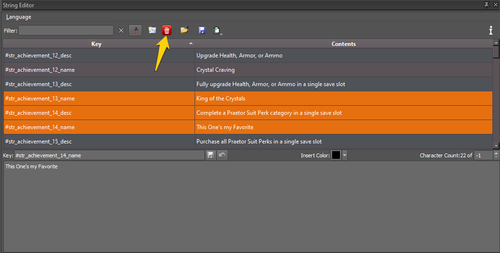
-
Save to update the string table.