DOOM Eternal Mods FAQ
System Requirements
What are the System Requirements for playing DOOM Eternal?
If you are looking for the system requirements for DOOM Eternal with Ray Tracing enabled, please see this article: What are the System Requirements for running DOOM Eternal in Ray Tracing mode?
PC Ultra-Nightmare Specs
(2160p / 60 FPS / Ultra-Nightmare Settings) OR (1440p / 120 FPS / Ultra-Nightmare Settings)
| Operating System | Windows 10 64-bit version |
| Processor | Intel Core i9-9900K or better, or AMD Ryzen 7 3700X or better |
| Memory | 16 GB System RAM |
| Graphics Card | NVIDIA GeForce RTX 2080 Ti (11GB) or AMD Radeon VII (16GB) |
| Network | Broadband internet connection |
| Storage | 50 GB hard drive space |
PC Recommended Specs
(1440p / 60 FPS / High Quality Settings)
| Operating System | Windows 10 64-bit version |
| Processor | Intel Core i7-6700K or better, or AMD Ryzen 7 1800X or better |
| Memory | 8 GB System RAM |
| Graphics Card | NVIDIA GeForce GTX 1080 (8 GB), RTX 2060 (6 GB) or AMD Radeon RX Vega56 (8 GB) |
| Network | Broadband internet connection |
| Storage | 50 GB hard drive space |
(1080p/ 60 FPS / High Quality Settings)
| Operating System | Windows 10 64-bit version |
| Processor | Intel Core i7-6700K or better, or AMD Ryzen 7 1800X or better |
| Memory | 8 GB System RAM |
| Graphics Card | NVIDIA GeForce GTX 1060 (6 GB), NVIDIA GeForce 970 (4 GB), AMD RX 480 (8 GB) |
| Network | Broadband internet connection |
| Storage | 50 GB hard drive space |
Note: On GTX 970 only - set Texture Quality to Medium
PC Minimum Specs
(1080p / 60 FPS / Low Quality Settings)
| Operating System | Windows 10 64-bit version |
| Processor | Intel Core i5 @ 3.3 GHz or better, or AMD Ryzen 3 @ 3.1 GHz or better |
| Memory | 8 GB System RAM |
| Graphics Card | NVIDIA GeForce 1050Ti (4GB), GTX 1060 (3GB), GTX 1650 (4GB) or AMD Radeon R9 280 (3GB), AMD Radeon R9 290 (4GB) or RX 470 (4GB) |
| Network | Broadband internet connection |
| Storage | 50 GB hard drive space |
HDR is available on PC, hardware permitting
What are the System Requirements for the DOOM Eternal: idStudio (Beta)?
Minimum System Requirements
| Operating System | Windows 10 64-bit version |
| Processor | Intel Core i7 @ 4.2 GHz or better, or AMD Ryzen 7 @ 3.7 GHz or better |
| Memory | 32 GB System RAM |
| Graphics Card | NVIDIA GeForce GTX 1060 (6 GB), AMD Radeon RX 580 (8 GB) or better |
| Network | Broadband internet connection |
| Storage | 200 GB available space |
Recommended System Requirements
| Operating System | Windows 10 64-bit version |
| Processor | Intel Core i9 @ 3.2 GHz or better, or AMD Ryzen 9 @ 4.7 GHz or better |
| Memory | 64 GB RAM |
| Graphics Card | NVIDIA GeForce GTX 3080 Ti (12GB), AMD Radeon RX 6750 XT (12GB) or better |
| Network | Broadband internet connection |
| Storage | 500 GB available space |
Which platforms will DOOM Eternal Mods be available on?
The DOOM Eternal Launcher and mods is available on Steam (PC) and Microsoft Store (PC).
Which platforms will DOOM Eternal: idStudio (Beta) be available on?
DOOM Eternal: idStudio (Beta) is available on Steam (PC).
About Mods
I don't want to play or make mods – How do I launch the base game?
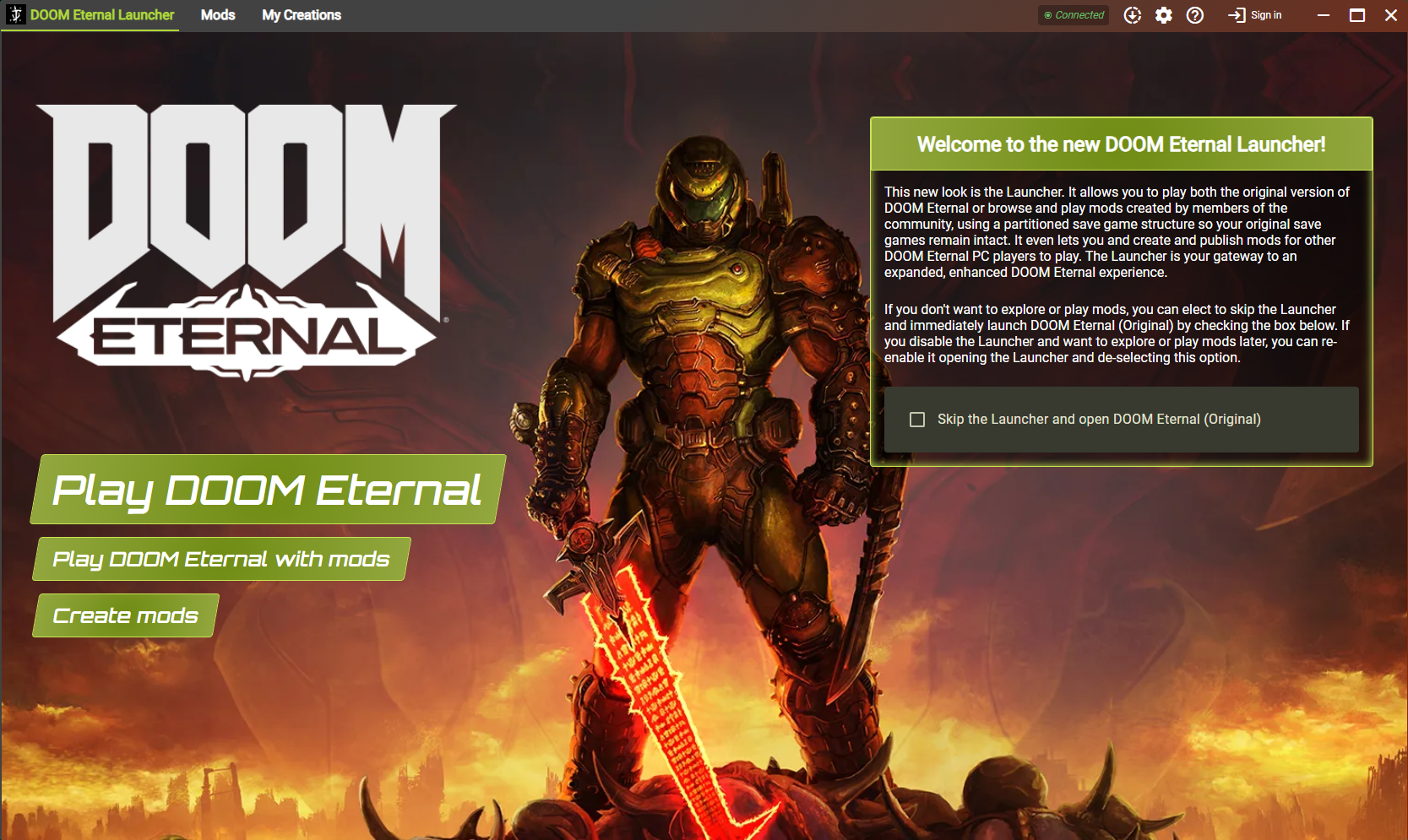
In the DOOM Eternal Launcher, select Play DOOM Eternal button. This will launch the game normally, without mods.
Are DOOM Eternal Mods part of the Bethesda Game Studios Verified Creator Program?
DOOM Eternal Mods are not part of the Bethesda Game Studios Verified Creator Program.
How do I opt-in to the Microsoft Store PC Mod Preview?
- Join the Xbox Insider program
- Press the Start button , type store, then select Microsoft Store
- Select Search, enter insider in the box, then select Xbox Insider Hub
- Select Get or Install
- For more info on the Xbox Insider Hub and how to get it on your Windows device, see: Get the Xbox Insider Hub app
- Once you have the Xbox Insider Hub app installed, launch it and select Previews
- Locate, select and Join DOOM Eternal - PC Mod Preview (note - you must own DOOM Eternal or have it installed via your PC Game Pass or Xbox Game Pass Ultimate subscription)
Are there any risks to modding DOOM Eternal?
User experience may vary when playing with mods. If you elect to download and use mods, you do so at your own risk. Mods are "Game Mods" as described in our Terms of Service. Your download of a Game Mod is subject to our Terms of Service, including Section 2.D.
Is there a Discord server I can join for DOOM Eternal Mods?
Visit the official DOOM discord at: discord.gg/DOOM and join the modding channels.
Working with mods
Where can I find mods made for DOOM Eternal?
You can browse and find mods using the DOOM Eternal Launcher on the "Mods" tab, or by going to: https://mods.bethesda.net/doometernal
How do I install a DOOM Eternal mod?
You can install and play a DOOM Eternal mod by doing the following:
- Launch DOOM Eternal and select the "Mods" tab on the Launcher.
- Click the Browse page.
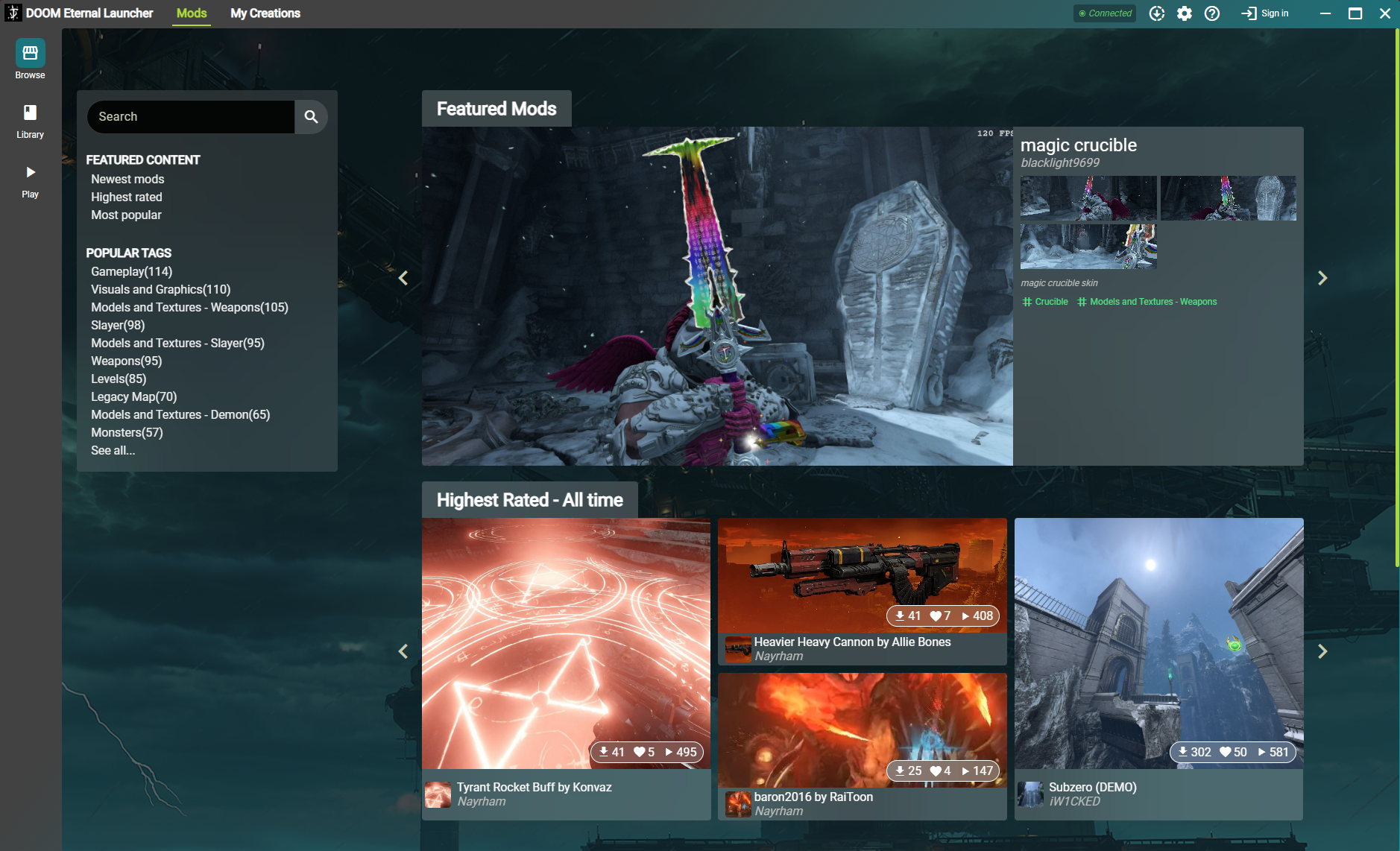
- Browse and find a mod you want to install.
- Select the mod you wish to install and then click "Download".
- You can also add mods from the Bethesda.net site and select the "Add to Library" option.
- Make sure to read the description of the mod to verify if it has load order requirements.
- Once installed, launch DOOM Eternal with Mods via the "Play" page.
In some cases, you may need to ensure your mods are loading in the correct order. To do so, drag and drop the order you wish to load the mods in "Play Mods" tab on "Mods" page in the DOOM Eternal Launcher.
User experience may vary when playing with mods. If you elect to download and use mods, you do so at your own risk. Mods are "Game Mods" as described in our Terms of Service. Your download of a Game Mod is subject to our Terms of Service, including Section 2.D.
Why am I not getting the option to download mods from the "Mods" section of Bethesda.net?
When browsing Mods on the Bethesda.net website, you only need to click the Add to Library button. This will add the mod to your in-game Library. Then when you next open the DOOM Eternal Launcher, the "added-mod" will be available for download in your library.
What do I do if I can't access or log into Mods in DOOM Eternal?
If you are having trouble accessing or logging into Mods in the DOOM Eternal Launcher or website:
- Check the Bethesda Support Twitter account to see if there are any planned maintenances or outages.
- Try using [SHIFT] instead of [CAPS LOCK] when entering capitalized letters.
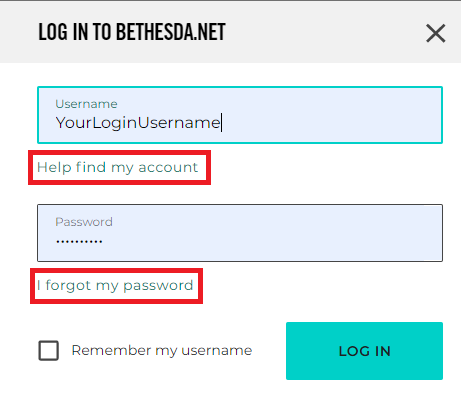
- Verify username and password details by signing in to your Bethesda.net account here.
- If you have forgotten your username, select "Help find my account"
- If you have forgotten your password, select "I forgot my password"
- If you are connected to the internet via wireless, try switching to a wired connection and see if there is any improvement.
- If there is another network available, try connecting to it instead and see if there is any improvement.
- Reboot your home network by turning off your modem and / or router.
- To ensure a hard reset, we recommend you to unplug your modem's or router's power connections and wait a few minutes before plugging them back in and turning the device back on.
How do I report an inappropriate mod?
From our mods page, select the mod to open its detail page. From there, click on the flag icon on the top of the Mod page to report it. When reporting a mod on Bethesda.net, you will need to provide a primary reason for the report. Please provide as much additional detail as possible in the "Other comments?" field when submitting a report.
In the DOOM Eternal Launcher, on the mod's details page you will see a "Report mod" option under the "mod management" menu button to the right.

Clicking this option will pop up a new window asking you to provide a primary reason for the report. Please provide as much additional detail as possible in the "Other comments?" field when submitting a report.
How do I uninstall a mod from DOOM Eternal?
Users are given the option to uninstall any mod from their library at any time. To uninstall a mod:
- Open any installed mod in DOOM Eternal Launcher
- On the mod's "details" page, click the "menu" button
- Select the "Uninstall mod" option
- Confirm your decision to uninstall the mod on the pop-up dialog

What is the difference between "Uninstall" and "Remove from library"?
Removing a mod from the Library is slightly different from simply uninstalling the mod. This action will not only uninstall the selected mod, but it will also remove it from the "installation history" ("In Library" section) of your Library. To do this:
- Open any mod in DOOM Eternal Launcher.
- Under Mods, and on the mod's "details" page, click the "menu" button.
- Select the "Remove from Library" option
- Confirm your decision to uninstall and remove the mod from your library on the pop-up dialog.

Note that this action can be performed on any mod in your library not just on installed mods.
How can I arrange load order for installed mods for DOOM Eternal?
When starting a modded session of any game the engine must load each mod one at a time on top of each other. Oftentimes, you can have several mods that alter the same assets in different ways. This is why setting a "load order" for mods is especially important. Different load orders can affect how mods interact with each other based on which mod edits what assets.
To set a mod load order:
- Open the DOOM Eternal Launcher.
- Click on the "Mods" tab.
- Sign into a valid Bethesda.net account.
- Click on the "Play" page.
- Click on any mod in the "Installed mods" list to add it to the "Active mods" list.
- Moving installed mods to an "active" state puts those mods in the load order.
- Drag and drop mods within the "Active mods" list to re-order them into the desired load order, with the top-most mod being the first mod that is loaded and the mod at the bottom of the list being the last mod that is loaded.
The mod load order is saved every time a new mod is brought into the "Active mods" list or when the "Active mods" list is re-ordered. This load order is persisted on disk so that it will remain the same until you change it.
Creating Mods
What tools do I need to start modding DOOM Eternal?
You will need to install "DOOM Eternal", and "DOOM Eternal: idStudio" to start modding DOOM Eternal. This can be found on its Steam page here
How do I install the modding tools for DOOM Eternal? (Steam only)
- You must own a copy of DOOM Eternal.
- Install the "DOOM Eternal: idStudio" application to the same drive that DOOM Eternal is installed on.
- The tools require the base game to function.
You automatically own DOOM Eternal: idStudio, if you own DOOM Eternal on Steam. You will then need to install "DOOM Eternal: idStudio".
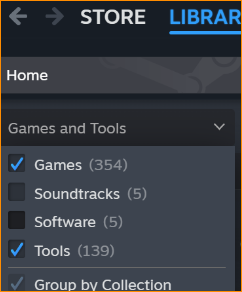
It will be available under "Tools" in your Library. Ensure Tools option is checked from the 'Games' Dropdown. This will show all Games and Tools in your game list.
What are id Assets in DOOM Eternal Mods?
id Assets are asset or map packs designed to help users create bigger and better mods. Each individual pack represents a different part of the game and the assets available to it. These were separated from the main game tools as they can quickly become very large. You do not need to install all of them to mod, you can tailor what you download to what you need.
How do I make a new mod for DOOM Eternal?
All mods should be built/packaged via idStudio before being uploaded to the DOOM Mod servers.
To create a new mod in the DOOM Eternal Launcher:
- Open the DOOM Eternal Launcher.
- Use the "sign in" button in the application title bar to sign in to a valid Bethesda.net account.
- Click the "My Creations" tab.
- On the "My Creations" tab, select the "idStudio" page.
- On the "idStudio" page click Create new mod in idStudio (button with idStudio icon)
- This will open the idStudio tool.
- In idStudio fill out a mod name, overview, and description; then create your mod using the tools.
- Once you feel the mod is ready, use the
Mods → {{mod name}} → Package Mod...to package the mod into a valid/uploadable mod. - Finally, in idStudio, click the
Mods → {{mod name}} → Upload Mod...to open the DOOM Eternal Launcher's mod upload wizard.
- In the Launcher, use the mod upload wizard to adjust the mod's information
- To upload your mod to the mod servers, click the "Upload mod" button
- After the mod has finished uploading to the mod servers use the "Publish mod" button to make the mod public